How do I see attendance for one project?
On the Site Attendance page, click the project in the Project Sites panel. The cards and lists then show only that project.
Before you start
- Projects only appear in the Project Sites panel when they have check-ins for the chosen date.
Steps
- In the left menu, under Field Operations, click CheckIns, then click Site Attendance.
- In the Project Sites panel, click the date button and pick the day you want.
- Find your project. Type part of its name in Search project sites... if the list is long.
- Click the project card. It's highlighted with a blue border and its name shows above the lists, in place of All Projects.
- To show only one company's workers, click Filter, choose a Company, then click Apply Filter.
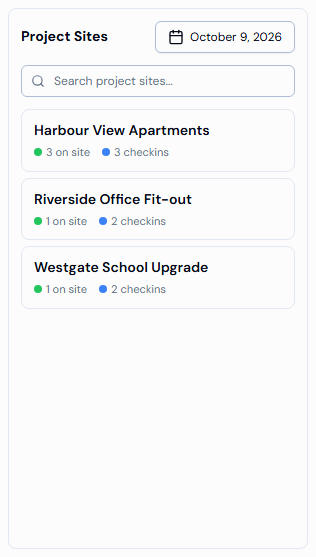
What the project card numbers mean
- on site (green dot): people checked in at the project who haven't checked out yet.
- checkins (blue dot): check-ins completed at the project on that day.
- A number only shows when it's more than zero.
Good to know
- To go back to all projects, click the same project card again.
- To remove every filter (date, project and company), click Clear Filters (the funnel icon with a cross).
- On a phone or small screen, the Project Sites panel is hidden. Tap All Projects at the top of the lists to open it.
If something goes wrong
- No Check ins found in your projects.: no project had check-ins on that date, or your search didn't match. Pick another date or clear the search box.
- The Company box is greyed out: select a project first.
- No companies found.: the selected project has no companies added to it.