How do I see who's on site?
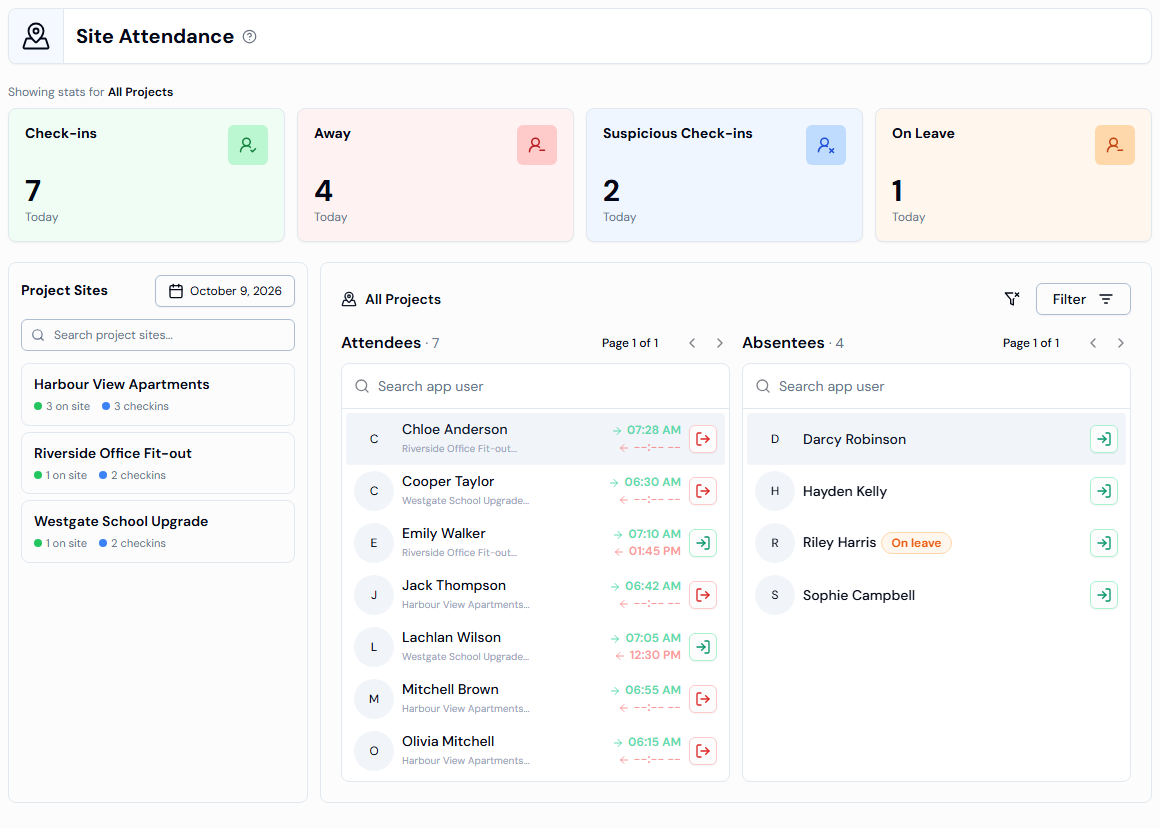
Open the Site Attendance page. The Attendees list shows who checked in today, and anyone with no check-out time is still on site.
Steps
- In the left menu, under Field Operations, click CheckIns, then click Site Attendance. You can also click Site Attendance > on the Dashboard.
- Read the summary cards at the top: Check-ins, Away, Suspicious Check-ins and On Leave.
- Look at the Attendees list. Each person shows the project, their check-in time (green arrow) and check-out time (red arrow).
- Anyone whose check-out time shows --:-- -- hasn't checked out yet, so they're still on site.
- Click a person's name to open their profile and check-in details.
Good to know
- Absentees are people who didn't check in. An orange On leave badge means they're on approved leave.
- To look at an earlier day, click the date button in the Project Sites panel and pick a day. You can't pick a future date.
- Type in the Search app user box above a list to find someone. Each list shows up to 30 people at a time.
- Site Attendance may appear directly under Field Operations instead of inside CheckIns, depending on how your account is set up.
- To narrow it to one site, see How do I see attendance for one project?
If something goes wrong
- No attendees for this date. or No absentees for this date.: nobody matches the date, project or company you picked. Try another date or click Clear Filters.
- The project menu items in Field Operations only show once your account has at least one project.