How do I send an emergency alert?
Go to Emergency Notification, click Send Alert, write the message, tick who should receive it and click Sent.
What an emergency alert is
- An urgent alert you send to your app users, for example during a fire, evacuation or severe weather.
- Each person can reply to say whether they're safe.
Before you start
- Only app users can receive an alert. See How do I add an app user?
- Emergency Notification is in the Safety section of the left menu. If you can't see it, ask your Swift Checkin administrator.
Steps
- In the left menu, under Safety, click Emergency Notification.
- Click Send Alert in the top-right corner. The Alert Message window opens.
- Enter a Message Title (2 to 50 characters) and a Description (2 to 200 characters).
- Click Next.
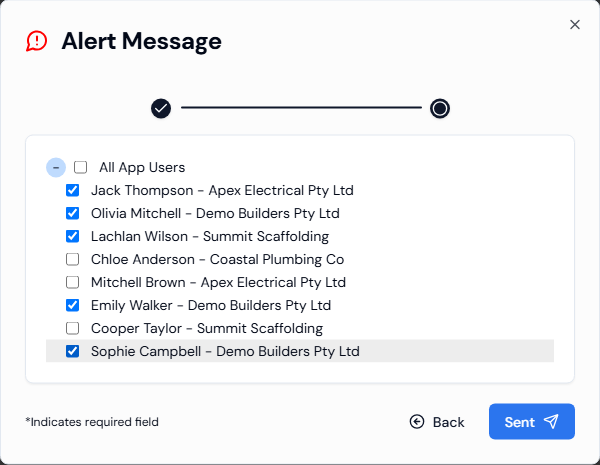
- Under All App Users, click + to open the list and tick each person who should receive the alert.
- Click Sent (the button with the paper-plane icon).
Good to know
- The Description isn't marked with a star, but you still need to fill it in.
- Clicking Back to change your message clears the people you ticked.
- You can't edit or delete an alert after you send it.
- The sent alert appears at the top of the Emergency Notifications list.
If something goes wrong
- Next doesn't move you on: check that Message Title and Description are filled in and the right length.
- Sent can't be clicked: tick at least one person.