How do I track alert responses?
On the Emergency Notifications list, click the alert's row or the eye icon in the Responses column. The Responses page shows each person's reply.
Steps
- In the left menu, under Safety, click Emergency Notification.
- Find the alert. Type part of its title in the Search... box if needed.
- Click the alert's row, or the eye icon in the Responses column.
- Read the Response column for each person.
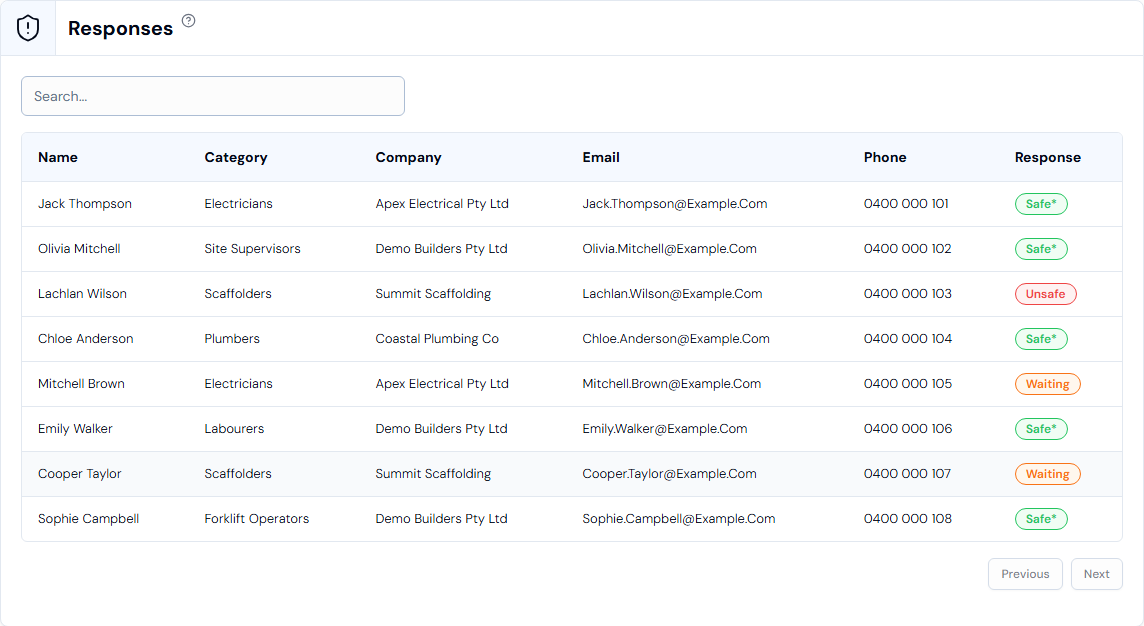
What each response means
- Safe (green): the person has replied that they're safe.
- Unsafe (red): the person has replied that they're not safe. Follow up with them straight away.
- Waiting (orange): the person hasn't replied yet.
Good to know
- Check the Waiting and Unsafe people first. These are the people you may need to contact by phone.
- The Responses page also shows each person's Category, Company, Email and Phone.
- Type a first name in the Search... box to find someone quickly.