What are the ways to check in and out?
People can check in and out by hand in the app, by scanning a QR code, or by geofence. They can also be checked out automatically, or checked in and out by an office user.
Check-in and check-out methods
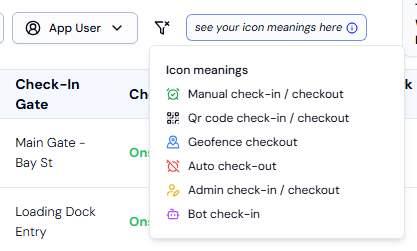
| Icon name | What it means |
|---|---|
| Manual check-in / Manual checkout | The person checked in or out by hand in the app. |
| QR code check-in / QR code checkout | The person scanned a QR code at the site. |
| Geofence check-in / Geofence checkout | The app checked the person in or out because their phone entered or left the site area. |
| Auto checkout | The system checked the person out automatically, for example if they forgot. |
| Admin check-in / Admin checkout | An office user checked the person in or out from the admin platform. |
| Bot check-in | The check-in was recorded automatically, without the person doing it themselves. |
Where you see the method
- On the Checkin Records page, a small icon next to Check-In At and Check-Out At shows how the person checked in or out.
- Click see your icon meanings here above the table for a quick key, or point your mouse at an icon to see its name.
Good to know
- A geofence is an invisible boundary around a site location. The app needs the phone's location access to check people in and out by geofence.
- The purple robot Bot check-in icon only appears in the Check-In At column. Use it to spot check-ins you may want to look at more closely, for example before you approve a timesheet.
- To check someone in or out yourself, see How do I check someone in or out by hand?