How do I create a budget?
On the Budgets page, choose the project, click Add Budget, fill in the details and click Create.
Before you start
- The project must already exist.
- You need an admin role that can manage budgets. Project member users don't see the Add Budget button.
- The Budgets feature must be switched on for your organisation.
Steps
- In the left menu, under Finance, click Cost Management, then Budgets. In some accounts, Budgets is directly under Finance.
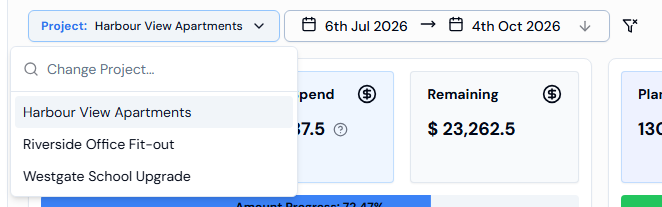
- Click the Project: button and pick the project. Type in Change Project... to search.
- Click Add Budget at the top right.
- Fill in Budget Name (2 to 50 characters), Quantity (expected work hours), Unit Cost (hourly rate), Start Date, End Date and Status.
- Optionally, add a Description, Opening Amount, Opening Hours, and turn on High Risk Work if the work involves risk.
- Click Create. You'll see Budget created successfully.
Good to know
- Opening Amount and Opening Hours are money spent and hours worked before you started tracking in Swift Checkin.
- Quantity and Unit Cost can't be changed after the budget is created. If the work changes, add a change order. See How do I add a variation (change order)?
- You can also create a budget when you create a project, by turning on Include Budget. See How do I create a project?
If something goes wrong
- A message appears under a field: a required field is empty or the name is too short. Fix it and click Create again.