How do I read the budget page?
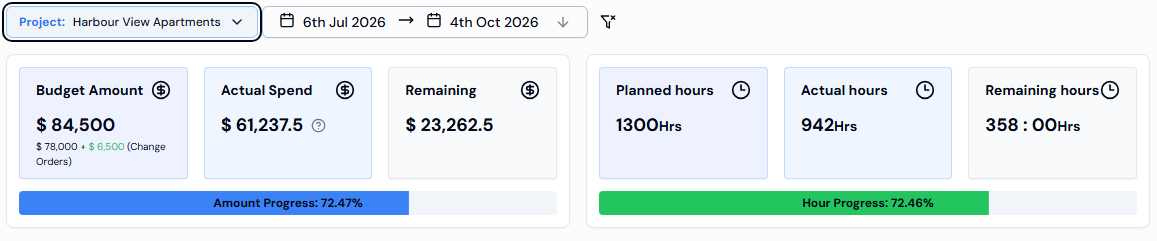
Pick a project and date range, then read the cards from top to bottom: money planned versus spent, hours planned versus worked, then the Labour Cost chart and the budget table.
Choosing what you see
- Click the Project: button and pick the project. The dates are set to the budget's planned start and end dates.
- Click the date button to pick a different start and end date.
- Click Clear Filters (the funnel icon with a cross) to start again.
Money cards
- Budget Amount: the total money budgeted, plus any change orders.
- Actual Spend: labour cost so far, from hours worked and pay rates.
- Remaining: how much of the budget is left.
- Amount Progress: how much of the budget has been used, as a percentage.
Hours cards
- Planned hours, Actual hours and Remaining hours. Remaining hours in red means you've gone over.
- Hour Progress: stays green within budget and turns red over 100%.
Budget table
- Lists all budgets for the project with Budget Name, Budget Hours, Unit Cost, Budgeted Amount and, if any, Change Orders.
- Click a row to edit, or click ... for Edit, Change Orders and Delete.
Good to know
- A ? icon next to Actual Spend means some workers have no pay rate. Hover over it to see who. The amount may be too low until you add their rates.
- No results. in the table means the project has no budgets yet.
- For the chart, see How do I compare labour cost with the budget?