How do I export a pay run to MYOB?
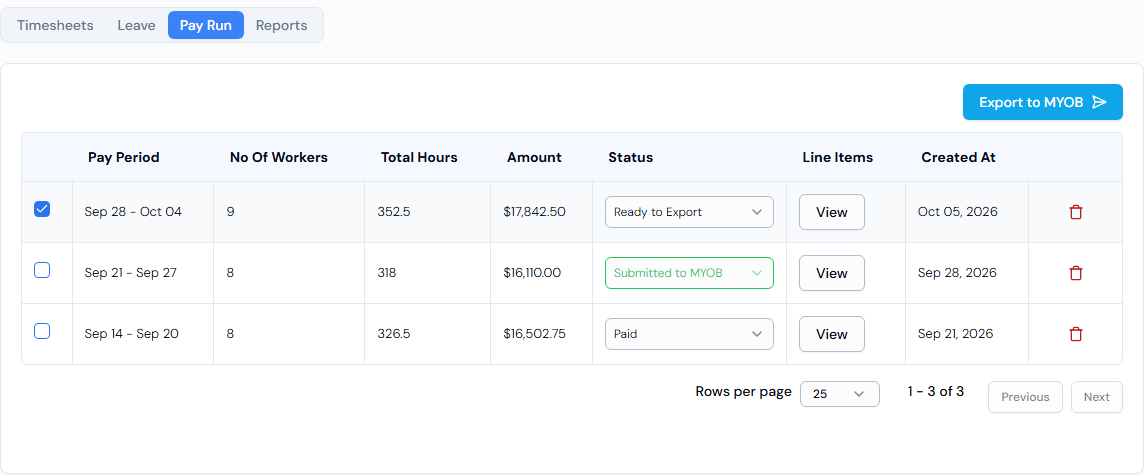
On the Pay Run tab of the Timesheets page, tick one pay run and click Export to MYOB. Then download the file and import it into MYOB.
Swift Checkin doesn't connect directly to MYOB yet. It makes a CSV file in MYOB's import format, and you import that file into MYOB yourself. A direct MYOB integration is coming.
Before you start
- Connect MYOB. Click your name at the bottom of the left menu, then Account. In Profile Settings, click Integrations. Under Supported Apps for Manual Export, find Myob, click Connect, then click Connect to Myob. Only one payroll program (Xero or MYOB) can be connected at a time.
- Map your columns. See How do I map MYOB import columns?
- Create a pay run from approved timesheets. See How do I create a pay run?
Steps
- In the left menu, under Field Operations, click Timesheets.
- Click the Pay Run tab.
- Tick the box next to the pay run you want. You can pick one pay run at a time.
- Click Export to MYOB.
- You will see PayRun exported to MYOB successfully. The file is added to your Downloads page.
- Download the file and import it into MYOB.
Good to know
- After importing into MYOB, change the pay run's Status to Submitted to MYOB, and later to Paid, so your team knows where it's up to.
- The MYOB statuses are Ready to Export, Submitted to MYOB, Paid and Failed.
- To find the file, see Where do I find exported files?
- For the whole process, including what to check before importing and how to fix failed timesheets, see How do I export timesheets to MYOB?
If something goes wrong
- No Pay Run tab – connect MYOB first.
- Failed to export PayRun. – try again. If it keeps failing, check your MYOB column mapping.