How do I send a pay run to Xero?
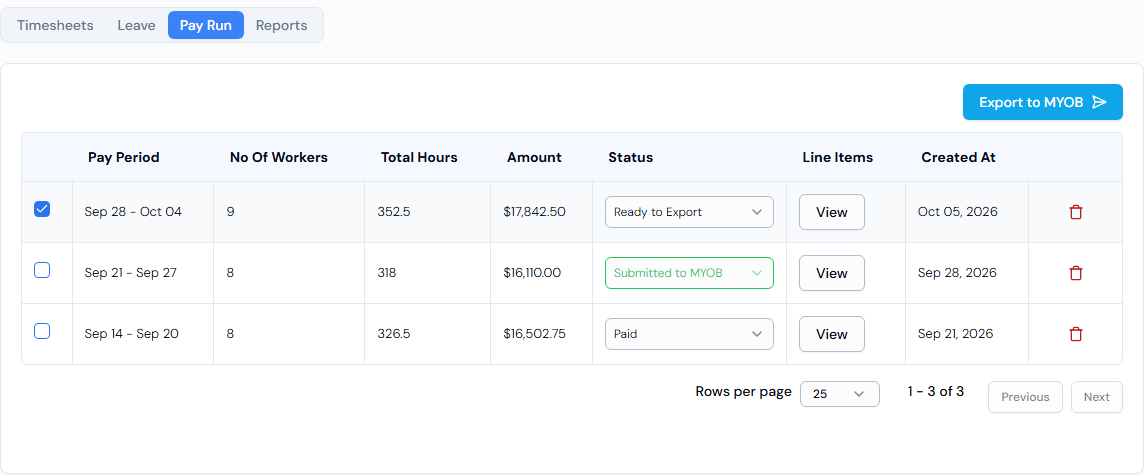
On the Pay Run tab of the Timesheets page, tick one or more pay runs and click Send to Xero.
Before you start
- Connect Xero. Click your name at the bottom of the left menu, then Account. In Profile Settings, click Integrations and connect Xero. Only one payroll program (Xero or MYOB) can be connected at a time.
- Set up pay items. In Profile Settings > Settings > Timesheet Settings tab, open Setup PayItems. Choose the matching Xero Pay Item for each one. You can click Sync PayItems from Xero to bring in your Xero pay items.
- Match your workers. Open Map Employees on the same tab to link each worker to their Xero employee record.
- Create a pay run. Xero pay runs are for employees only. See How do I create a pay run?
Steps
- In the left menu, under Field Operations, click Timesheets.
- Click the Pay Run tab.
- Tick one or more pay runs.
- Click Send to Xero.
- You will see PayRun sent to Xero successfully. The timesheets in it show Submitted to Xero.
- Later, click Sync from Xero to bring back the latest status from Xero. You will see Synced from Xero successfully.
Good to know
- Xero receives the whole pay run, not single timesheets. To pay someone, their approved timesheet has to be in a pay run first.
- A pay period can only be sent to Xero once. To send it again, first remove its timesheets in Xero.
- Click View in the Line Items column to see every line in the pay run.
- For what each status means, see What do the Xero statuses mean?
If something goes wrong
- Failed to send PayRun. – check your Xero connection and mapping, then try again.
- Sync failed. – Swift Checkin couldn't get the latest status from Xero. Try again later.
- Something is missing window when creating the pay run – click Go to Settings, finish Map Employees and Setup PayItems, then try again.
- Xero says the timesheet already exists for this pay period – this pay period was already sent. Remove it in Xero, then send again.
- For every reason with an example, see Why did my Xero export fail?