How do I create a crew schedule?
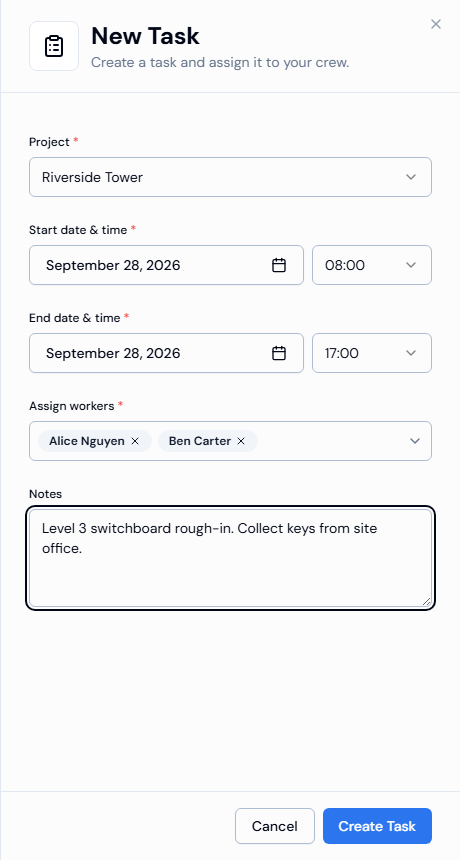
Open Scheduler, click New Task, choose the project, times and workers, then click Create Task. Each task says which workers will work on which project, and when.
Before you start
- The project must already exist.
- The workers you want to schedule must be active workers on that project.
Steps
- In the left menu, under Field Operations, click Scheduler. The Crew Schedule page opens.
- Click New Task in the top-right corner.
- Choose the Project.
- Set the Start date & time (starts at 08:00) and End date & time (starts at 17:00).
- In Assign workers, pick one or more workers.
- Optionally, add Notes, such as Collect keys from site office.
- Click Create Task.
Good to know
- Choose the project before the workers. Changing the project removes any workers you've already picked.
- You can't choose a date in the past. Times use the 24-hour clock in 15-minute steps.
- When you pick a start date, the end date changes to the same day. Change it if the work runs over several days.
- If you've filtered the schedule to one project, the panel opens with that project already chosen.
- A Heads up! message means the task was created for some workers but not others. Its ✅ line says who was scheduled and its ❌ line says who wasn't.
If something goes wrong
- End must be after start.: make the end later than the start.
- Assign at least one worker.: pick at least one worker.
- Project is required.: choose a project.