How do I edit a scheduled task?
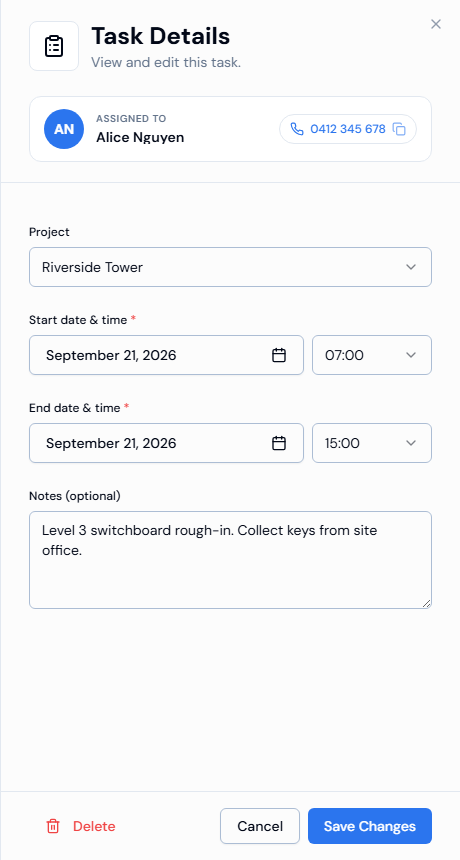
Click the task block on the Crew Schedule to open Task Details, make your changes and click Save Changes.
Steps
- In the left menu, under Field Operations, click Scheduler.
- Find the task using Today, the ‹ and › arrows, and Day / Week / Month. Filter by project or worker if the schedule is busy.
- Click the task block. The Task Details panel opens.
- Change the Project, Start date & time, End date & time or Notes (optional).
- Click Save Changes.
Good to know
- You can't change the worker here. To give the work to someone else, see How do I assign crew to a task?
- The Assigned to card shows the worker's phone number, if saved. Click it to copy it.
- You can't choose a date in the past. The end must be later than the start.
- A ✅ message (or Task has been updated successfully.) means it saved. A ❌ message means it didn't. A Heads up! message means only part of the change went through.
If something goes wrong
- End must be after start.: make the end later than the start.
- You can't pick the date you want: dates in the past can't be chosen.