How do I view crew schedules?
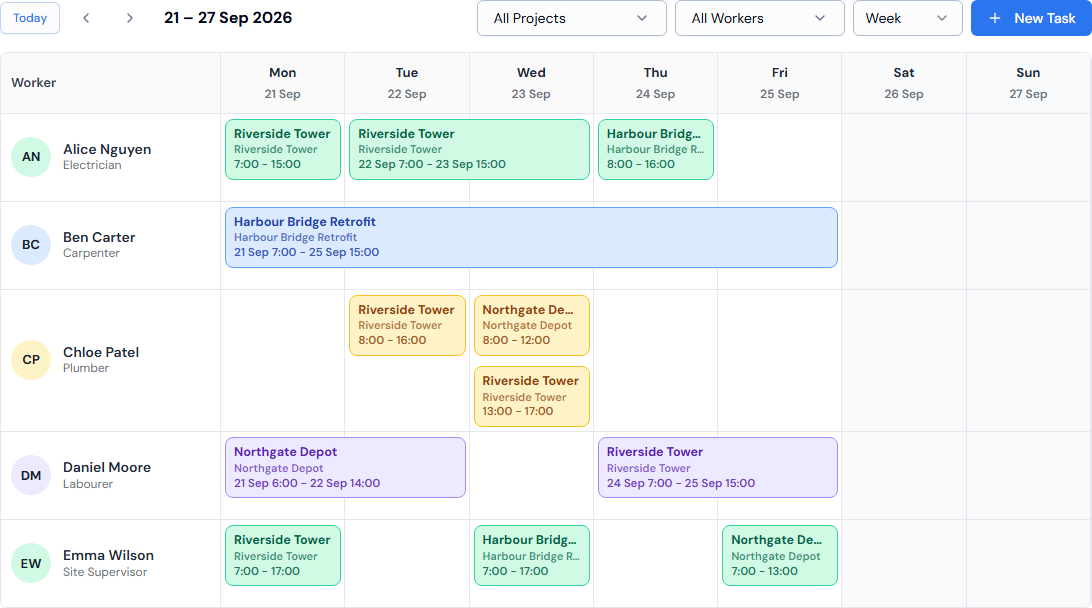
In the left menu, under Field Operations, click Scheduler. The Crew Schedule shows every worker's tasks on one calendar, starting with the current week.
Before you start
- Your organisation must have the Scheduler turned on, and at least one project must exist. Otherwise Scheduler isn't in the left menu.
How to read it
- Each row is a worker, with their name and job type. Workers with nothing booked are still listed, so you can spot who is free.
- Each column is a day. Weeks run Monday to Sunday, and weekends are shaded grey.
- Each coloured block is a task, showing the title, project and times. Colours only help tell workers apart.
Moving around
- Today jumps back to today and refreshes the schedule.
- The ‹ and › arrows go back or forward by one day, week or month.
- Day, Week or Month sets how many days you see. Month shows only task titles.
Filtering
- Click All Projects and tick one or more projects.
- Click All Workers and tick one or more workers.
- Click Clear filters in the toolbar to remove both filters.
- Pick exactly one project to see only that project's active workers. Changing the project filter clears the worker filter.
Good to know
- Times are shown in your computer's local time.
- Click a task block to open its Task Details. See How do I edit a scheduled task?
If something goes wrong
- A task you expect isn't showing: check the dates and view, then clear any filters.
- A worker is missing: check the worker filter. If one project is picked, only its active workers are listed.