How do I create a category?
Go to Safety > Category, click Add New, enter a name and description, add the document types the group needs, then click Create.
What a category is
- A group of workers who do similar work, such as "Electricians", "Labourers" or "Crane Operators".
- Each category has a list of document types those workers need, and you decide which are Mandatory.
- You must choose a Worker Category when you add a new app user.
Before you start
- You need at least one document type. See How do I create a document type?
Steps
- In the left menu, under Safety, click Category. The Worker Categories page opens.
- Click Add New in the top-right corner. The Create Category window opens.
- Enter the Category Name* (2 to 50 characters) and Description* (2 to 200 characters).
- Click the Document type button below the description.
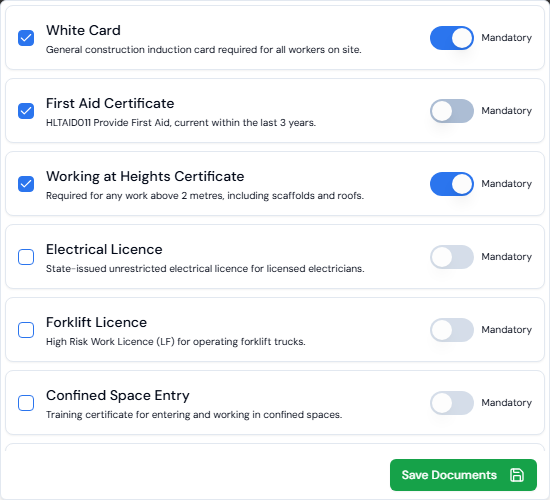
- Tick the box next to each document these workers need.
- For any ticked document workers must have, turn on the Mandatory switch.
- Click Save Documents.
- Click Create. You see "Category created successfully."
Good to know
- The Mandatory switch only works after you tick the document's box.
- To change your document choices before you create the category, click Document type again and click Update Documents.
- There's no option to edit or delete a category.
- To see a category's documents, click the arrow in the Documents column of the list.
If something goes wrong
- "Please add document type before creating category." Click Document type, tick at least one document, click Save Documents, then click Create again.
- No documents found. You haven't created any document types yet. Create one first.