How do I create a questionnaire question?
Go to Safety > Questionnaire, click Create, enter the question and who should answer it, add up to three answers, then click Create.
What a questionnaire is
- A set of check-in questions for the people who come to your sites, for example "Have you completed today's site induction?"
- Each question has up to three answer options. People answer by ticking an option.
Before you start
- Think about the exact wording first. You can't edit a question after you create it.
Steps
- In the left menu, under Safety, click Questionnaire.
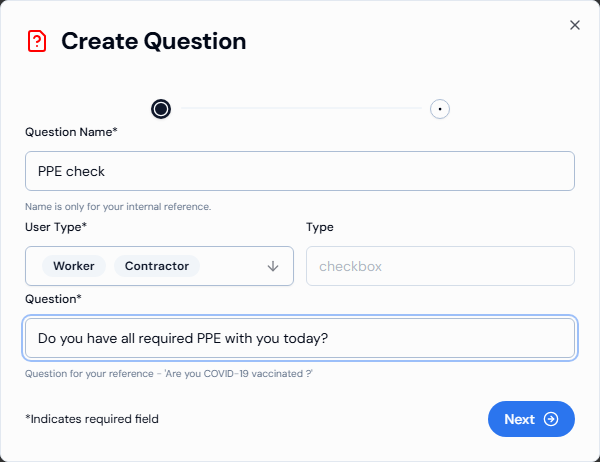
- Click Create in the top-right corner. The Create Question window opens.
- Enter a Question Name* to help you find it later (2 to 50 characters). Only admins see it.
- In User Type*, tick who should answer: Worker, Contractor, Site Manager or Visitor. You can tick more than one.
- Enter the Question* people will see (2 to 100 characters), then click Next.
- In Answer 1*, type the first answer, for example "Yes" (2 to 50 characters).
- To add another answer, click Answer Options. To remove one, click the X next to it.
- Click Create. You see "Questionnaire created successfully."
Good to know
- Type is already set to checkbox and can't be changed.
- To change a question later, delete it and create a new one. See How do I delete a questionnaire question?
- The Questionnaire page doesn't show the answers people have given.
If something goes wrong
- Next doesn't move on: check Question Name, User Type and Question are filled in and the right length.
- Can't add a fourth answer: each question can have a maximum of three answer options.
- Can't see Questionnaire: these features may not be turned on for your organisation. Ask your Swift Checkin administrator.