How do I upload a worker's documents?
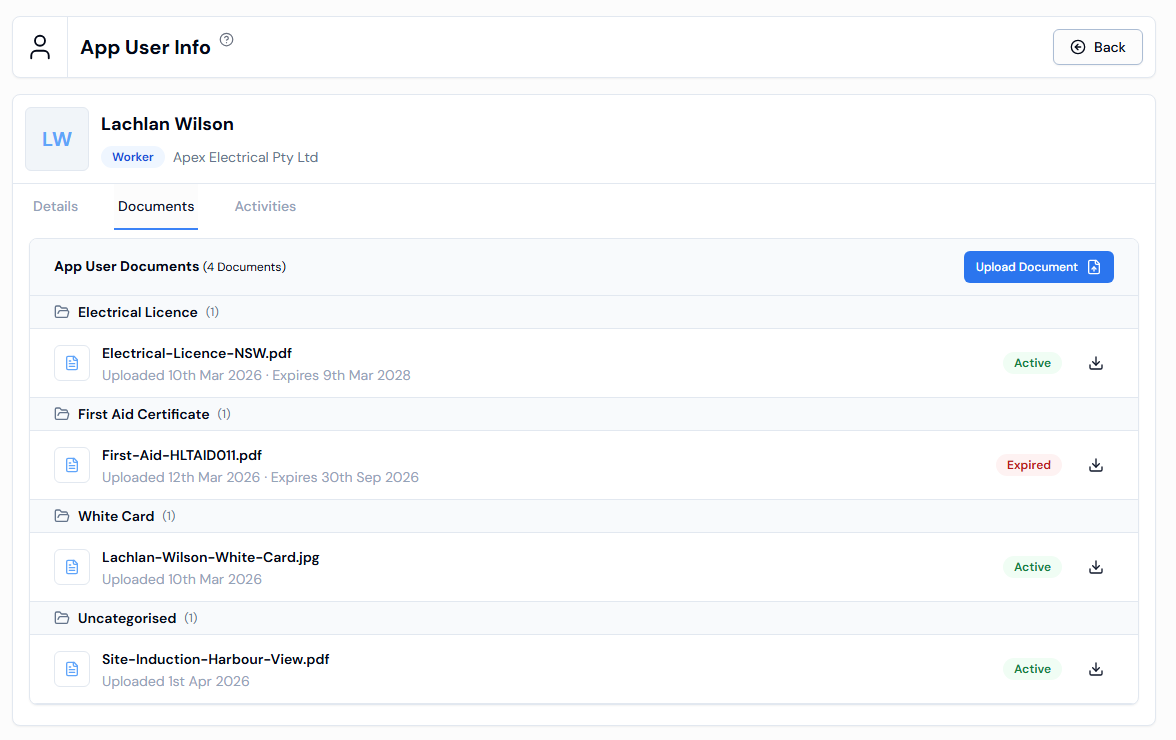
Open the worker in App Users, go to the Documents tab, click Upload Document, choose the file and click Upload.
Before you start
- The worker must already be added as an app user. See How do I add an app user?
- Have the file ready as a .jpeg, .jpg, .png or .pdf, up to 12 MB.
Steps
- In the left-hand menu, under Platform, click App Users.
- On the Active tab, click the worker's row. The App User Info page opens.
- Click the Documents tab.
- Click Upload Document. The Upload Document panel opens.
- Choose a Document Type, for example "White Card" (optional). If it's not in the list, click Add new type.
- Click Pick a date to set the Expiry Date (optional).
- In File*, click the box and choose the file.
- Click Upload. You see Document uploaded successfully.
Good to know
- Documents are grouped by Document Type. Documents without a type appear under Uncategorised.
- Each document shows its file name, when it was Uploaded, when it Expires (if set), and an Active or Expired label. See What does an expired document mean?
- Click the download icon to save a copy.
- The list shows 10 documents at a time. Use the arrow buttons at the bottom to see more.
- If there are no documents yet, you see No Documents Found.
If something goes wrong
- Please choose a file to upload: choose a file in the File* box before you click Upload.
- Allowed file types: .jpeg, .jpg, .png, .pdf: save the file as a PDF or image and try again.
- File must be 12 MB or smaller: make the file smaller and try again.