How do I add a company?
Go to Platform > Companies, click Add Company, fill in the company's details and click Create.
Before you start
- Have the company's name, ABN, phone number and address ready.
Steps
- In the left-hand menu, under Platform, click Companies.
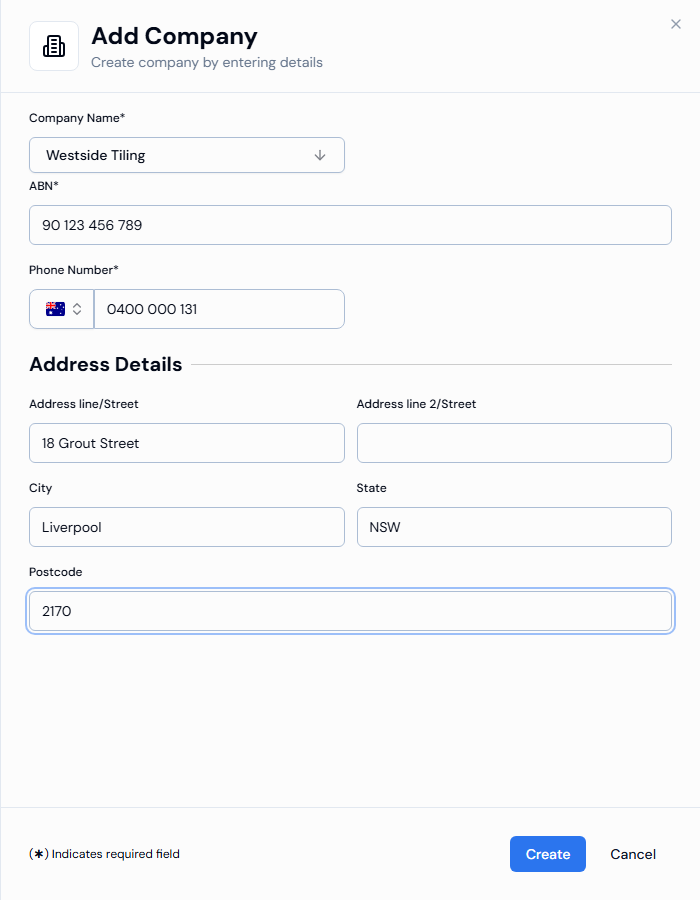
- Click Add Company in the top-right corner. A panel opens on the right.
- Type the company name in Company Name*, then click the name you typed at the bottom of the list.
- Enter the ABN*. The spaces are added for you.
- Enter the Phone Number*. Australia is the default country. To change it, click the flag.
- Enter the address. Address line/Street, City, State and Postcode are required. Address line 2/Street is optional, for example for a unit or level.
- Check the details, then click Create.
What happens next
- You see Company created successfully. and the company appears in your Companies list.
- Next, you can add members to the company or upload its documents.
If something goes wrong
- Can't save: a required field is empty. A message under the field tells you what's missing, for example City is required.
- Invalid international phone number format: the number doesn't match the country on the flag. Check the flag first, then the number.
- Company not showing on a project: adding a company makes it available across your organisation, but not on every project. Add it from that project's details. See How do I edit a project?