How do I approve, decline or correct a bill?
Open the bill and use the Approve, Decline or Request for Correction button at the bottom of the panel. These buttons only appear when the bill is Pending.
Before you start
- Check the bill against the worker's timesheets. See How are bills checked against hours?
Steps to approve
- In the left-hand menu, go to Finance and click Bills.
- Click the bill's row to open it.
- Click Approve.
- In the Approve Invoice window, click Approve again to confirm.
Steps to decline
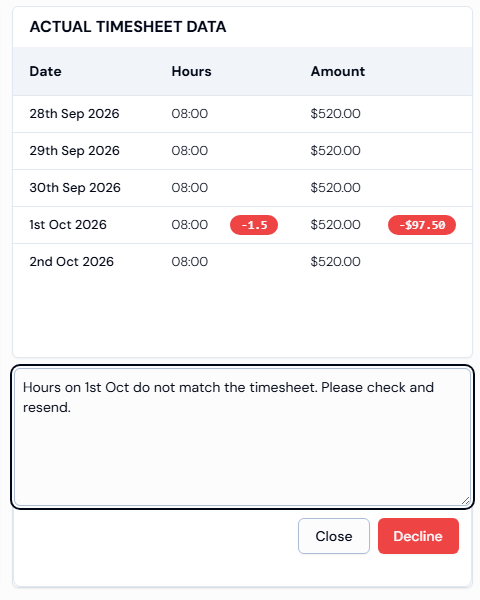
- Open the bill and click Decline.
- Type the reason in the Enter reason box.
- Click Decline.
Steps to ask the worker to fix it
- Open the bill and click Request for Correction.
- Type what needs fixing in the Enter reason box.
- Click Submit.
Good to know
- The Decline and Submit buttons stay greyed out until you type a reason.
- Click Close to go back without making a change.
- A declined bill won't be paid. A bill sent back shows the status Correction.
If something goes wrong
- The buttons are missing: they only show for Pending bills.