How do I find and open a bill?
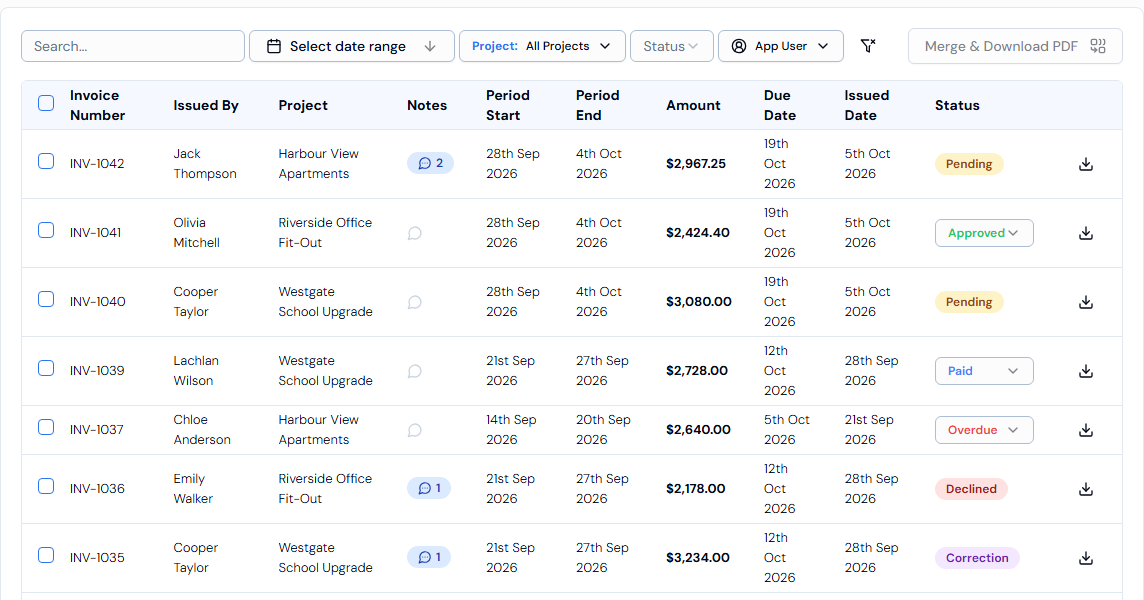
Go to Finance > Bills, use the filters to narrow the list, then click the bill's row to open its details.
Steps
- In the left-hand menu, go to Finance and click Bills.
- Narrow the list with the tools above it:
- Search...: type an invoice number.
- Select date range: pick a start and end date.
- Project:: pick one project, or All Projects.
- Status: show only one status, for example Pending.
- App User: tick one or more workers.
- Click anywhere on the bill's row. A panel slides up from the bottom of the screen with the full details.
What the details panel shows
- Invoice No., Hourly Rate, Pay Period and Project.
- Contractor Details: Contractor, ABN, Address and Phone Number.
- Bank Details: Bank Name, BSB and Account Number. Click the copy icon next to a detail to copy it.
- Line items, one row per day, with Total Hours, Subtotal, GST (10%) (only when GST is included) and Total Amount.
- A check of the bill against the worker's timesheets. See How are bills checked against hours?
- View Notes shows any notes added during review.
Good to know
- Use Rows per page (25, 50 or 100) and Previous / Next to move through long lists.
- Click Cancel to close the panel.
If something goes wrong
- No results found. means no bills match your filters. Click Clear Filters (the funnel icon with a cross) and try again.