How do I update a bill's payment status?
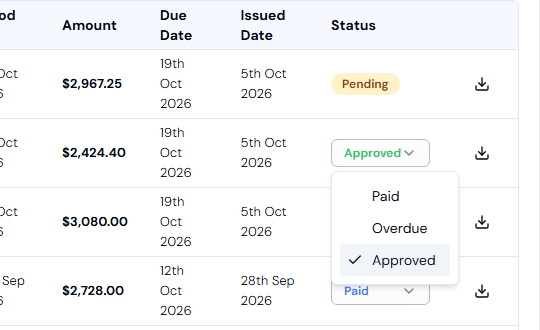
On the Bills list, click the status drop-down in the bill's Status column and choose Approved, Paid or Overdue. You can only do this once a bill has been approved.
Before you start
- The bill must be Approved, Paid or Overdue. Pending bills must be opened and reviewed first. See How do I approve, decline or correct a bill?
Steps
- In the left-hand menu, go to Finance and click Bills.
- Find the bill. See How do I find and open a bill?
- In the Status column, click the status drop-down.
- Choose Approved, Paid or Overdue.
- You see "Invoice status updated successfully."
Good to know
- Change the status to Paid after you've paid the bill.
- Overdue means the bill is past its due date and hasn't been paid.
- When you pay, open the bill and use the copy icon next to the BSB and Account Number to save typing.
- The Bills page is marked BETA. Always double-check the details before you make any payments.