How do I edit hours on a timesheet?
Click the hours in the timesheet list, type the new time and press Enter. You can also edit many timesheets at once, or open a timesheet to change all its details.
Before you start
- You can only change timesheets that are Pending, Time Verified or Unapproved.
- Approved timesheets show a lock icon. Unapprove them first. See How do I unapprove a timesheet?
- Only people allowed to approve payments can change Payable Hrs.
Steps in the list view
- In the left menu, under Field Operations, click Timesheets.
- Click the number in the Total Hrs, Break Hrs or Payable Hrs column. A pen icon shows which cells you can change.
- Type the new time as hours and minutes, for example
07:30. - Press Enter or click the tick to save. Click the cross to cancel.
Steps in the weekly view
- Double-click the hours for a day.
- Type the new time and press Enter. Press Esc to cancel.
- To change payable hours, click the green payable number instead.
Edit many timesheets at once
- Tick the box at the start of each row. Tick the box in the header to pick every row on the page.
- In the bar at the bottom of the screen, click Edit Total Hours or Edit Payable Hours.
- Type the time as
HH:MMand click Update.
Change all the details of one timesheet
- In the list view, click the row, or click ... at the end of the row and choose Edit.
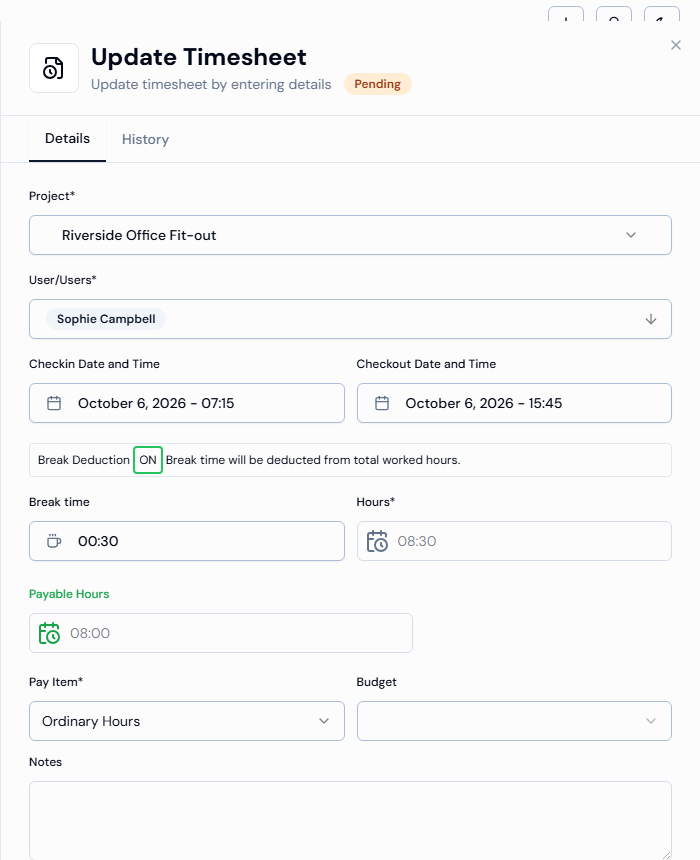
- In the Update Timesheet panel, change the Project, Checkin Date and Time, Checkout Date and Time, Break time, Pay Item or Budget.
- Click Update. You will see Timesheet has been updated successfully.
Good to know
- Hours in the panel is worked out for you from the check-in, check-out and break times.
- Merged hours can't be changed directly in the weekly view. Hover over the day, click View All, then change the single timesheet in the Merged Timesheets window.
- The History tab in the panel lists every change made to the timesheet.
If something goes wrong
- Invalid Time! – use hours and minutes, such as
07:30. Minutes must be 59 or less. - Please enter a valid time (HH:MM) – in a bulk edit window, type two numbers for hours, a colon, and two numbers for minutes.
- Duration must be at least 15 minutes – the check-in and check-out times are too close together.
- No pen icon, or a lock icon – the timesheet is approved or in a status that can't be changed.
Related questions
- What is a timesheet?
- How do I find and filter timesheets?
- Why can't I edit a timesheet?
- How do I add a timesheet by hand?
- Why can't I add a timesheet by hand?
- How do I delete a timesheet?
- How do I approve or reject timesheets?
- Why can't I approve a timesheet?
- How do I unapprove a timesheet?
- How do I view timesheet reports?