How do I see who is on leave?
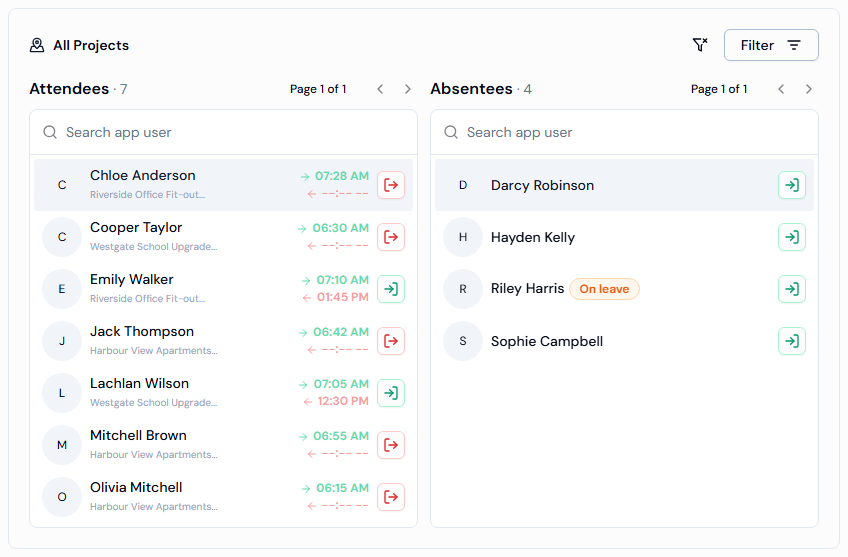
Open the Site Attendance page. The On Leave card shows how many people are on leave, and anyone on approved leave has an orange On leave badge in the Absentees list.
Steps
- In the left menu, under Field Operations, click CheckIns, then click Site Attendance.
- Look at the On Leave card at the top of the page for the number of app users on leave.
- In the Absentees list, look for the orange On leave badge next to a name.
- To check another day, click the date button in the Project Sites panel and pick a day.
Good to know
- Depending on your account, Site Attendance may be directly under Field Operations. You can also click Site Attendance > on the Dashboard.
- The cards say Today unless you pick another date. You can't pick a date in the future.
- Point your mouse at a name in Absentees to see a short profile card.
- Use the Search app user box to find a person by name on the page you're looking at.
- Leave requests sent from the app are on the Timesheets page. See Where do I see leave requests?