How do I view timesheet reports?
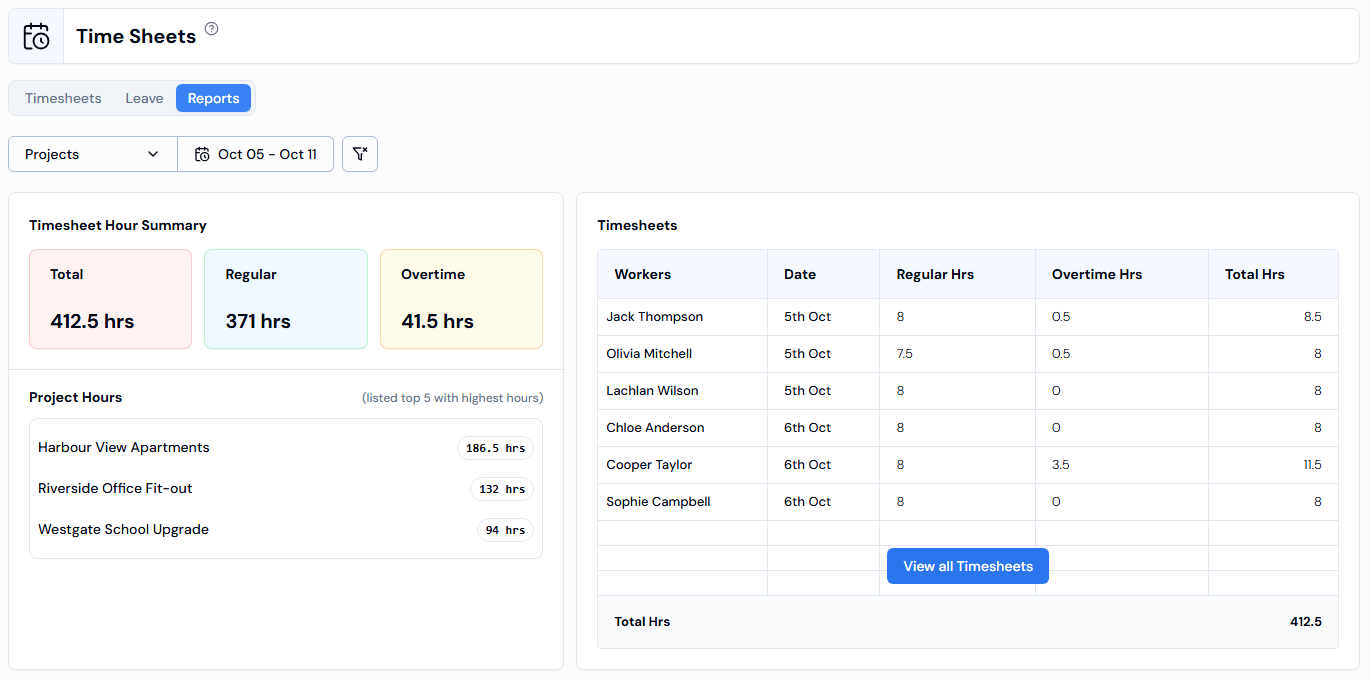
On the Timesheets page, click the Reports tab. It shows a summary of hours, overtime, labour cost, attendance and unusual activity for your chosen projects and dates.
Steps
- In the left menu, under Field Operations, click Timesheets.
- Click the Reports tab.
- Use Projects to pick projects. Leave it empty to include all of them.
- Click the date button and pick a Pay Period, or click Custom and pick any dates. Click Apply.
What the report shows
- Timesheet Hour Summary – Total, Regular and Overtime hours.
- Project Hours – the five projects with the most hours.
- Timesheets – a short list of timesheets. Click View all Timesheets for the full list.
- Weekly Labour Hours – a bar chart of total, regular and overtime hours.
- Labour Payable Summary – each worker's Hours, Rate and Payable, with a Total.
- Attendance Summary – how many workers were In and Out each day.
- Overtime summary – each worker who worked overtime and their overtime hours.
- Suspicious Activity – counts of auto check-outs, location-disabled check-ins, check-ins and check-outs outside the site boundary, and long shifts over 12 hours.
- Work Summary – total workers, split into Employees, Internal Subcontractors and External Subcontractors.
Good to know
- The report starts on the current pay period.
- Only Projects and the dates change the report. The Status, Employment Type and Workers filters aren't shown on this tab.
- To clear the filters, click the funnel-and-cross button.
Related questions
- What is a timesheet?
- How do I find and filter timesheets?
- How do I edit hours on a timesheet?
- Why can't I edit a timesheet?
- How do I add a timesheet by hand?
- Why can't I add a timesheet by hand?
- How do I delete a timesheet?
- How do I approve or reject timesheets?
- Why can't I approve a timesheet?
- How do I unapprove a timesheet?