How do I add an app user?
Go to App Users, click Create New, fill in the worker's details and click Create. The new app user appears on the Waiting Approval tab.
Before you start
- Have the worker's first name, last name, mobile number and email address ready.
- Know their employment type: Employee, Internal Subcontractor or External Subcontractor.
- Their worker category must already be set up. See How do I create a category?
- For an external subcontractor, their company must already be added. See How do I add a company?
Steps
- In the left menu, under Platform, click App Users.
- Click Create New in the top-right corner. The Create App User panel opens.
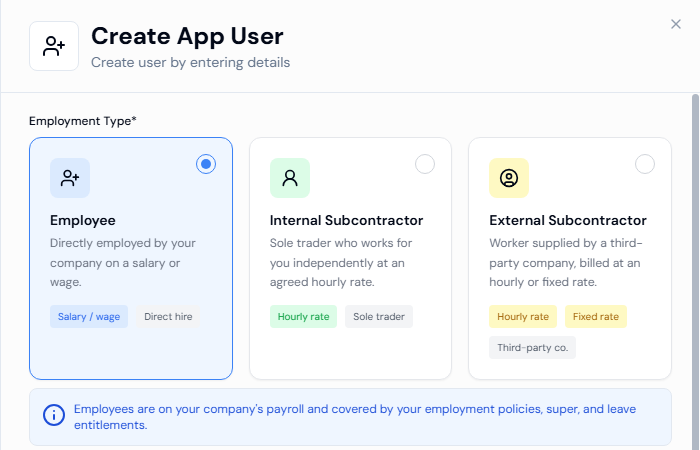
- Under Employment Type, click Employee, Internal Subcontractor or External Subcontractor.
- Fill in First Name, Last Name, Phone Number, Email Address, Worker Category and Pay Rule.
- For an internal subcontractor, also fill in ABN and GST included. For an external subcontractor, choose the Company.
- Leave Time Tracking on if you want timesheets for this worker. On the Employment Info tab you can add a Pay Rate (Hourly) and Payroll ID (both optional).
- On the App Permissions tab, under Role, click Worker, Site Manager or Admin.
- Click Create. You will see New app user created successfully.
Good to know
- Employees and internal subcontractors are always linked to your default company (your own business).
- If you turn Time Tracking off, the Employment Info tab is hidden and no pay rate or payroll ID is saved.
- To close the panel without saving, click Cancel.
- Next, see How do I onboard a new worker?
If something goes wrong
- First name must be at least 2 characters long: enter a first name with 2 or more letters.
- Invalid international phone number format: check the country flag and the phone number.
- Please enter a valid email address: check the email for typing mistakes, for example a missing @.
- No worker categories found.: create a worker category first.
- No companies found.: add the company first.