How do I change an admin user's role?
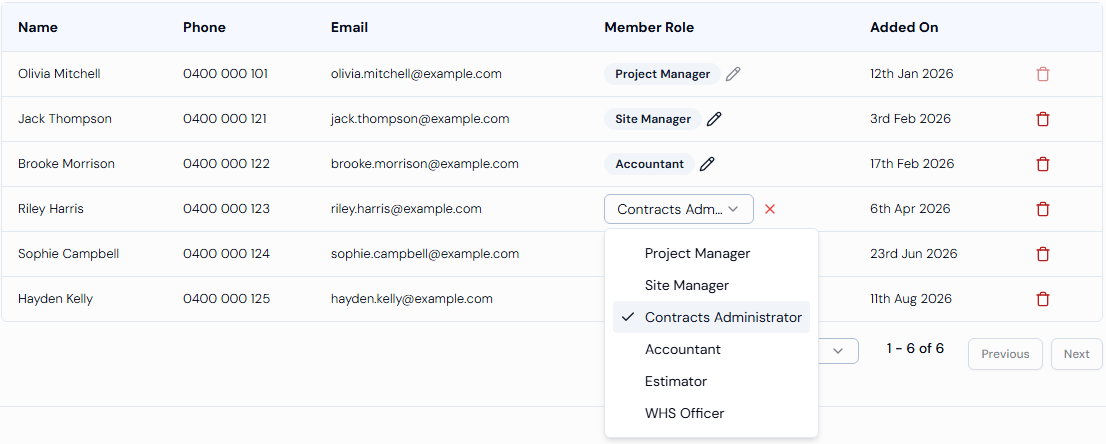
On the Admin Users page, click the pencil icon next to the person's Member Role and pick a new role. It saves straight away.
What a member role is
- A job title you give to an admin user, such as "Site Manager" or "Accountant".
- It helps you see who does what.
Steps
- In the left menu, under Platform, click Admin Users.
- Find the person in the list.
- Click the pencil icon next to their Member Role.
- Pick the new role from Select role.
- You will see Member role updated successfully.
Add, rename or delete member roles
- Click Member Roles in the top-right corner of the Admin Users page.
- To add a role, click Add Role, type the name in Enter new role and click the green tick.
- To rename or delete a role, click the ⋮ button next to it and choose Rename or Delete.
- Only an account administrator can add, rename or delete member roles.
Good to know
- You can't change your own member role.
- People with project member access can view the list, but can't change member roles.
- A project administrator can't change the member role of an account administrator.
- To stop without changing anything, click the red cross next to the list.
- If you don't see the Member Roles button, member roles aren't turned on for your organisation.