How do I edit an app user?
Open the Update User Details panel, change the details and click Update. Some fields are locked.
Steps
- In the left menu, under Platform, click App Users.
- Open the Update User Details panel in one of these ways:
- On the Active tab, click the ... button at the end of the row and choose Edit.
- On the app user's details page, click Edit in the Personal Details section.
- On the Waiting Approval tab, click the app user's row, or click Edit at the end of the row.
- Change the details you need.
- Click Update. You will see App user updated successfully.
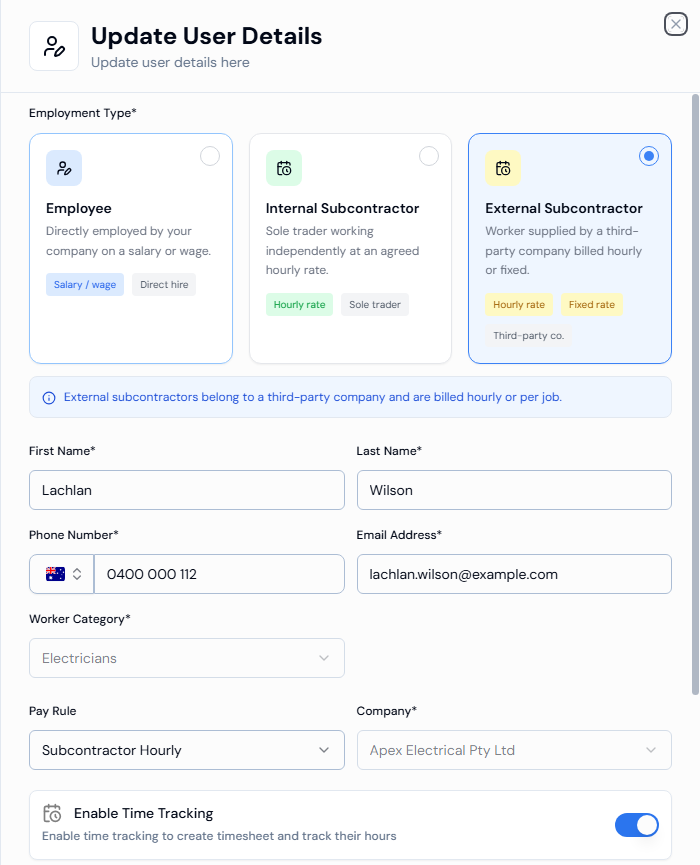
Fields you may not be able to change
- Company: always locked when editing.
- Worker Category: locked once a category has been set.
- Phone Number: locked if the worker signed themselves up, or has already been accepted.
- Role, Pay Rule, Enable Time Tracking and Email Address: locked while the worker is checked in on site. Try again after they check out.
Good to know
- On the Waiting Approval tab, Edit isn't shown for workers who signed themselves up. Use Accept instead. See How do I onboard a new worker?
- To close the panel without saving, click Cancel.
If something goes wrong
- Role, Pay rule and Time tracking are disabled due to the user is onsite: wait until the worker checks out, then try again.
- Invalid international phone number format: check the country flag and the phone number.
- Please enter a valid email address: check the email for typing mistakes.