How do I onboard a new worker?
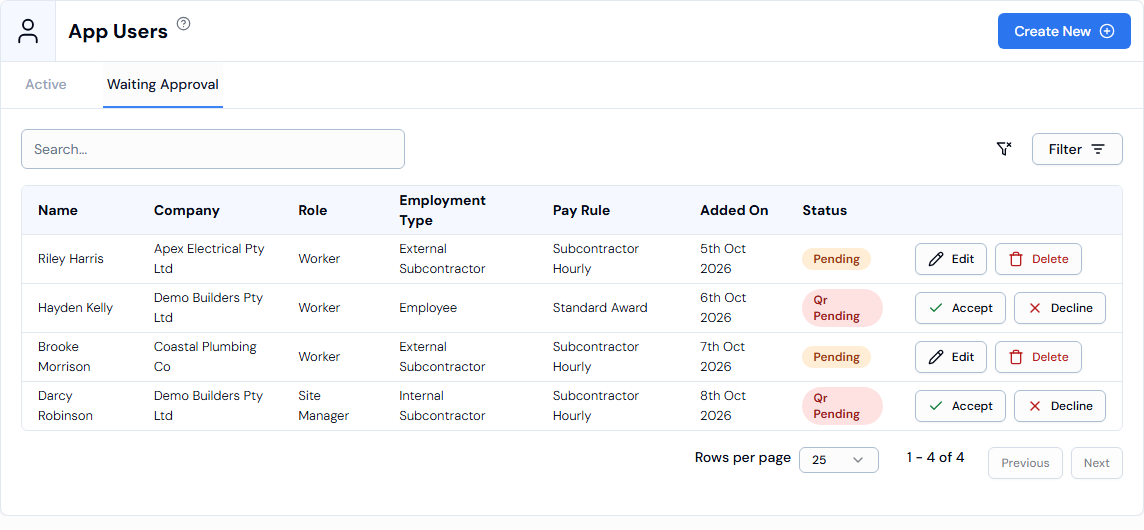
After you add a worker, let them know they've been added so they can start using the mobile app. They wait on the Waiting Approval tab until they've joined, then move to the Active tab.
Before you start
- Add the worker as an app user first. See How do I add an app user?
Steps
- Let the worker know they have been added, so they can start using the Swift Checkin mobile app.
- In the left menu, under Platform, click App Users.
- Open the Waiting Approval tab to see where they are up to.
- Once they have joined, they appear on the Active tab.
Waiting Approval statuses
- pending: the app user has been added and is waiting to finish joining.
- qr pending: the worker signed themselves up (for example, by scanning a QR code) and is waiting for you to accept them.
- waiting: the request is still waiting for a response.
- declined: the request was declined.
Accepting a worker who signed up themselves
- On the Waiting Approval tab, find the worker's row (status qr pending).
- Click Accept at the end of the row. The Accept App User panel opens.
- Check and complete their details.
- Click Accept. You will see App user updated successfully.
Good to know
- By default the Waiting Approval tab shows pending and qr pending app users. Use Filter > Status to see others.
- To turn someone away, click Decline and confirm in the Confirm Decline window. This can't be undone.
- Once the worker is added, you can upload their licences or tickets. See How do I upload a worker's documents?