How to Create Admin Users
Admin users are the people who log in to the SwiftCheckin web platform, such as office staff, project managers and supervisors. You manage them on the Admin Users page. Each admin user has a Member Role – a job title such as "Site Manager" or "Accountant" – which helps you see who does what.
Admin users are different from app users, who are the workers that check in using the mobile app.
The Invite button for adding new admin users is not shown on the Admin Users page at the moment. How new admin users are added to your organisation is to be confirmed. Contact SwiftCheckin support if you need to add someone.
Before you start
- You must be a user administrator to see the list of admin users. If you are not, you will see: You are not authorized to perform this action. Please contact your administrator.
- Only an account administrator can add, rename or delete member roles, and remove admin users.
Step 1: Open the Admin Users page
- In the left-hand menu, under Platform, click Admin Users.
- The Admin Users page opens and lists everyone who can log in to the web platform.
The list shows these columns:
| Column | What it means |
|---|---|
| Name | The person's first and last name. |
| Phone | Their phone number. |
| The email address they log in with. | |
| Member Role | Their job title. |
| Added On | The date they were added. |
To find someone, type their name in the Search... box. Use Rows per page, Previous and Next at the bottom to move through the list.
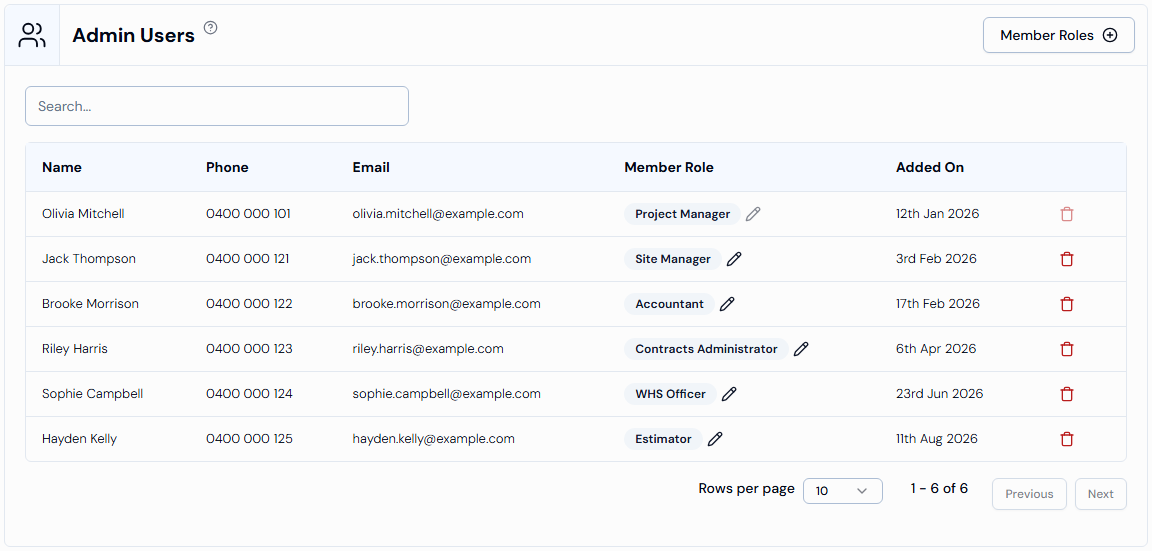
Step 2: Set up member roles
Member roles are the job titles you can give to admin users.
- On the Admin Users page, click Member Roles in the top-right corner.
- The Member Roles window opens. It lists your roles under Roles. Type in Search... to find a role.
- To add a role (account administrators only):
- Click Add Role.
- Type the role name in Enter new role.
- Click the green tick (or press Enter). You will see Role added successfully.
- To cancel, click the red cross.
- To change a role, click the ⋮ button next to it:
- Rename – type the new name, then click the green tick. You will see Role updated successfully.
- Delete – confirm in the Confirm Deletion window (Are you sure you want to delete this role?). You will see Role deleted successfully.
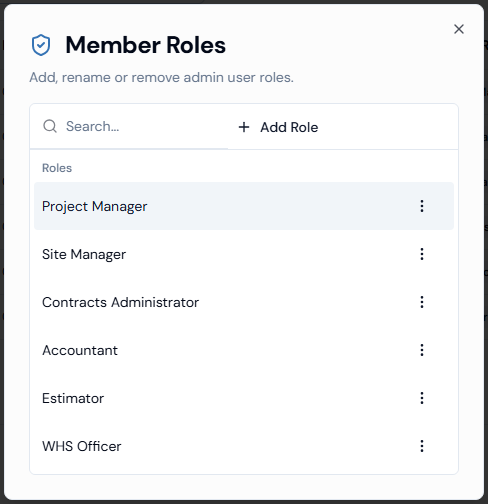
If you do not see the Member Roles button, member roles are not turned on for your organisation.
Step 3: Change an admin user's member role
- Find the person in the list.
- Click the pencil icon next to their Member Role.
- Pick the new role from Select role. It saves straight away.
- You will see Member role updated successfully.
To stop without changing anything, click the red cross next to the list.
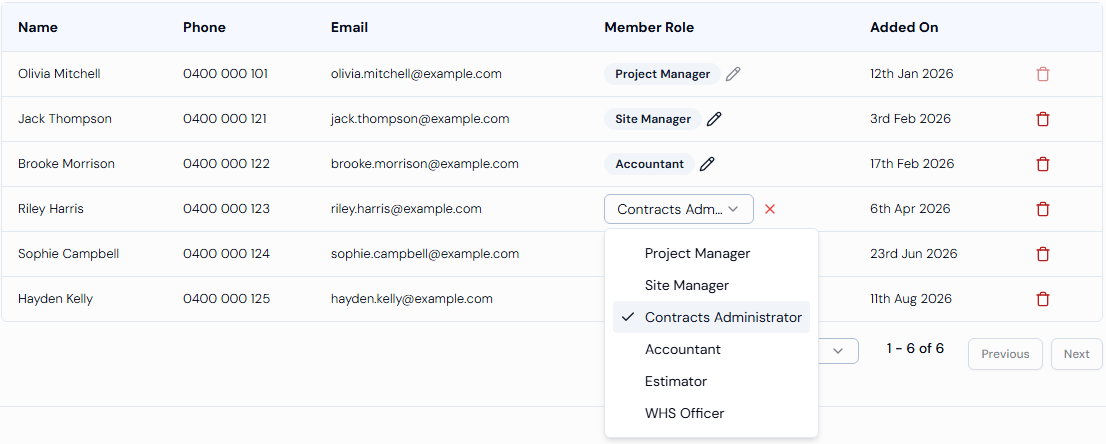
Step 4: Remove an admin user
Only account administrators see this option.
- Click the bin icon at the end of the person's row.
- A Confirm Deletion window asks: Are you sure you want to delete this member? This action cannot be undone.
- Confirm to delete. You will see Member deleted successfully.
Good to know
| Topic | What you need to know |
|---|---|
| Your own account | You cannot change your own member role, and you cannot delete yourself. |
| Project members | People with project member access can view the list, but cannot change member roles. |
| Project administrators | A project administrator cannot change the member role of an account administrator. |
| Access levels | The Access Level column and the option to change a person's access level are no longer shown on this page. |
| Roles page | The separate Roles page has been removed. If you open an old link to it, you are taken to the Admin Users page. |
Troubleshooting
| Message | What to do |
|---|---|
| You are not authorized to perform this action. Please contact your administrator. | You do not have permission to manage admin users. Ask an administrator in your organisation. |
| No results. | No admin user matches your search. Check the spelling or clear the Search... box. |
| No results found. (in the Member Roles window) | No role matches your search. Clear the Search... box, or add the role. |