Invoice Anomaly Detection and How It Works
When a worker sends you an invoice, you need to know whether the hours they charged match the hours they actually worked. SwiftCheckin does this check for you. It compares the invoice with the worker's timesheets and highlights any anomaly - a difference between what was invoiced and what the timesheets show.
How it works
- Go to Finance > Bills and click an invoice to open it.
- If the invoice is not yet Approved or Paid, you'll briefly see AI Invoice Verification with the message "Analyzing invoices and timesheets...". It runs through these steps:
- Fetching invoice data
- Matching timesheet entries
- Calculating variance
- Detecting anomalies
- After a few seconds, the results appear on the right side of the panel.
For invoices that are already approved or paid, the results are shown straight away.
What you'll see
Actual timesheet data
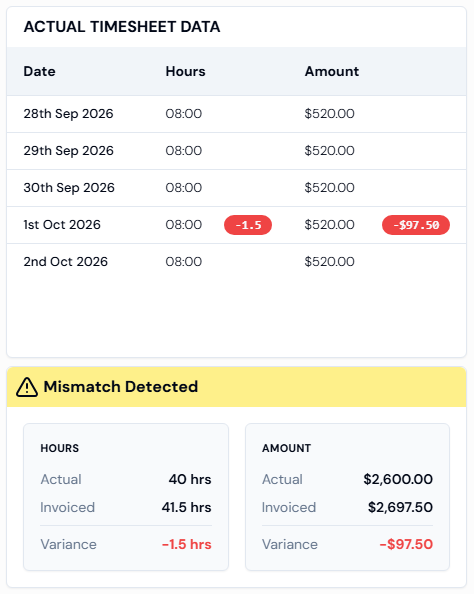
The ACTUAL TIMESHEET DATA table lists each day in the invoice with:
| Column | What it shows |
|---|---|
| Date | The day worked. |
| Hours | The hours recorded on the worker's timesheet for that day. |
| Amount | The amount those timesheet hours are worth. |
If a day doesn't match the invoice, a red badge appears next to the hours or the amount. It shows the difference, for example +1.5 hours or -$40.00.
Compare this table with the LINE ITEMS table on the left (what the worker invoiced) to see exactly which days are different.
Overall result
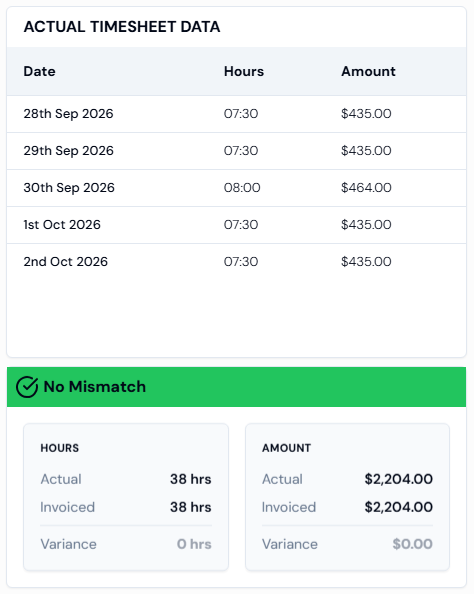
Below the table, a summary box shows one of two results:
| Result | What it means |
|---|---|
| No Mismatch (green) | The invoice matches the timesheets. The hours and amounts are the same. |
| Mismatch Detected (yellow, with a warning sign) | The invoice and the timesheets don't agree on hours, amount, or both. |
The box also shows the totals side by side:
| Row | What it shows |
|---|---|
| Hours: Actual | Total hours from the timesheets. |
| Hours: Invoiced | Total hours on the invoice. |
| Hours: Variance | The difference between the two. Shown in red when it isn't zero. |
| Amount: Actual | Total value of the timesheet hours. |
| Amount: Invoiced | Total amount on the invoice. |
| Amount: Variance | The difference in money. Shown in red when it isn't zero. |
What to do with the result
- No Mismatch: if everything else looks right, click Approve.
- Mismatch Detected: look at the red badges to find the days that don't match. Then either:
- check and fix the worker's timesheet if it is wrong (see How to View and Edit Timesheets), or
- click Request for Correction and explain what the worker needs to change, or
- click Decline if the invoice should not be paid.
A mismatch doesn't always mean something is wrong. For example, a timesheet may still be waiting for approval or may have been changed after the invoice was sent. Check the details before you decline.
The check compares hours and amounts only. It does not give a severity level or a written reason for a mismatch - you decide what action to take.