What Are Bills and How They Work
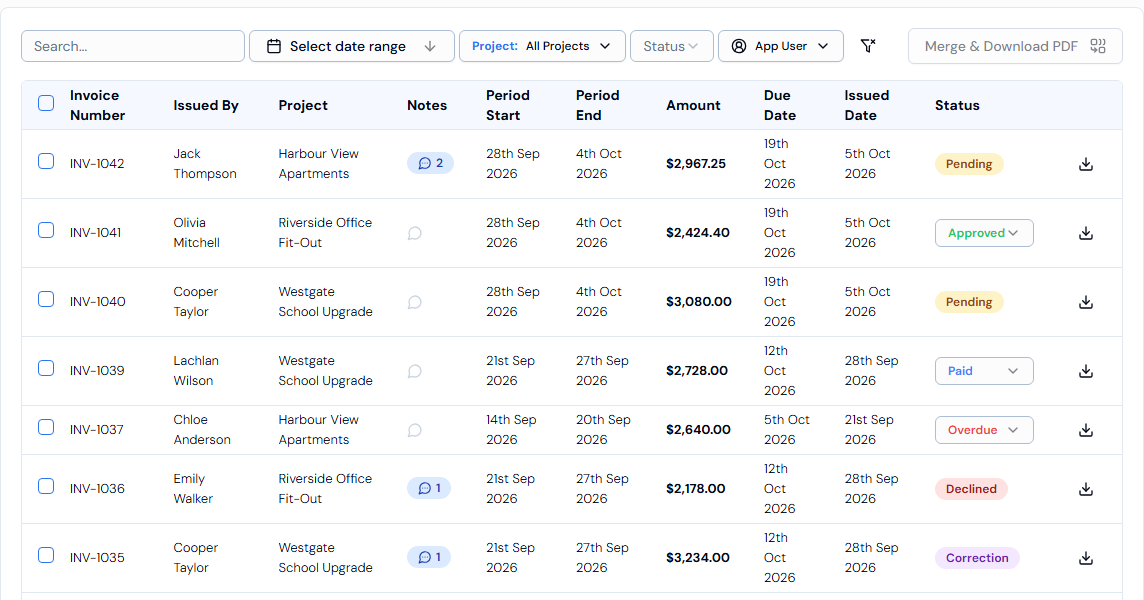
A bill is a request for payment that a worker sends you for the hours they have worked. In SwiftCheckin, bills appear on the Bills page. You use this page to check each bill, approve it or send it back, and keep track of what has been paid.
On the Bills page, some labels still use the word "invoice" (for example Invoice Number, Total Invoiced and Approve Invoice). A bill and an invoice mean the same thing.
The Bills page is marked BETA. This means it is new and still being improved. Always double-check the details before you make any payments.
Where bills come from
Bills are sent by internal subcontractors. An internal subcontractor is a worker who runs their own business (a sole trader). They are paid an agreed hourly rate and look after their own tax and super, so they invoice you instead of being paid through payroll.
You do not create bills yourself in the admin platform. Each bill arrives already filled in by the worker. It includes the hours they worked each day in a pay period, their hourly rate, GST (if they charge it) and their bank details.
To learn how to set a worker up as an internal subcontractor, see How to Create and Onboard App Users.
Where to find bills
In the left-hand menu, go to Finance and click Bills.
If you can't see it, the Bills feature may not be switched on for your organisation. Ask your account administrator.
How a bill moves through SwiftCheckin
- The worker sends a bill. It appears on the Bills page with the status Pending.
- You review it. Click the bill to open its details. SwiftCheckin compares the hours and amounts on the bill with the worker's actual timesheets and shows any differences. See Invoice Anomaly Detection and How It Works.
- You decide. For a pending bill you can:
- Approve it, if everything is correct.
- Decline it, if it should not be paid. You must give a reason.
- Request for Correction, if the worker needs to fix something. You must give a reason.
- You track payment. Once a bill is approved, you can change its status to Paid after you pay it. If the due date passes without payment, it can show as Overdue.
Bill statuses
| Status | What it means |
|---|---|
| Pending | The bill is waiting for you to review it. |
| Approved | You have checked the bill and agreed to pay it. |
| Paid | The bill has been paid. |
| Overdue | The bill is past its due date and has not been paid. |
| Declined | You rejected the bill. It will not be paid. |
| Correction | You asked the worker to correct the bill. |
For bills that are Approved, Paid or Overdue, you can change the status straight from the list using the drop-down in the Status column. Pending bills must be opened and reviewed first.
The summary cards
At the top of the Bills page are four cards. The number in brackets is how many bills are included.
| Card | What it shows |
|---|---|
| Total Invoiced | The total value of all bills. |
| Total Paid | The total value of bills that have been paid. |
| Total Unpaid | The total value of bills not yet paid. |
| Overdue | The total value of bills past their due date. |
The cards change when you search, or filter by date range or project.
