How to View and Analyse a Budget in Detail
The Budgets page shows, at a glance, how a project's labour costs and hours compare with the budget you set. It uses the hours workers record in their timesheets, so you can spot overspending early and act before it becomes a problem.
Before you start
- The project needs at least one budget. See How to Create a Budget and Add Variations.
- Actual costs are worked out from workers' pay rates. Make sure each worker has a pay rate set up, or the figures may be too low.
Step 1: Open the Budgets page
-
In the left-hand menu, go to the Finance section.
-
Click Cost Management, then Budgets.
Depending on how your account is set up, you may instead see Budgets directly under Finance.
Step 2: Choose the project and date range
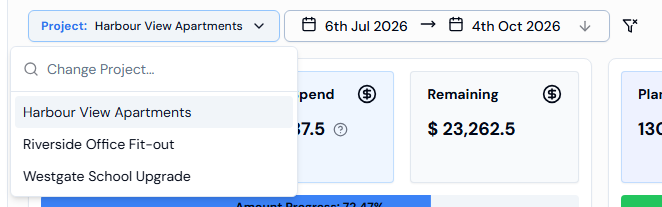
- Click the Project: button and pick the project you want to look at.
- Click the date button (it shows a start date and an end date) to open the calendar.
- Click a start date, then an end date. The page refreshes to show figures for those dates.
When you pick a project, the dates are set to the planned start and end dates of its budget.
To start again, click the Clear Filters button (the funnel icon with a cross).
The cards and chart are based on the first budget listed for the selected project. If a project has more than one budget, check the budget table to see each one. (To be confirmed.)
Step 3: Read the money cards
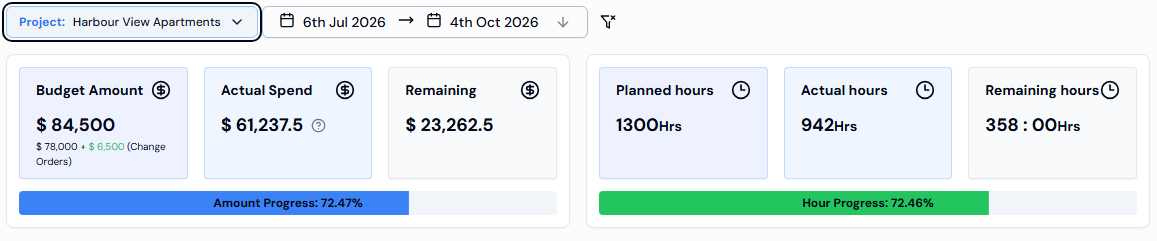
The first group of cards compares money planned with money spent.
| Card | What it means |
|---|---|
| Budget Amount | The total money budgeted. If there are change orders (variations), a small line underneath shows the original amount plus the change orders. |
| Actual Spend | The labour cost so far, based on hours worked and pay rates. |
| Remaining | How much of the budget is left. |
| Amount Progress | A bar showing how much of the budget has been used, as a percentage. |
If a small ? icon appears next to Actual Spend, some workers do not have a pay rate. Hover over the icon to see their names. The amount may be inaccurate until you add their pay rates.
Step 4: Read the hours cards
The second group of cards compares hours planned with hours worked.
| Card | What it means |
|---|---|
| Planned hours | The total hours set in the budget. |
| Actual hours | The hours actually worked so far. |
| Remaining hours | Hours left in the budget. A number in red means you have gone over. |
| Hour Progress | A bar showing how many of the planned hours have been used. It turns red when you go over 100%, and stays green while you are within budget. |
Step 5: Look at the Labour Cost chart
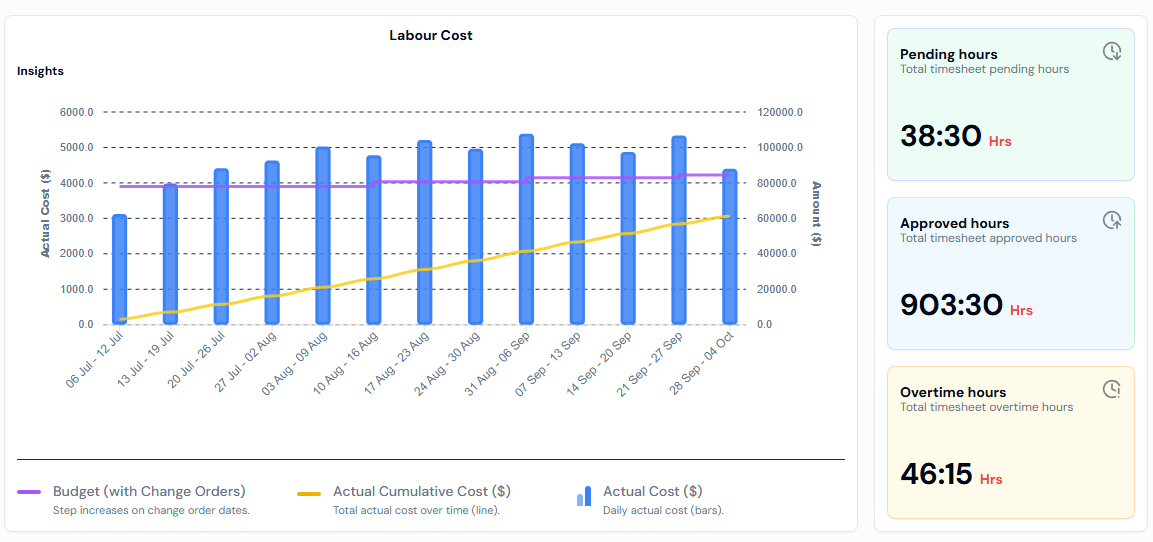
The Labour Cost chart shows how spending has built up over time. Depending on the date range, each point is a day, a week or a month.
| Line | What it shows |
|---|---|
| Actual Cost ($) | Money spent in each period. |
| Actual Cumulative Cost ($) | The running total of money spent. |
| Budget (with Change Orders) | The budget level, including any change orders. Only shown when the budget has change orders. |
If the Actual Cumulative Cost line gets close to, or goes above, the budget line, the project is at risk of going over budget.
Step 6: Check timesheet hours
On the right of the chart are three cards about timesheets linked to the budget:
| Card | What it means |
|---|---|
| Pending hours | Total timesheet hours still waiting for approval. |
| Approved hours | Total timesheet hours that have been approved. |
| Overtime hours | Total timesheet overtime hours. |
A high number of Pending hours means your actual figures could still go up once those timesheets are approved. See How Approval Works.
Step 7: Review the budget table
At the bottom of the page is a table of all budgets for the project.
| Column | What it shows |
|---|---|
| Budget Name | The name of the budget. |
| Budget Hours | The planned hours. |
| Unit Cost | The planned hourly rate. |
| Budgeted Amount | The planned amount of money. |
| Change Orders | The total value of change orders. Only shown when there are change orders. Click View to see each one with its date and amount. |
Click a row to open and edit the budget. Click the three dots (...) for more actions: Edit, Change Orders and Delete.
Good to know
- Actual figures come from timesheets. Hours that workers record against the project are counted towards the budget.
- Missing pay rates make Actual Spend lower than it really is. Check the ? icon next to Actual Spend.
- If the table says No results., the project has no budgets yet.