How do I add a company?
Help Centre category: User & Worker Management
What this helps you do
Add a supplier, labour hire company, subcontractor or other external business, so you can link its workers and keep its documents. Not sure what a company is? See What is a company in SwiftCheckin?
Before you start
Have the company's name, ABN, phone number and address ready.
Steps
-
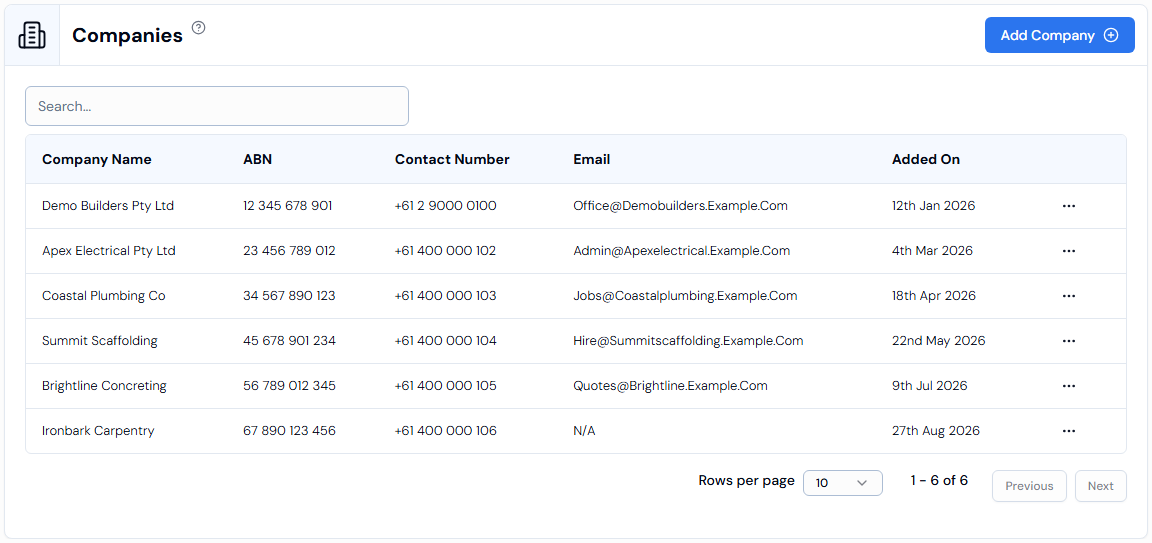
In the left-hand menu, under Platform, click Companies.
-
Click Add Company in the top-right corner. A panel opens on the right.
-
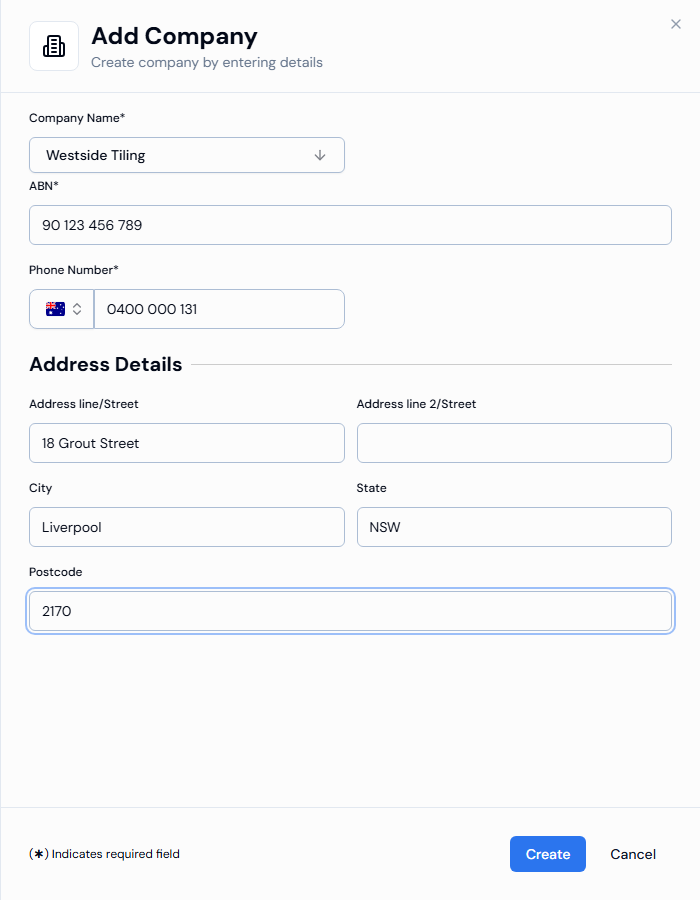
Type the company name in Company Name*, then click the name you typed at the bottom of the list.
-
Fill in the rest of the form. See What information do I need to provide?
-
Check the details, then click Create.
What information do I need to provide?
| Field | What to enter |
|---|---|
| Company Name* | The name used to identify the business. |
| ABN* | The company's Australian Business Number. The spaces are added for you. |
| Phone Number* | The company's contact number. Australia is the default country. To change it, click the flag. |
| Address | Address line/Street, City, State and Postcode are required. Address line 2/Street is optional, for example for a unit or level. |
Expected result
You see Company created successfully. The panel closes and the company appears in your Companies list.
Next, you can add members to the company or upload its documents.
Troubleshooting
Why can't I save the company?
A required field is empty. A message under the field tells you what is missing, for example City is required.
Why does it say "Invalid international phone number format"?
The phone number does not match the country on the flag. Check the flag first, then the number.
I added the company. Why can't I see it on my project?
Adding a company makes it available across your organisation, but not on every project. To use it on a project, add it from that project's details. See How to edit project details and site locations.