How do I upload a company's documents?
Help Centre category: User & Worker Management
What this helps you do
Keep each company's important files in one place, such as insurance certificates and licences. If you add an expiry date, SwiftCheckin shows you when a document has run out.
Before you start
- The company must already be added. See How do I add a company?
- Have the file saved on your computer as a PDF, JPEG/JPG or PNG, no bigger than 12 MB.
Steps
- In the left-hand menu, under Platform, click Companies.
- Click the company's row to open its details.
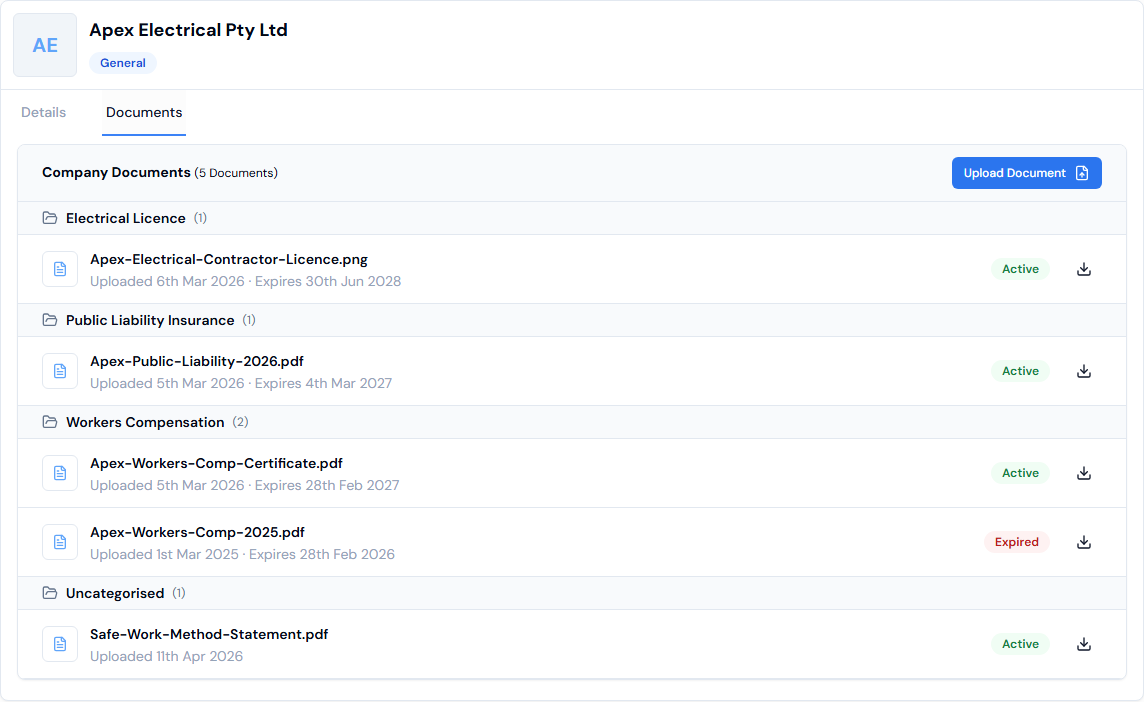
- Click the Documents tab.
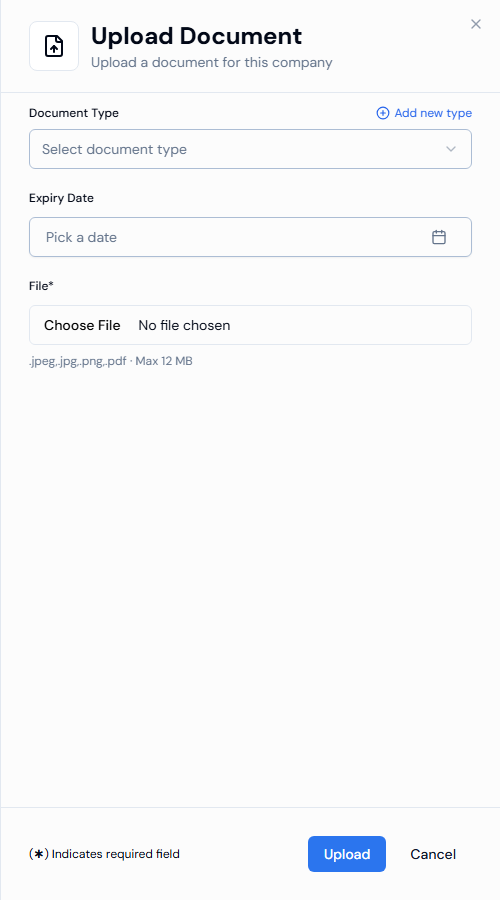
- Click Upload Document. A panel opens on the right.
- Fill in the details:
- Document Type: choose what kind of document it is, for example "Public Liability Insurance". This is optional. If the type you need is not in the list, click Add new type.
- Expiry Date: click Pick a date and choose the date the document runs out. This is optional.
- File*: click the box and choose the file from your computer.
- Click Upload.
Expected result
- You see the message Document uploaded successfully.
- The document appears on the Documents tab under its document type. Documents with no type appear under Uncategorised.
- Each document shows the date it was Uploaded, the date it Expires (if you set one), and an Active or Expired label.
- To save a copy, click the download icon next to the document.
Troubleshooting
Why can't I upload my file?
| Message | What to do |
|---|---|
| Please choose a file to upload | Choose a file in the File* box before you click Upload. |
| Allowed file types: .jpeg, .jpg, .png, .pdf | Save the file as a PDF or an image, then try again. |
| File must be 12 MB or smaller | The file is too big. Make it smaller, for example by scanning at a lower quality, then try again. |
Why does a document say "Expired"?
Its expiry date has passed. Ask the company for the renewed document and upload the new copy.
Why can't I find the document type I need?
Click Add new type in the Document Type list to create it. You can also manage the list under Document Types in the left-hand menu. See What are document types and how do I create them?
Why can't I see all of the company's documents?
The tab shows 10 documents at a time. Use the arrow buttons at the bottom to see more.