How to Assign Crew to a Schedule
When you create a task on the Crew Schedule, you choose the workers who will do it. This group of workers is the crew. You can assign one person or a whole crew to the same task.
Before you start
- Only active workers on the chosen project can be assigned. If someone is missing from the list, add them to the project first.
Step 1: Start a new task
- In the left menu, under Field Operations, click Scheduler.
- Click New Task.
- Choose the Project, then set the Start date & time and End date & time. See How to Create a Crew Schedule for help with these fields.
Always choose the project before you pick workers. If you change the project, the workers you've picked are removed, because each project has its own list of workers.
Step 2: Pick the workers
- Click the Assign workers box. It says Select workers until you pick someone.
- To find someone quickly, type their name in Search workers.... Each worker's job type, such as Electrician, is shown on the right.
- Click each worker you want. A tick appears next to everyone you've picked.
- Click outside the list to close it. The workers you picked are shown as name tags in the box.

To remove someone before you save, click the x on their name tag.
Step 3: Create the task
Click Create Task.
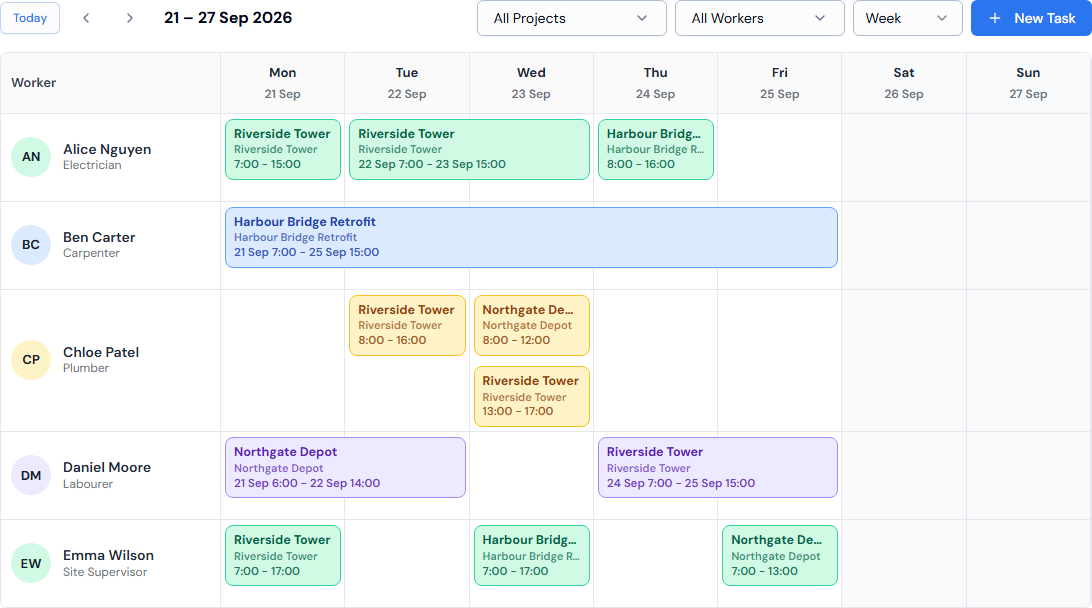
The task is added to the schedule. It appears as a separate block in each assigned worker's row. For example, if you assign three workers, you'll see the task three times — once for each of them.
Sometimes a task can be created for some workers but not others. If that happens, you'll see a Heads up! message. Its ✅ line says who was scheduled and its ❌ line says who wasn't. The schedule then shows only the tasks that were really created. See How to Create a Crew Schedule.
Good to know
- Check the schedule before you assign, so you don't double-book anyone. Filtering by worker makes this easier — see How to View Crew Schedules. If a worker already has tasks on the same day, their blocks stack up in their row.
- If no workers are listed, check that the project has active workers.
Changing who is assigned
You can only pick workers when you create a task. You can't add or swap workers in the Task Details panel.
To change the crew:
- Take a worker off a task: click that worker's task block, then click Delete. See How to Edit a Crew Schedule.
- Add a worker, or give the work to someone else: create a new task for that worker with the same project, dates and times.
Troubleshooting
| Message or problem | What to do |
|---|---|
| Assign at least one worker. | Pick at least one worker before you click Create Task. |
| A worker isn't in the list | Make sure they're an active worker on the chosen project. |
| The workers you picked disappeared | You changed the Project. Pick the workers again. |
| A Heads up! or ❌ message says some workers weren't scheduled | Read the message to see who missed out. Check those workers on the schedule, then create a new task for them if needed. |