How to Edit a Crew Schedule
Plans change. You can move a task to a different day or time, switch it to another project, update the notes, or remove it altogether.
Step 1: Find the task
- In the left menu, under Field Operations, click Scheduler.
- Use Today, the ‹ and › arrows, and the Day / Week / Month choice to find the right dates.
- If the schedule is busy, filter by project or worker. See How to View Crew Schedules.
Step 2: Open the task
Click the task block. The Task Details panel opens on the right.
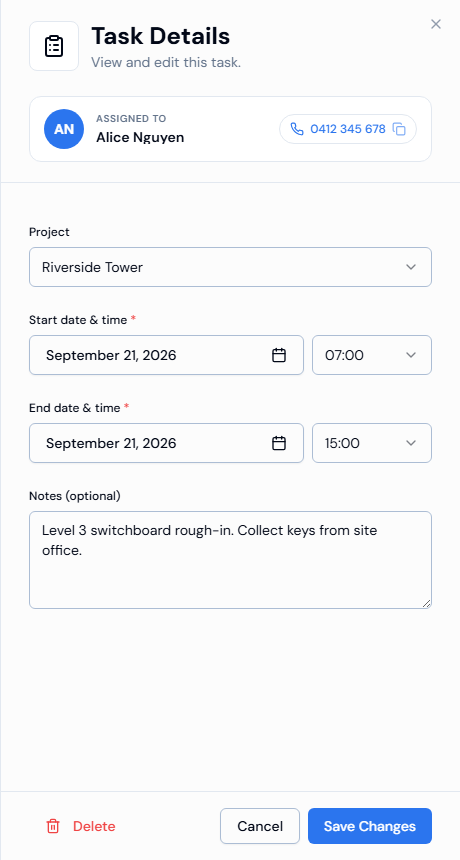
At the top, the Assigned to card shows the worker this task belongs to. If the worker has a phone number saved, it's shown on the card. Click the number to copy it, so you can paste it into a message or call.
Step 3: Make your changes
| Field | What you can do |
|---|---|
| Project | Move the task to a different project. |
| Start date & time * | Change the start day and time. |
| End date & time * | Change the finish day and time. |
| Notes (optional) | Update the instructions for the crew. |
Good to know:
- You can't choose a date in the past.
- Times go up in 15-minute steps and use the 24-hour clock.
- The end must be later than the start.
- You can't change the worker here. To give the work to someone else, see Changing who is assigned.
Step 4: Save
Click Save Changes. The schedule refreshes with your changes.
You'll see a message that tells you how it went:
- A message starting with ✅ (or Task has been updated successfully.) means your changes were saved.
- A message starting with ❌ means the change couldn't be saved. Read the message for the reason.
- A Heads up! message with both a ✅ line and a ❌ line means only part of the change went through. Click Got it to close it, then check the schedule.
To close the panel without saving, click Cancel.
Deleting a task
In the Task Details panel, click Delete in the bottom-left corner. You'll see the message Task has been deleted successfully. The task block disappears from the schedule.
The task is deleted as soon as you click Delete. You won't be asked to confirm, so double-check you've opened the right task first.
Troubleshooting
| Message or problem | What to do |
|---|---|
| Project is required. | Choose a project. |
| Start date & time is required. | Pick a start date. |
| End date & time is required. | Pick an end date. |
| End must be after start. | Make the end date and time later than the start. |
| You can't pick the date you want | Dates in the past can't be chosen. |