How to Create and View Questionnaires
A questionnaire is a set of check-in questions for the people who come to your sites. For example, you might ask "Have you completed today's site induction?" Each question has up to three answer options, and you choose which kinds of people should be asked it.
Before you start
- Questionnaire is in the Safety section of the left menu. If you cannot see it, these features may not be turned on for your organisation. Ask your SwiftCheckin administrator.
- Think about the exact wording first. You cannot edit a question after you create it.
Create a question
Step 1: Open the Questionnaire page
- In the left menu, under Safety, click Questionnaire.
- The Questionnaire page opens.
Step 2: Start a new question
- Click Create in the top-right corner.
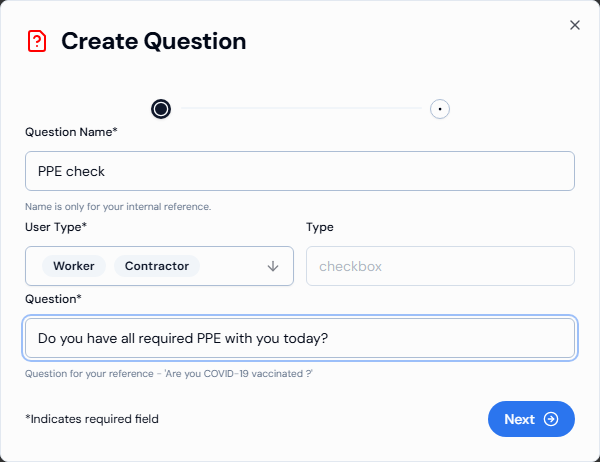
- A window called Create Question opens. It has two steps, shown as dots at the top.
Step 3: Enter the question (first step)
| Field | What to enter |
|---|---|
| Question Name* | A short name to help you find the question later. Only you and other admins see it. Use 2 to 50 characters. |
| User Type* | Click the box and tick who should answer this question. You can tick more than one: Worker, Contractor, Site Manager or Visitor. |
| Type | Already set to checkbox. You cannot change this. People answer by ticking an option. |
| Question* | The question people will see, for example "Are you COVID-19 vaccinated?" Use 2 to 100 characters. |
Fields marked with * are required. When you are done, click Next.
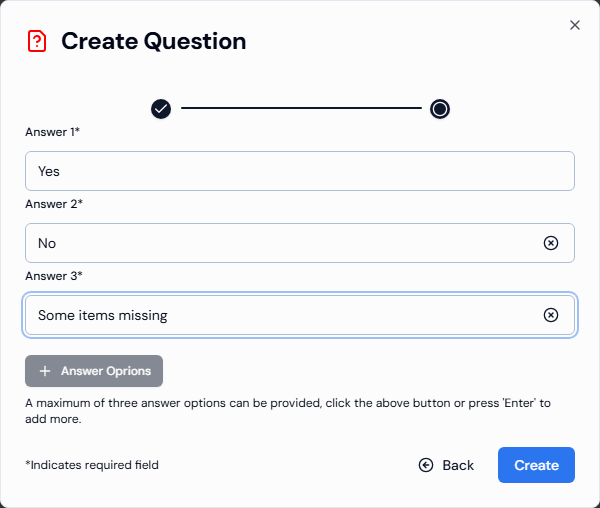
Step 4: Add the answer options (second step)
- In Answer 1*, type the first answer, for example "Yes". Use 2 to 50 characters.
- To add another answer, click Answer Options. You can have up to three answers in total.
- To remove an extra answer, click the X next to it.
- To go back and change the question, click Back.
Step 5: Save the question
- Click Create.
- You will see the message "Questionnaire created successfully."
- The new question appears in the list.
View your questions
- In the left menu, under Safety, click Questionnaire.
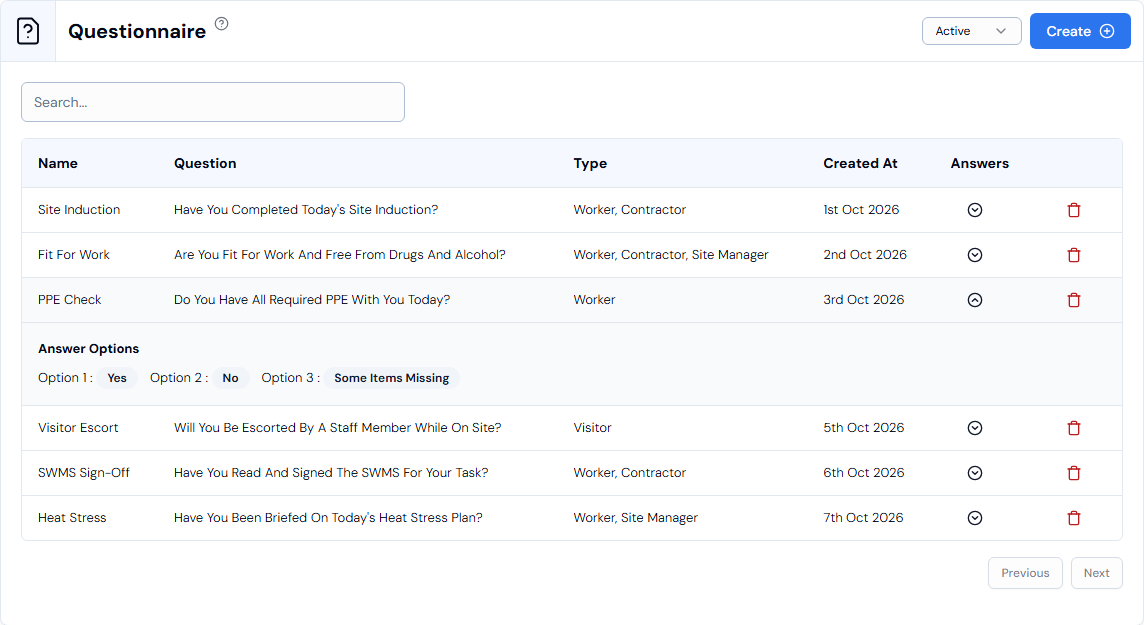
- Each row in the list shows:
| Column | What it shows |
|---|---|
| Name | The question name. |
| Question | The question people see. |
| Type | Who is asked this question (for example worker, visitor). |
| Created At | The date the question was created. |
| Answers | Click the arrow button to see the answer options (Option 1, Option 2 and so on). |
To find a question quickly, type part of its name into the Search... box. Use Previous and Next at the bottom to move between pages.
Switch between active and deleted questions
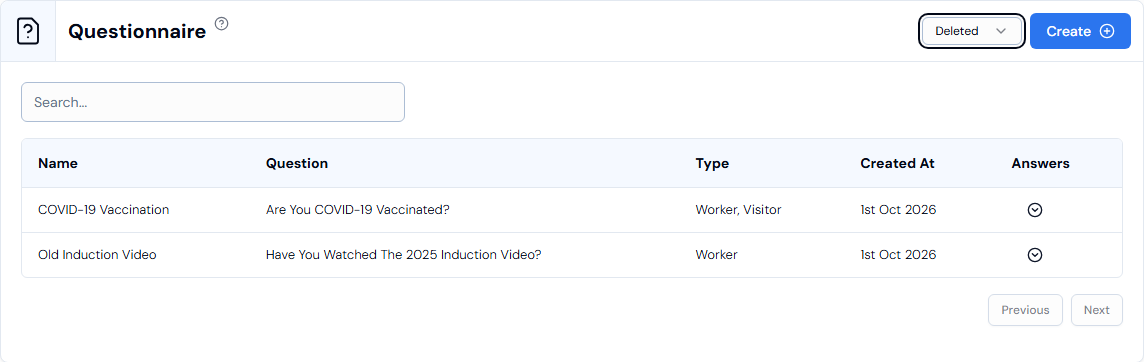
Use the status drop-down next to the Create button:
| Status | What it means |
|---|---|
| Active | Questions that are currently in use. This is shown by default. |
| Deleted | Questions you have deleted. You can view them, but you cannot use them again. |

Delete a question
- Make sure the status drop-down is set to Active.
- Click the red bin icon at the end of the row.
- A Confirm Deletion window asks: "Are you sure you want to delete this item? This action cannot be undone."
- Confirm to delete. You will see a message that the questionnaire was deleted, and it moves to the Deleted list.
Good to know
| Topic | Details |
|---|---|
| Editing | There is no option to edit a question after you create it. To change a question, delete it and create a new one. |
| Answers given | This page does not show the answers people have given. |
| Answer limit | Each question can have a maximum of three answer options. |
Troubleshooting
| Problem | What to do |
|---|---|
| Next does not move you to the second step | Check that Question Name, User Type and Question are filled in and are the right length. |
| You cannot add a fourth answer | Each question can have a maximum of three answer options. |