How to View and Filter Site Attendance
The Site Attendance page shows who checked in on a chosen day and who did not. You can use it to see who is on site right now, look back at an earlier day, and check a worker in or out yourself when they could not do it from the app.
An app user is a worker, visitor or site manager who uses the SwiftCheckin mobile app to check in and out.
Step 1: Open the Site Attendance page
- In the left menu, under Field Operations, click CheckIns.
- Click Site Attendance.
Depending on how your account is set up, Site Attendance may appear directly under Field Operations instead of inside CheckIns. You can also click the Site Attendance > button on the Dashboard.
The project menu items in Field Operations only show once your account has at least one project.
Step 2: Read the summary cards
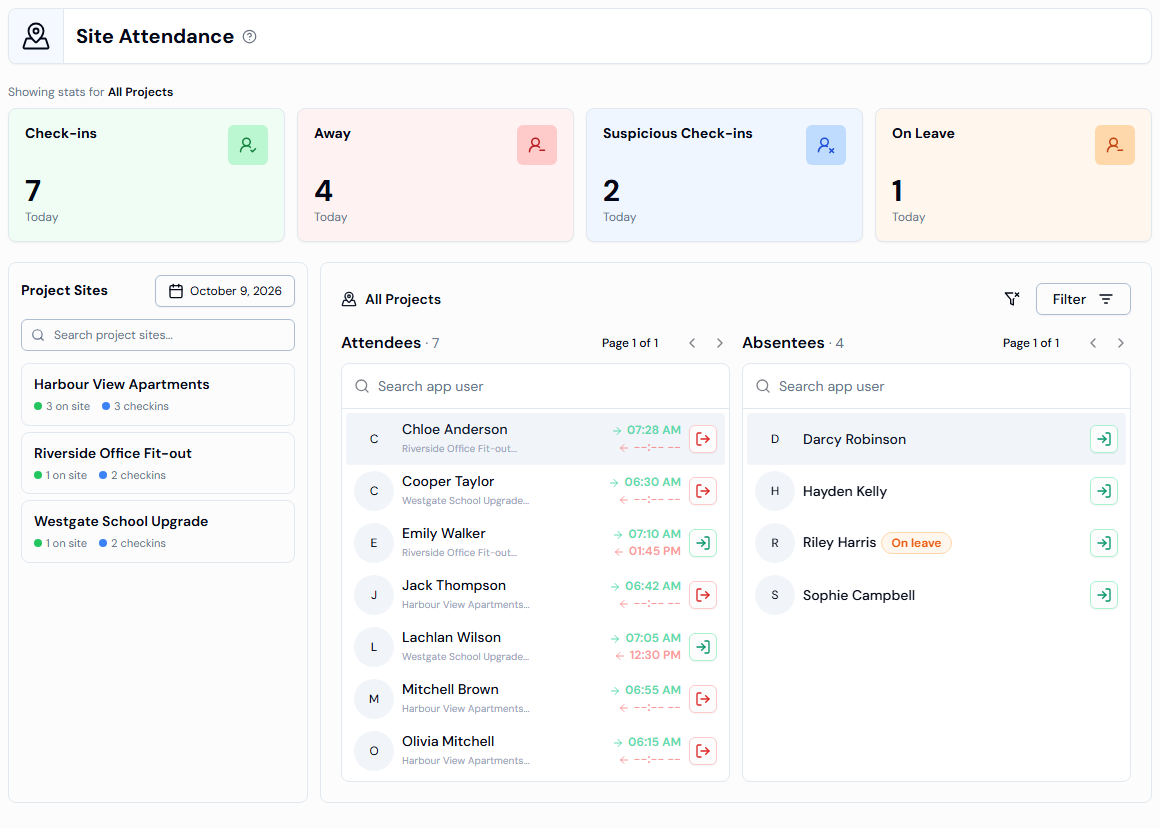
At the top of the page you will see four cards. Each card shows a count for the chosen day (the card says Today unless you pick another date).
| Card | What it shows |
|---|---|
| Check-ins | How many check-ins happened on that day. |
| Away | How many app users did not check in. |
| Suspicious Check-ins | How many check-ins were flagged as suspicious. See How to View Suspicious Check-ins. |
| On Leave | How many app users were on leave. |
Step 3: Choose a date
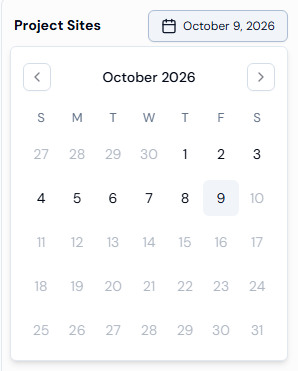
- In the Project Sites panel on the left, click the date button (it shows today's date to begin with).
- Pick a day in the calendar.
The whole page updates to show that day. You cannot pick a date in the future.
Step 4: Look at the Attendees and Absentees lists
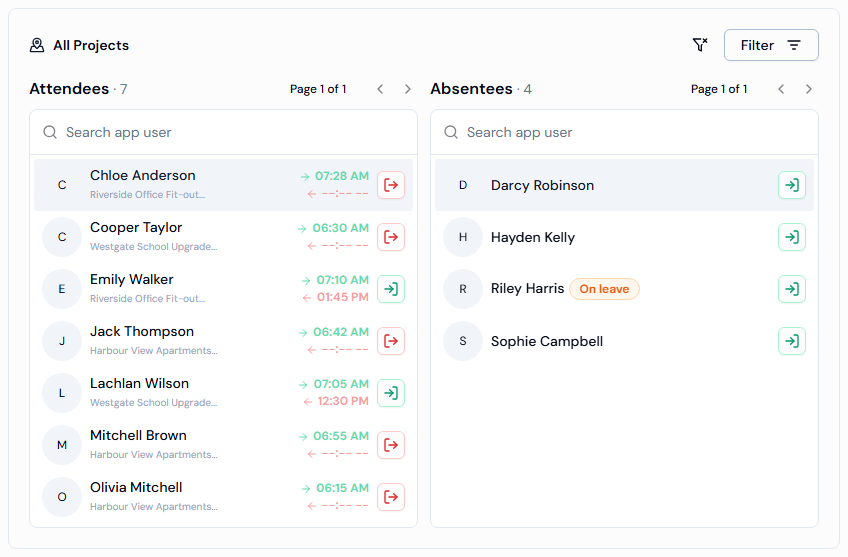
The main area has two lists side by side. The number next to each heading is the total for that list.
Attendees
Attendees are the people who checked in on the chosen day. For each person you will see:
- Their name and photo (or first initial).
- The project they checked in to.
- Their check-in time (green arrow).
- Their check-out time (red arrow). If it shows --:-- --, they have not checked out yet, so they are still on site.
Absentees
Absentees are the people who did not check in on the chosen day. If someone is on approved leave, you will see an orange On leave badge next to their name.
Point your mouse at a name in the Absentees list to see a short profile card for that person.
Search and move between pages
- Type in the Search app user box above a list to find a person by name. This searches the page you are looking at.
- Each list shows up to 30 people at a time. Use the left and right arrows next to Page X of Y to move between pages.
Step 5: Filter the lists
You can narrow the page down in three ways.
| Filter | How to use it |
|---|---|
| Date | Pick a day from the date button in the Project Sites panel. |
| Project | Click a project in the Project Sites panel. See How to View Project-Based Attendance. |
| Company | Click Filter, choose a Company, then click Apply Filter. |
The Company filter only becomes available after you pick a project in the Project Sites panel.
When a company filter is on, a small red number appears on the Filter button.
To remove all filters at once, click the Clear Filters button (the funnel icon with a cross, next to Filter). This takes you back to today, all projects and all companies.
Step 6: See a person's attendance details
- In the Attendees list, click a person's name.
- A panel opens on the right with two tabs.
Profile tab
- Overview: Company, Category, High Risk Worker (HRW) and Pay Rule.
- Questionnaire: the questions they answered when checking in, with their answers.
Details tab
This shows each check-in the person made on that day, split into two parts:
- Check-In: Project, Check-In Gate, Check-In At and Check in-Method. You may also see contract, visit or work details.
- Check-Out: Check-Out At, Check-Out Gate, Check-Out Method and Total Work Hours.
A gate is a check-in point at a site. In the left menu, these check-in points are listed under Site Locations.
Step 7: Check someone in by hand
Use this when a worker is on site but could not check in from the app.
- Find the person in the Absentees list, or in the Attendees list if they have already checked out.
- Click the green Check in button next to their name.
- In the Check In window, fill in the fields:
| Field | What to enter |
|---|---|
| Project* | The project the person is working on. |
| Date* | Click Today or Yesterday. |
| Check-in Time* | Click the time box, then pick the hour (Hrs) and minute (Mins). It starts at the current time. |
- Click Check In.
You will see the message "App user has been checked in successfully." The person moves into the Attendees list.
Step 8: Check someone out by hand
Use this when a worker has left the site but did not check out.
- In the Attendees list, find the person. They must still be on site (no check-out time).
- Click the red Check out button next to their name.
- In the Check Out window, fill in the fields:
| Field | What to enter |
|---|---|
| Date* | Click Today or Yesterday. Yesterday is greyed out if the person checked in today. |
| Check-out Time* | Click the time box, then pick the hour (Hrs) and minute (Mins). |
- Click Check Out.
You will see the message "App user has been checked out successfully."
Check-ins and check-outs you make here are saved as admin check-ins and admin check-outs. You can see them, marked with an admin icon, on the Checkin Records page.
Troubleshooting
| Message | What it means and what to do |
|---|---|
| Check-in time cannot be in the future. | You picked a time later than now. Choose an earlier time. |
| Check-out time cannot be in the future. | You picked a time later than now. Choose an earlier time. |
| Check-out time cannot be before the check-in time. | The check-out time is earlier than when the person checked in. Choose a later time. |
| No attendees for this date. / No absentees for this date. | Nobody matches the date, project or company you picked. Try another date or click Clear Filters. |
| No Check ins found in your projects. | None of your projects had check-ins on the chosen date, or your search in the Project Sites panel did not match a project. |
| The Check In or Check Out button is greyed out | A required field is empty, or the time is not allowed. Fill in every field marked with *. |