How to View Timesheet Reports
The Reports tab gives you a quick picture of the hours worked in a pay period or date range. You can see total, regular and overtime hours, which projects used the most hours, what labour will cost, and any unusual check-in activity – all on one screen.
Step 1: Open the Reports tab
- In the left menu, under Field Operations, click Timesheets.
- Click the Reports tab at the top of the page.
Step 2: Choose the projects and dates
The Reports tab has two filters:
| Filter | What it does |
|---|---|
| Projects | Tick one or more projects to include. Leave it empty to include all of them. |
| Date button | Click it to open the Date Range window. Pick a Pay Period, or click Custom and pick any dates, then click Apply. |
The report starts on the current pay period. To clear the filters, click the button with the funnel-and-cross icon.
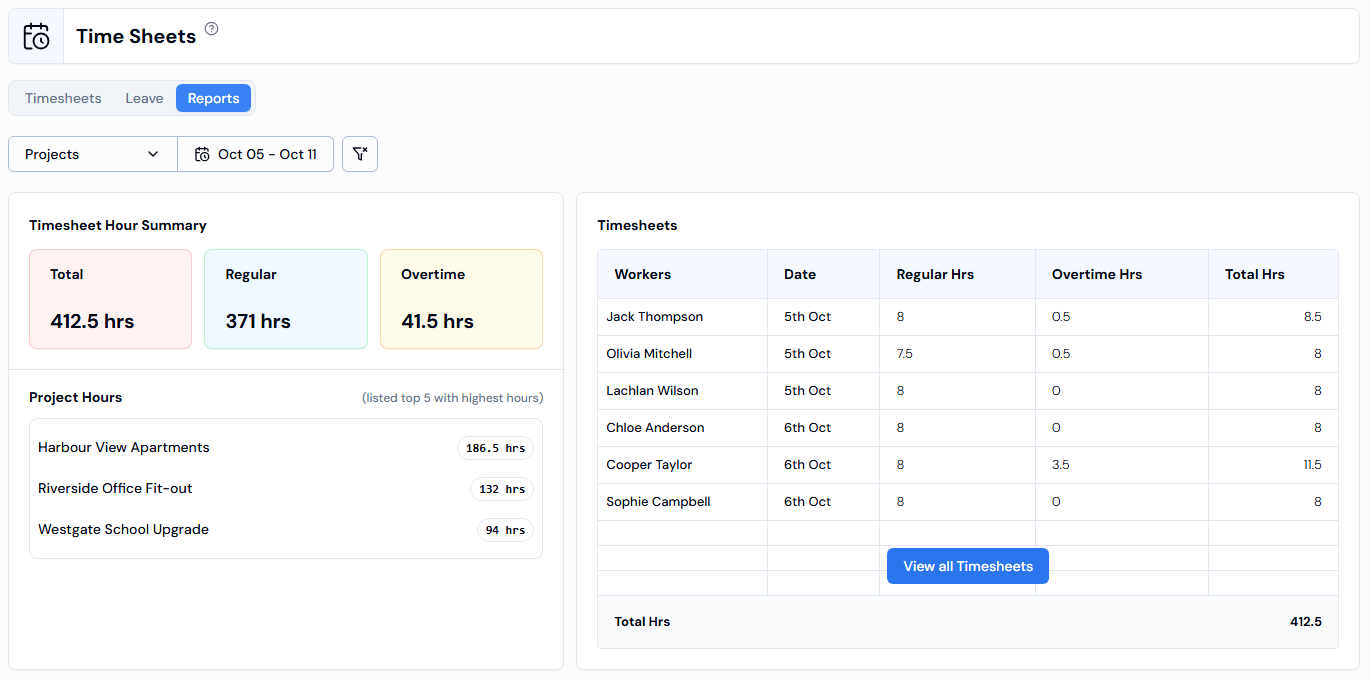
Step 3: Read the report
The report is made up of several boxes.
Timesheet Hour Summary
Three cards show the hours for your chosen projects and dates:
| Card | What it shows |
|---|---|
| Total | All hours worked. |
| Regular | Normal hours. |
| Overtime | Overtime hours. |
Project Hours
The five projects with the most hours, and how many hours each one has.
Timesheets
A short list of timesheets with Workers, Date, Regular Hrs, Overtime Hrs and Total Hrs, and the Total Hrs at the bottom. Click View all Timesheets to go to the full list on the Timesheets tab.
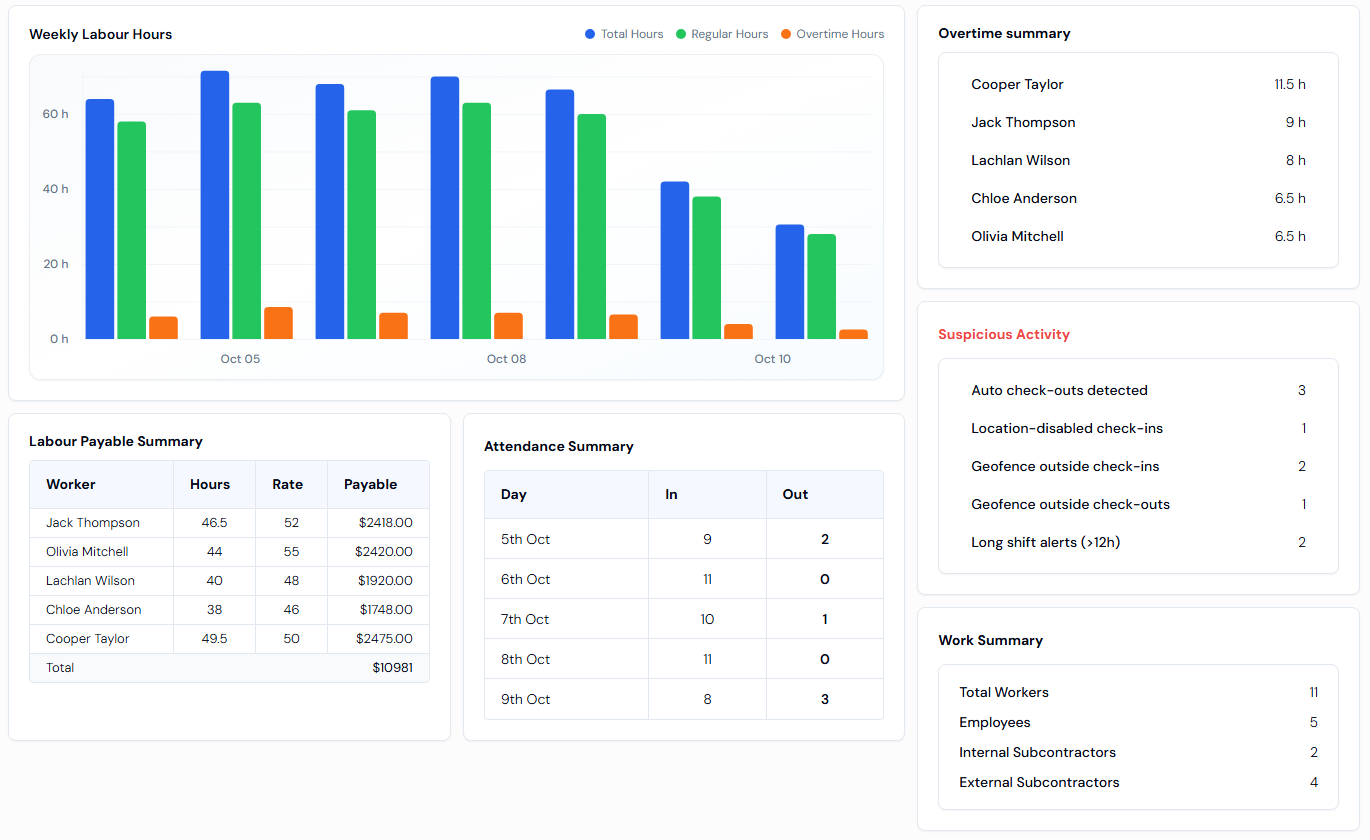
Weekly Labour Hours
A bar chart showing Total Hours, Regular Hours and Overtime Hours across your chosen dates. Move your mouse over a bar to see the numbers.
Labour Payable Summary
What each worker is owed: Worker, Hours, Rate and Payable, with the Total at the bottom. If there is nothing to show, you will see No labour payable data found.
Attendance Summary
For each Day, how many workers were In (on site) and Out (off site).
Overtime summary
Each worker who worked overtime and how many overtime hours they had. If nobody did, you will see No overtime recorded.
Suspicious Activity
Counts of check-ins and check-outs that may need a closer look:
| Item | What it means |
|---|---|
| Auto check-outs detected | Workers who were checked out automatically by the system. |
| Location-disabled check-ins | Check-ins made with the phone's location turned off. |
| Geofence outside check-ins | Check-ins made outside the site boundary. A geofence is the invisible boundary drawn around a site location. |
| Geofence outside check-outs | Check-outs made outside the site boundary. |
| Long shift alerts (>12h) | Shifts longer than 12 hours. |
To look into these, see How to View Suspicious Check-ins.
Work Summary
How many workers there are in total, split into Employees, Internal Subcontractors and External Subcontractors.
Good to know
- The Status, Employment Type and Workers filters are not shown on the Reports tab. Only Projects and the dates change the report.