Getting started
Set up the SwiftCheckin app on your phone, log in, join your organisation and learn where everything is. For everyone who uses the app.
About the app
The SwiftCheckin app is the mobile app for people who work on your organisation's sites. You use it on your phone to check in when you arrive on site, check out when you leave, and keep track of your hours.
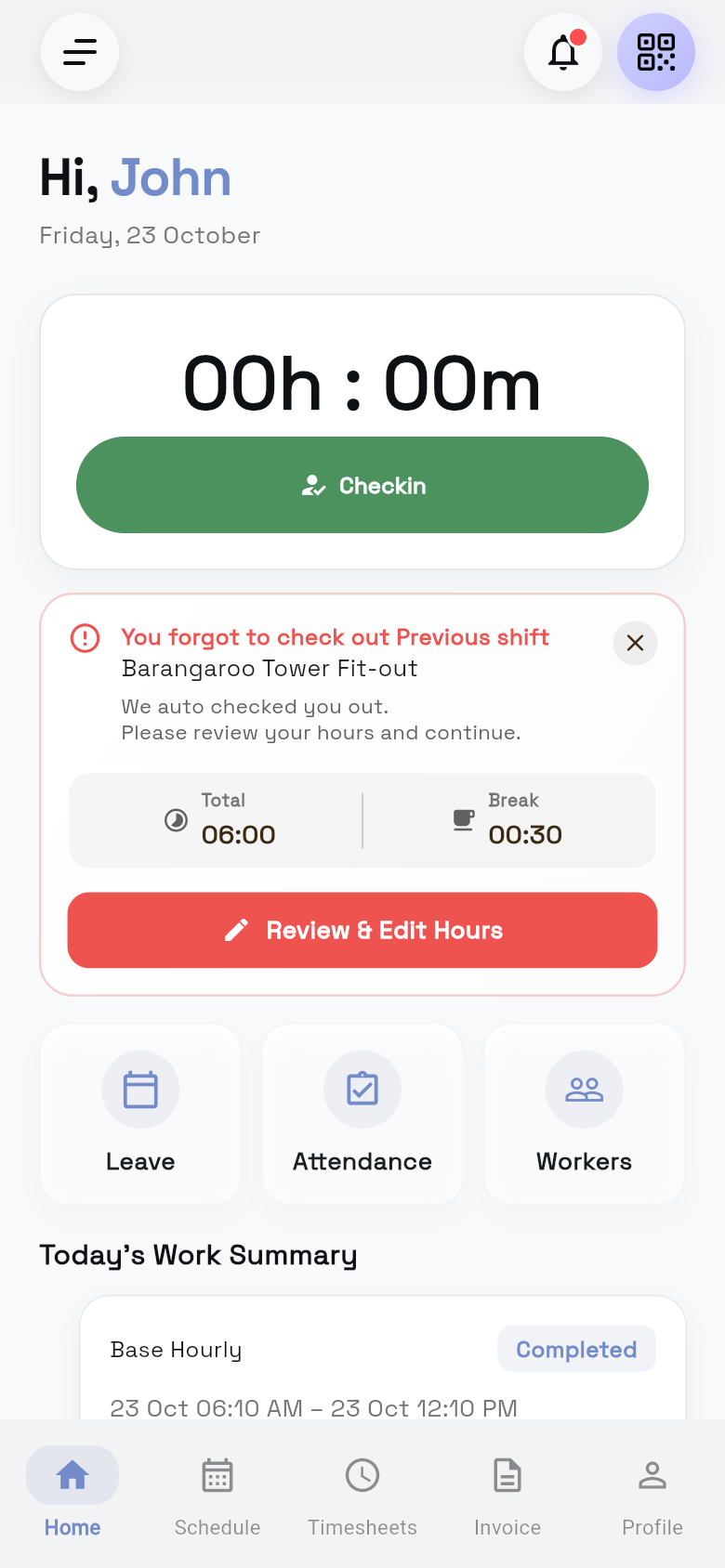
The app works for three kinds of people:
- Workers check in and out and look after their own hours.
- Site managers do the same, and also run the site: attendance, workers and timesheet verification.
- Admins can do everything a site manager can, and also see business details such as pay rates and project values.
What you see depends on your role, whether an organisation has accepted you, whether your account is active, and which features your organisation has turned on.
Create an account
Download the SwiftCheckin app from the App Store (iPhone) or Google Play (Android). Have your phone and email ready; the app sends a code to your mobile.
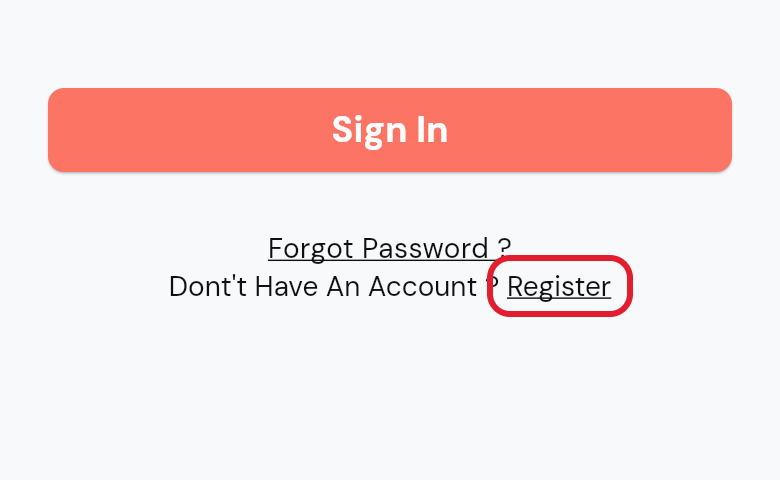
- Open the app. You see Please Register to Continue. On the login screen, tap Register instead.
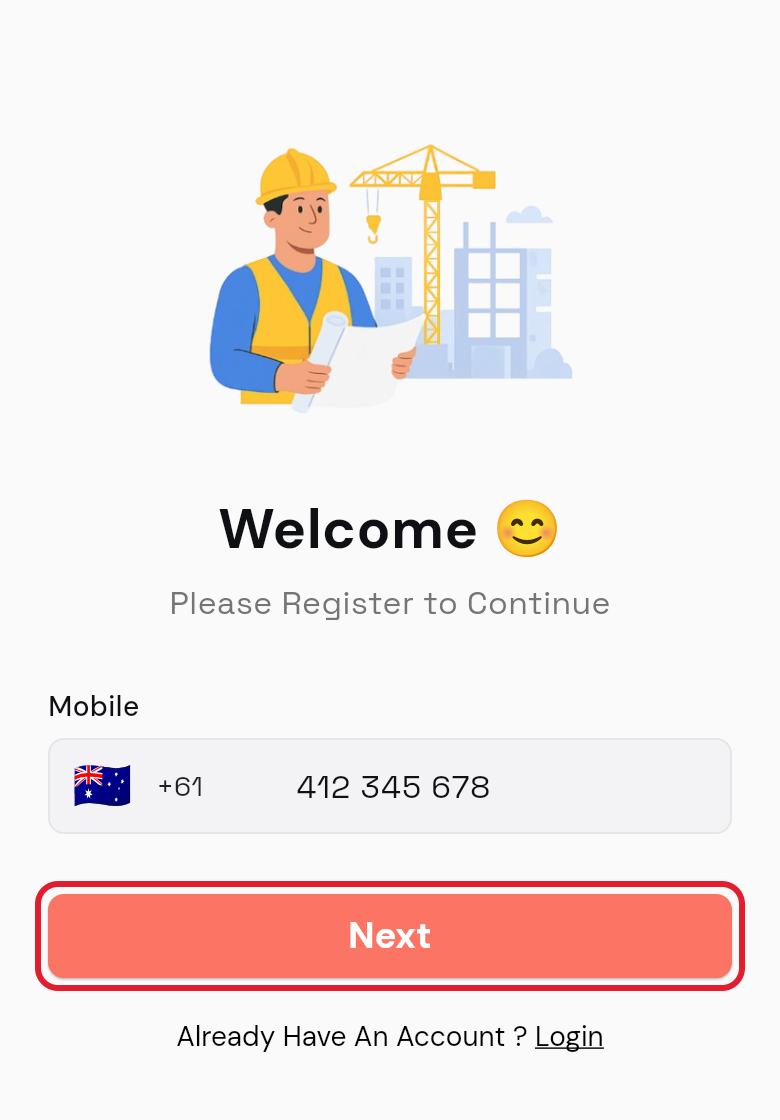
- Check the flag. Australia is the default. Tap the flag to change your country.
- Enter your number. Type your mobile number in Mobile, then tap Next.
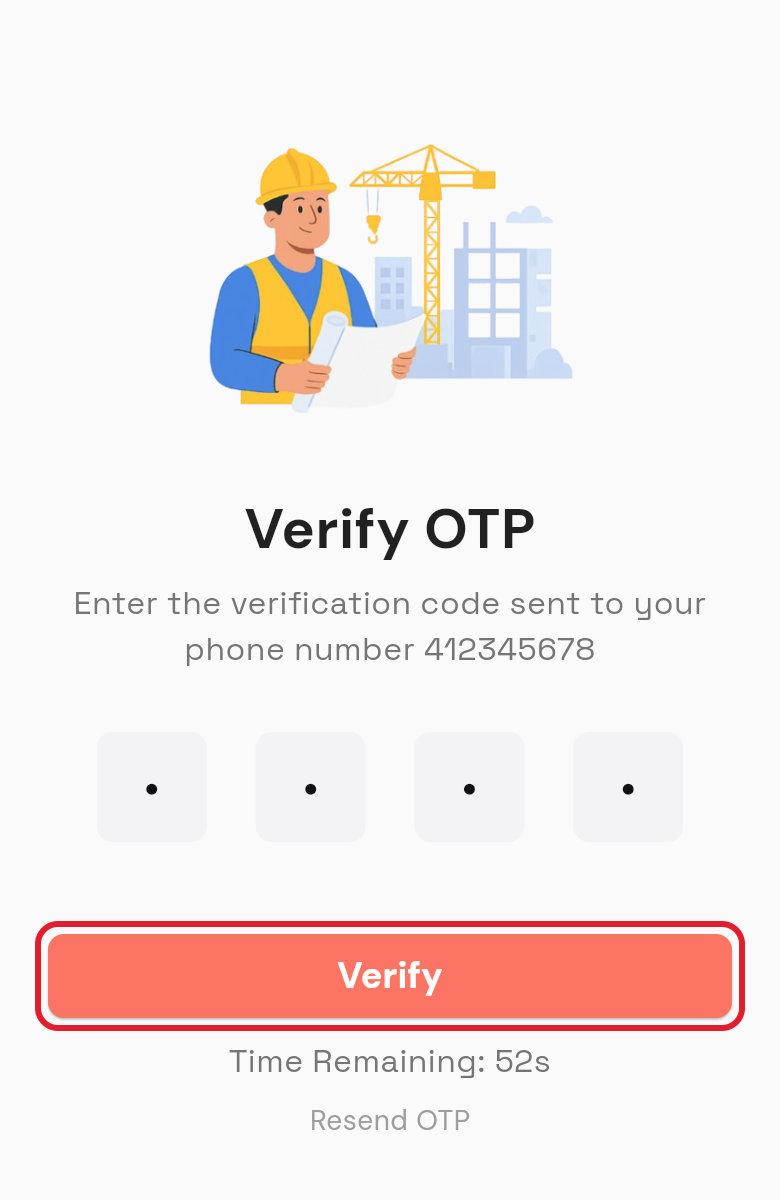
- Enter the code. On Verify OTP, type the 4-digit code within 60 seconds, then tap Verify.
- Fill in your details. On Create Account, fill in First Name, Last Name and Email.
- Pick your company. If you see Select Company*, choose the company you work for.
- Set your password. Type a 4-digit number in Password and again in Confirm Password.
- Tap Confirm. Your account is created.
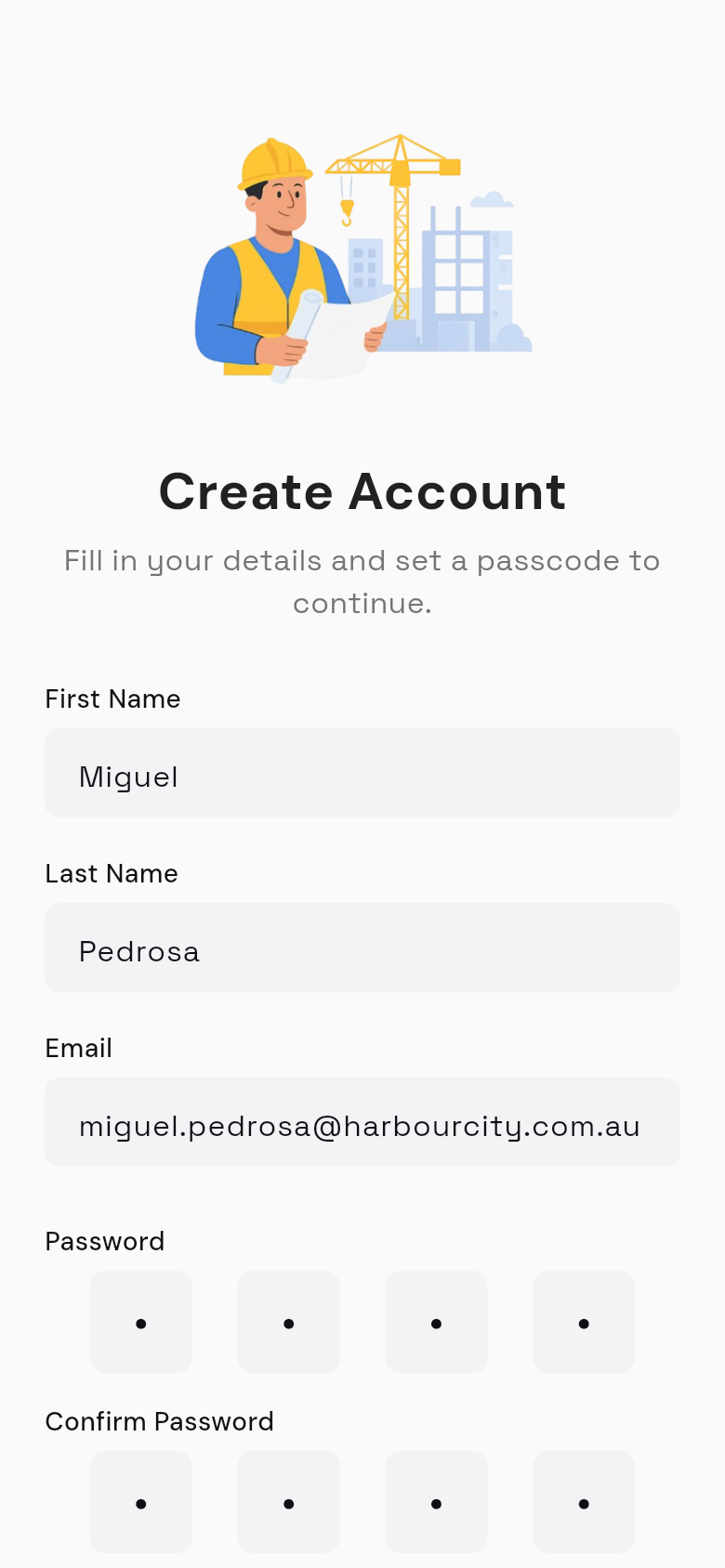
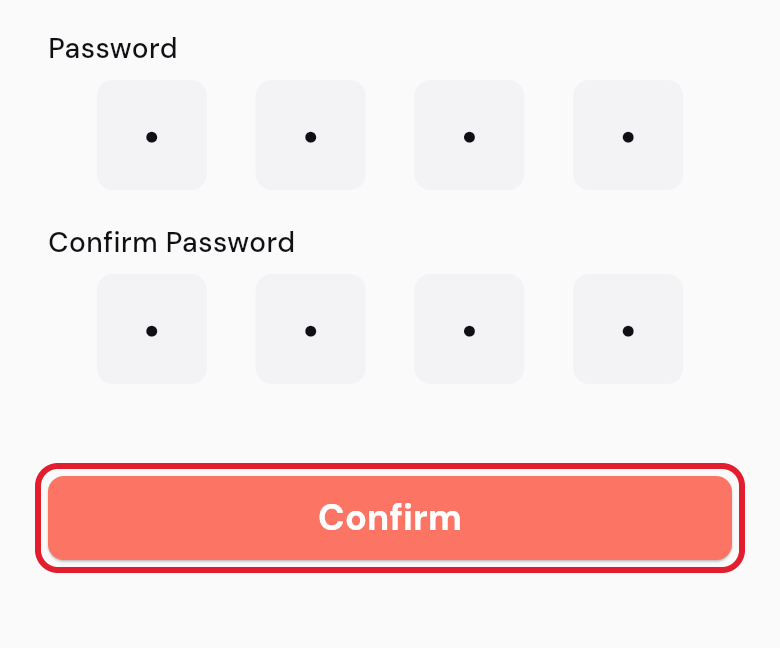
You see User registration successfully completed and the login screen opens. You can't check in until an organisation accepts you (see Accept an invitation).
Your 4-digit password is what the login screen calls your Passcode. Select Company* only shows if you started from a site QR code and the site has more than one company. If your site has a SwiftCheckin QR code, you can scan it with your phone camera to start; the app then links your new account to that organisation.
Log in
- Open the app. If you've used it on this phone before, your number is already filled in.
- Check your number. In Mobile, check the flag and your number.
- Enter your passcode. Type your 4-digit Passcode.
- Tap Sign In. The app logs you in.
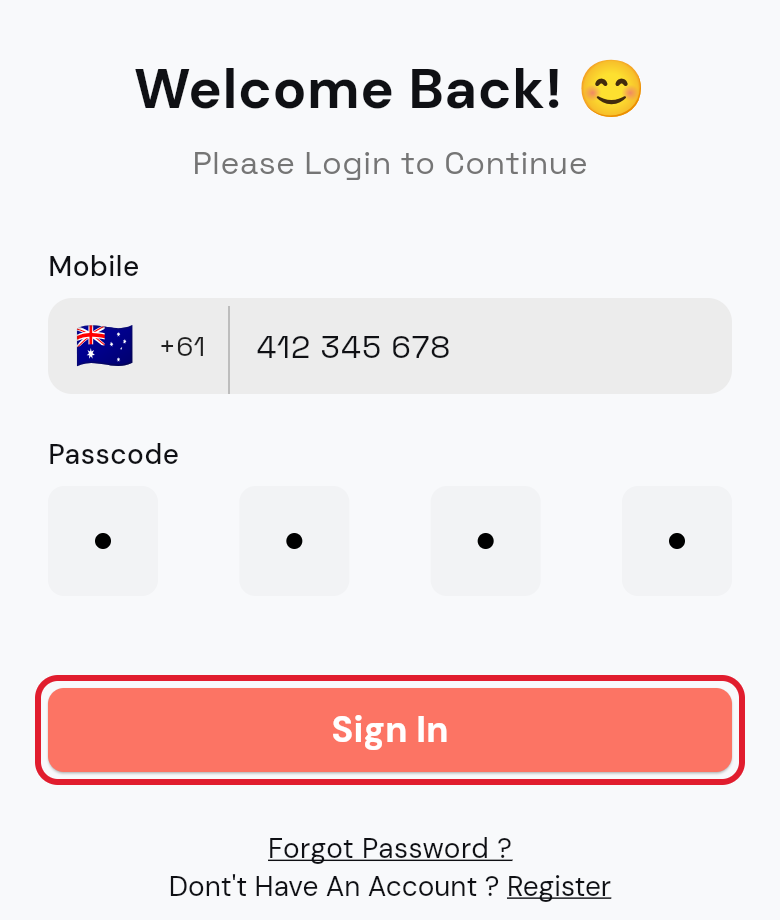
The Home screen opens.
Log out
You can log out from the side menu or from your profile.
- Open the menu. Tap ☰ in the top-left corner of Home.
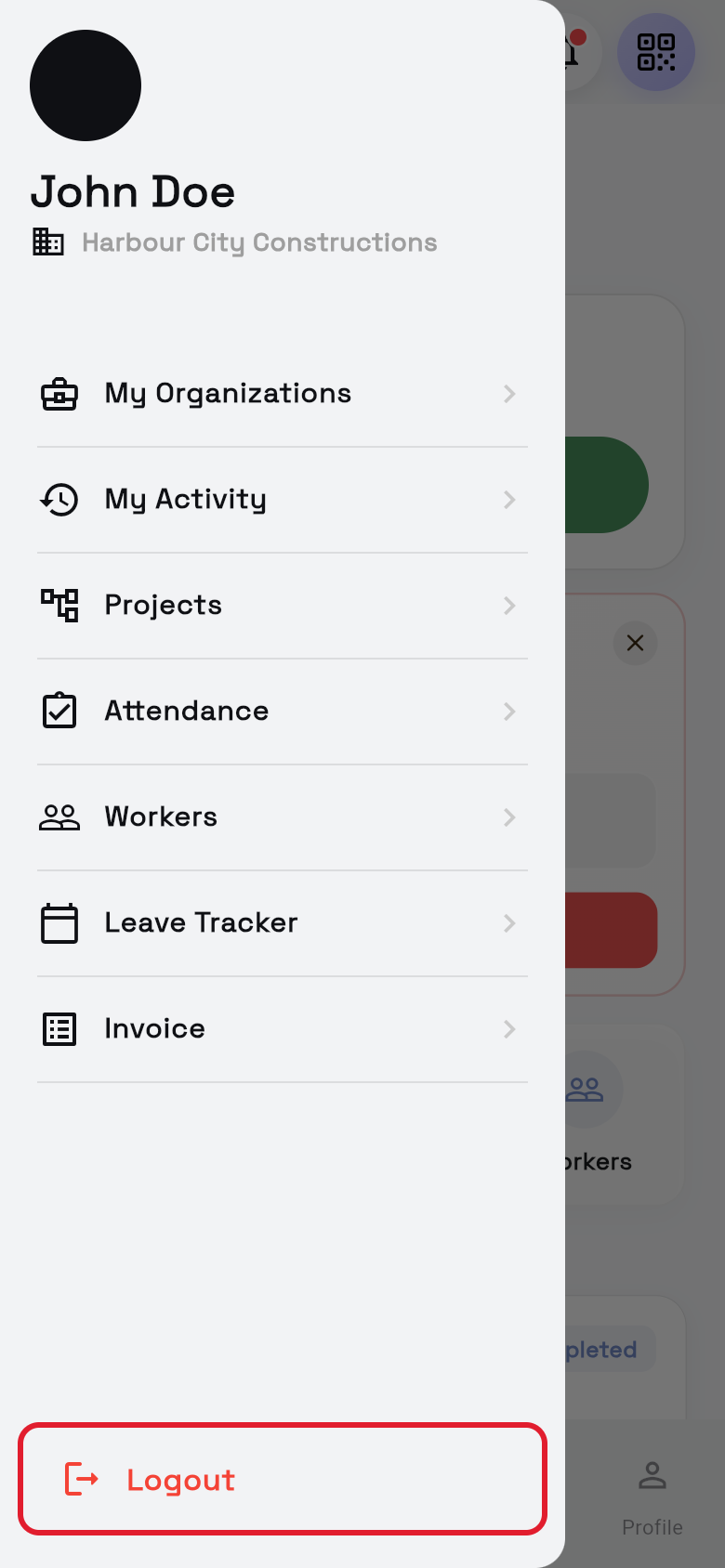
- Tap Logout. It's at the bottom of the menu.
- Confirm. In Confirm Logout, tap Logout.
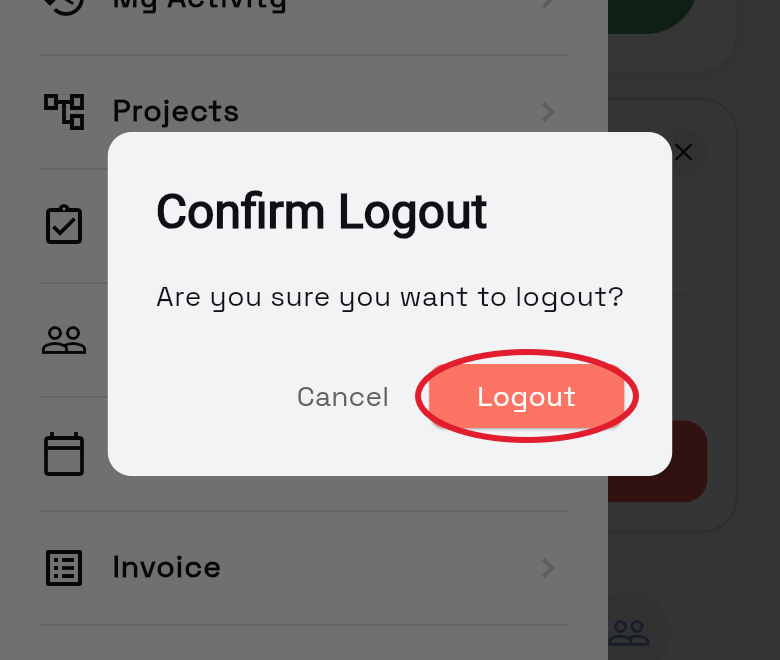
Or:
- Open Profile. Tap Profile in the bottom bar.
- Tap Logout. It's under ACCOUNT.
- Confirm. In Confirm Logout, tap Logout.
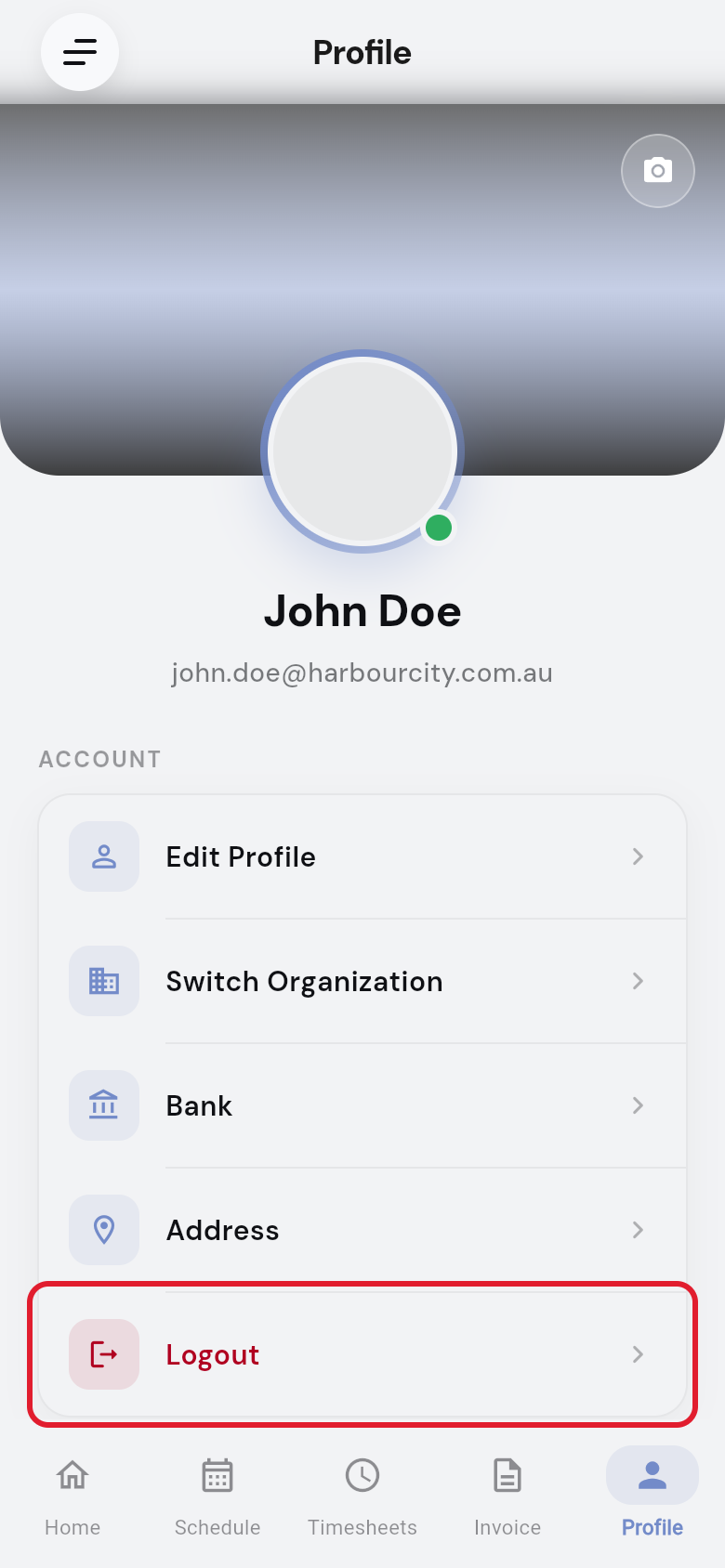
The login screen opens. You stop getting notifications from the app on this phone until you log in again.
Reset your password
Have your phone with you. The code goes to the mobile number you registered with.
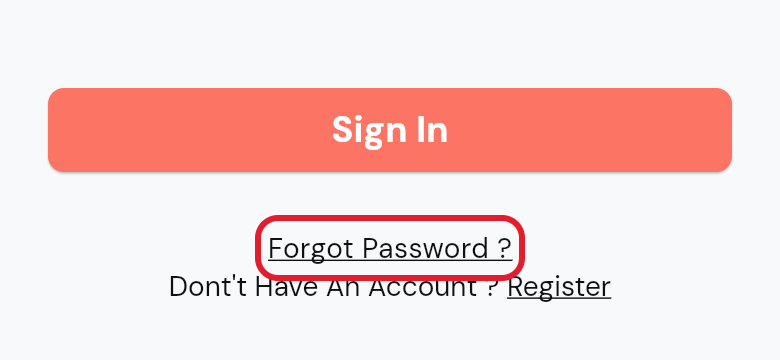
- Tap Forgot Password. On the login screen, tap Forgot Password ?.
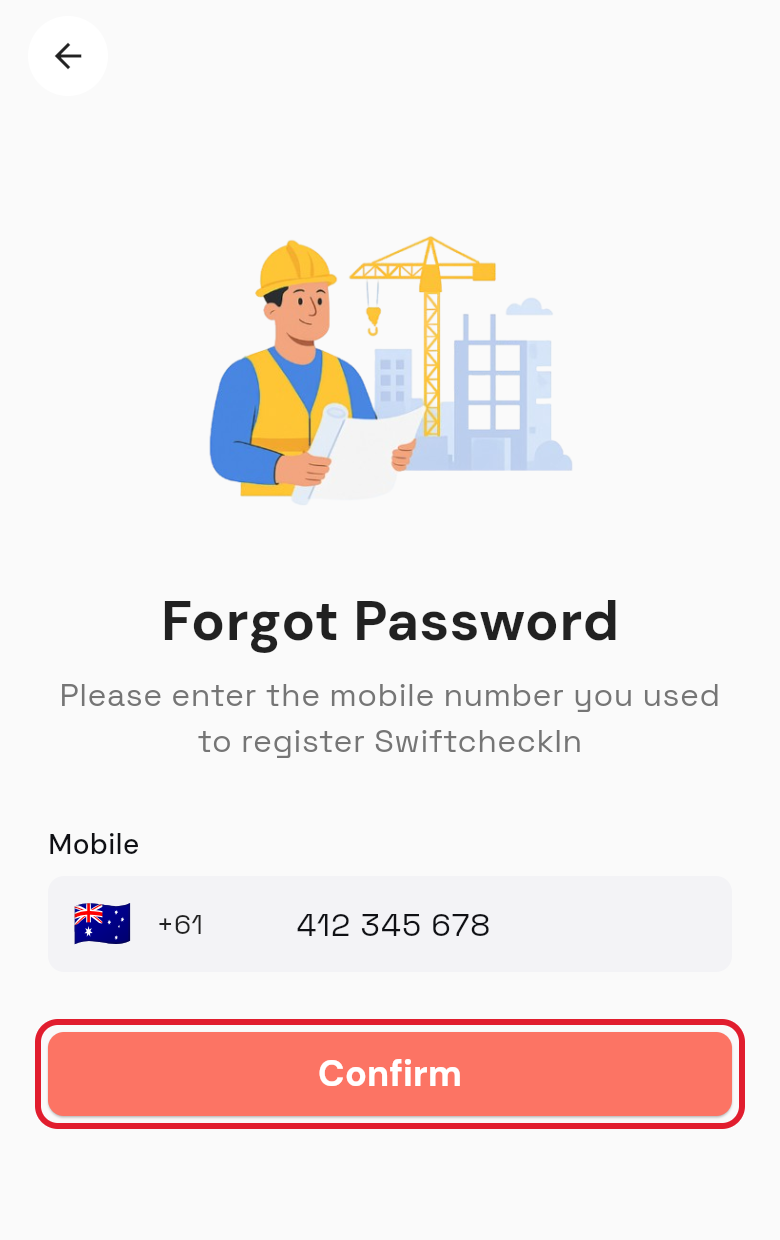
- Enter your number. Check the flag and type your mobile number in Mobile.
- Tap Confirm. A code is sent to your phone.
- Enter the code. On Verify OTP, type the 4-digit code within 60 seconds, then tap Verify.
- Type a new password. On Reset Password, type a new 4-digit number in New Password.
- Type it again. Enter the same number in Confirm Password.
- Tap Confirm. Your new password is saved.
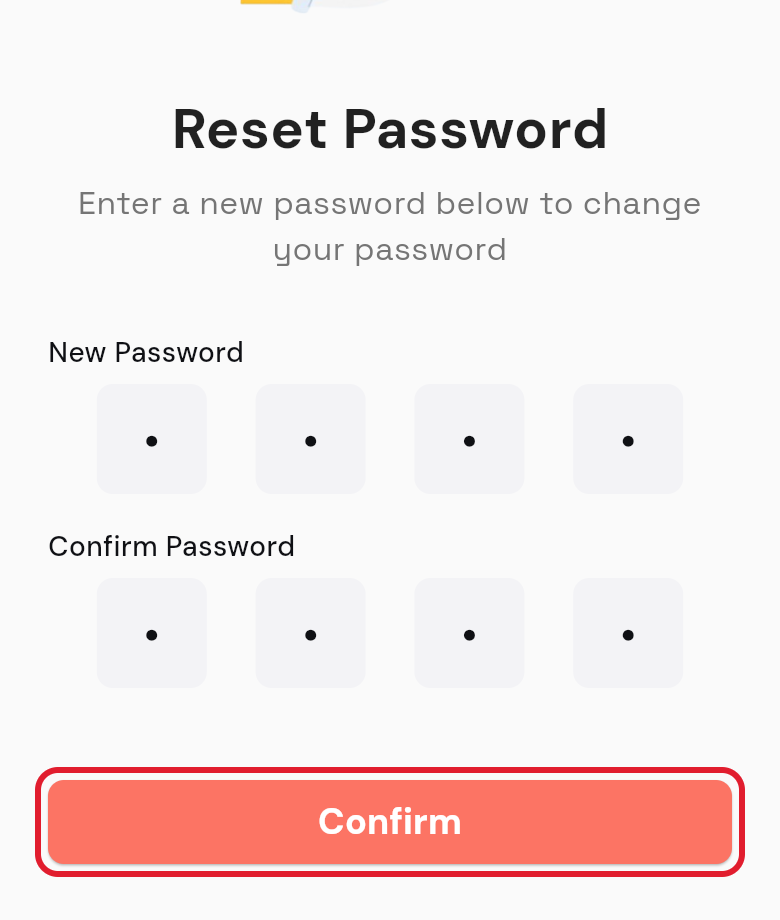
You see Password reset was successful. and the login screen opens. Log in with your new 4-digit passcode.
Accept an invitation
An organisation is the business you work for or with, for example a builder or a labour hire company. It must invite you, using the mobile number you registered with, before you can check in to its sites.
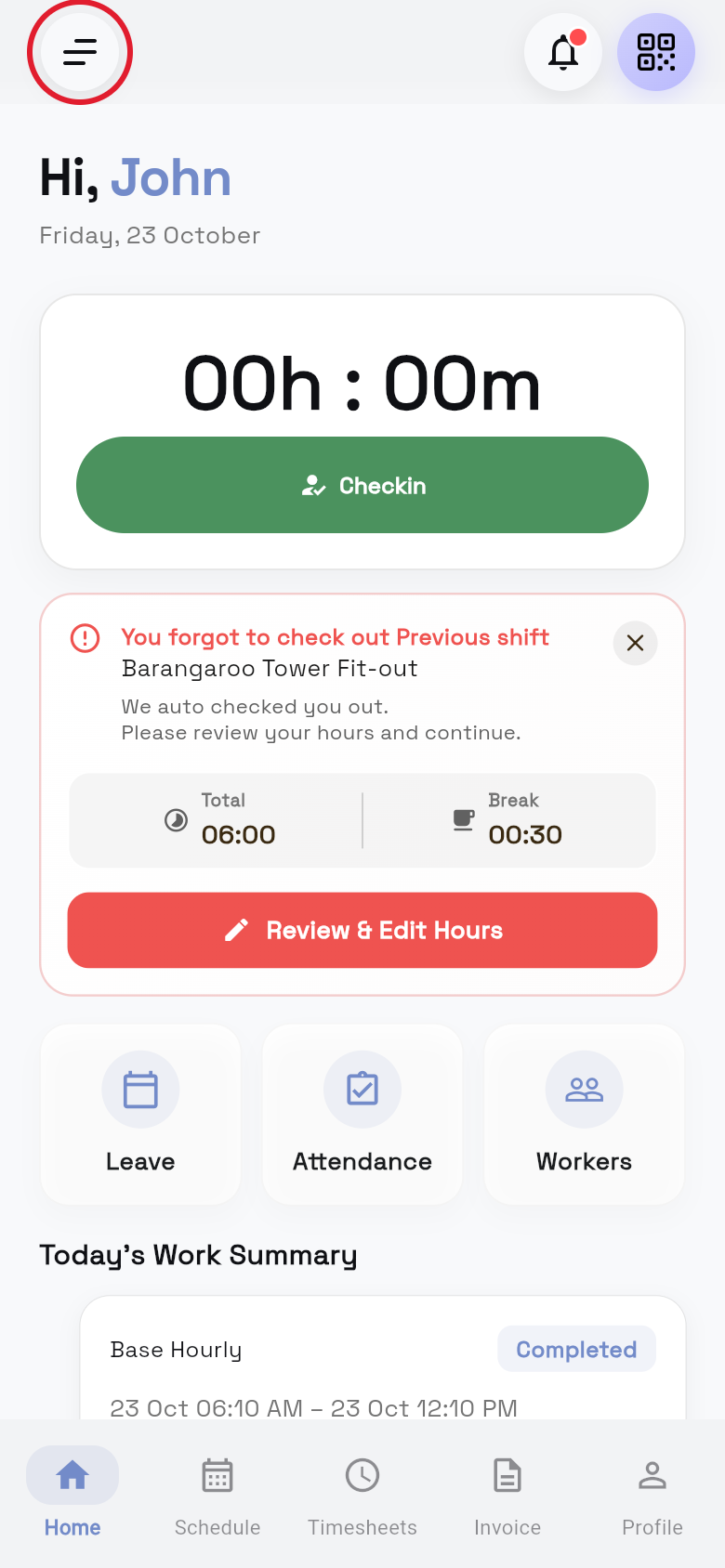
- Open the menu. Tap ☰ in the top-left corner of Home.
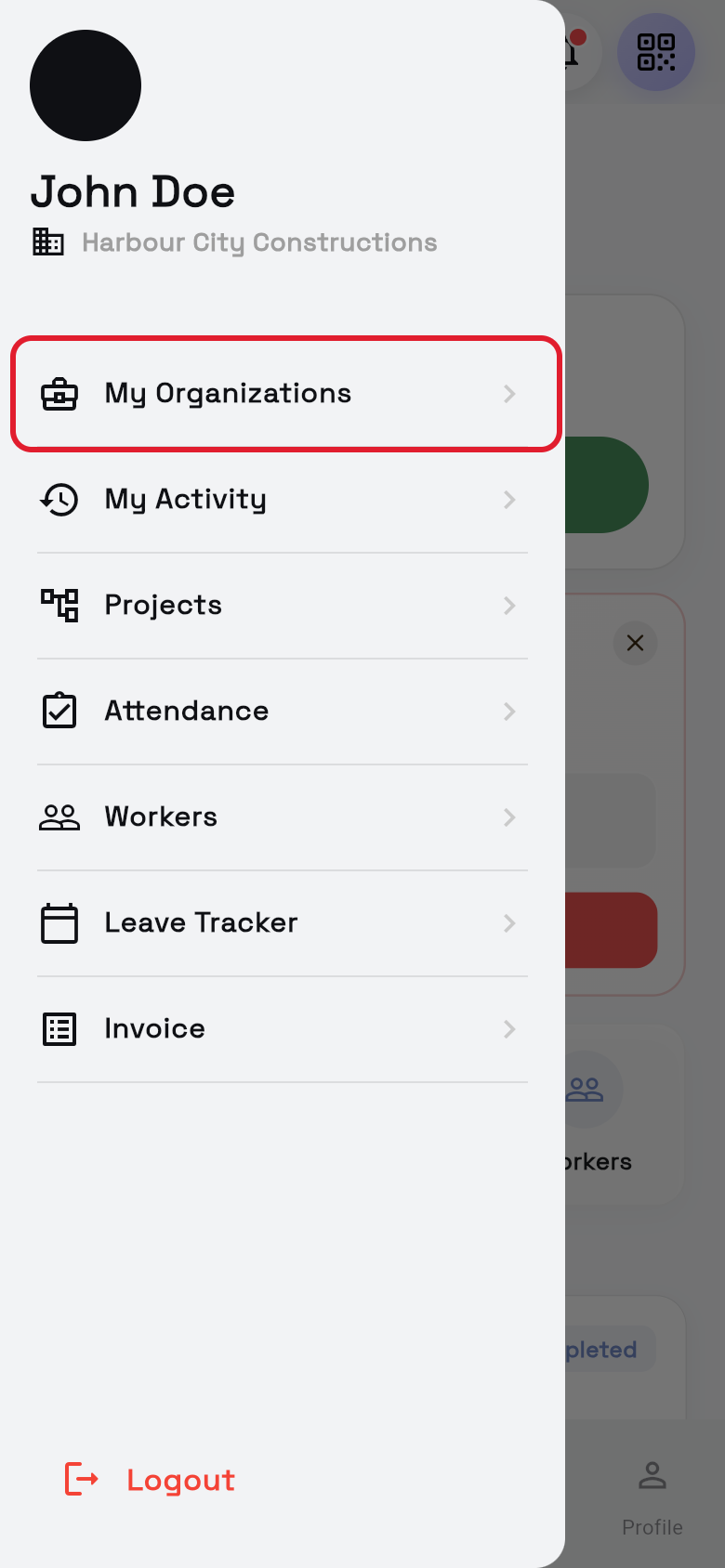
- Tap My Organizations. It's in the side menu.
- Open the Pending tab. Each invitation shows the organisation, company and your role.
- Tap Accept. Tap it next to the organisation you want to join.
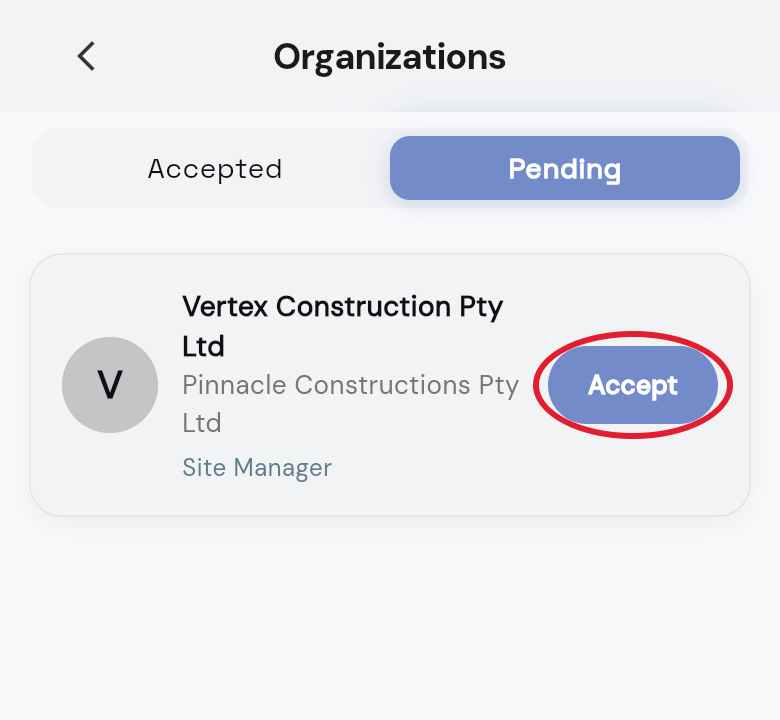
The organisation moves to the Accepted tab. If it is your first organisation, more options appear, such as Timesheets in the bottom bar and My Activity in the side menu.
If you work for more than one organisation, accept each invitation, then switch organisation to choose which one you work under.
Find your way around the app
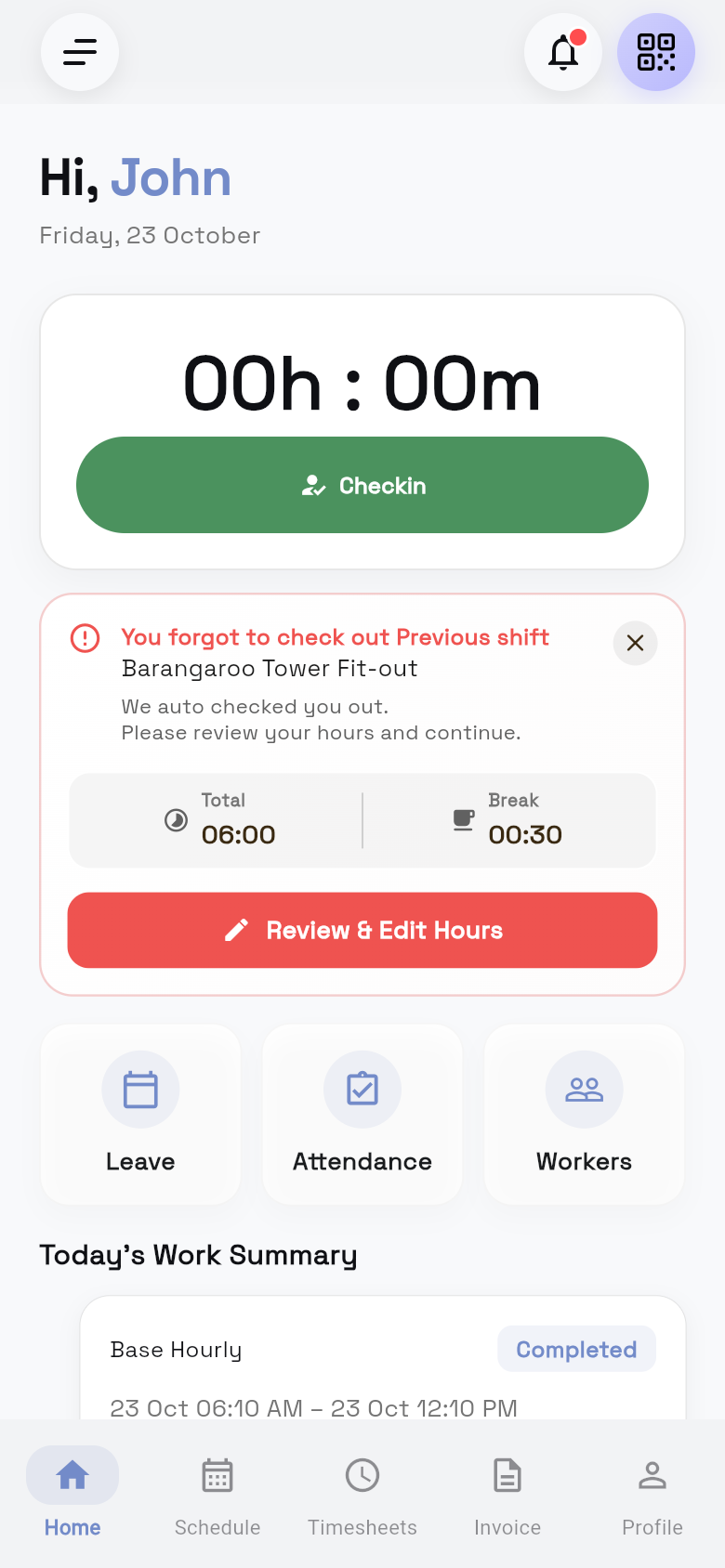
- Start on Home. Check in and out here, and see Today's Work Summary.
- Use the top buttons. They sit at the top of Home.
- The bell opens Notifications.
- The QR code button opens the scanner, once an organisation accepts you.
- Use the quick access cards. You may see Leave, Attendance and Workers, depending on your role.
- Open the side menu. Tap ☰ on Home, Timesheets, Profile or Invoice.
- Use the bottom bar. It moves you between the main screens.
Side menu. At the top you see your photo, your name and the organisation you are working under.
| Menu item | Who sees it |
|---|---|
| My Organizations | Everyone. |
| My Activity | Anyone accepted into an organisation. |
| Projects | Anyone accepted into an organisation, while their account is active. |
| Attendance | Site managers and admins, while their account is active. |
| Workers | Site managers and admins, while their account is active. |
| Leave Tracker | Only if your organisation uses leave requests. |
| Invoice | Only internal subbies (subcontractors). |
| Logout | Everyone. |
The app version is shown under Logout, for example Version 1.2.3. Support staff may ask you for it.
Bottom bar.
| Tab | Who sees it |
|---|---|
| Home | Everyone. |
| Chat | Only if your organisation uses chat. A red number shows unread messages. |
| Timesheets | Anyone accepted into an organisation. |
| Invoice | Only internal subbies (subcontractors). |
| Profile | Everyone. |
Messages on Home.
| Message | What to do |
|---|---|
| No Active Organization | No organisation has accepted you yet. Accept your invitation, or contact your administrator. |
| Limited Access | Your account in this organisation is no longer active. Ask your administrator to reactivate it. |
For other messages, like Update Required or Timezone Mismatch, see Fix check-in problems.
Questions and answers
I no longer have the phone number I registered with. What do I do?
The code can only go to the number you registered with. Contact your site manager or organisation for help.