Leave requests
Ask your organisation for time off, track each request and cancel it if your plans change. You see Leave Tracker in the side menu and a Leave card on Home if your organisation uses leave requests.
Apply for leave
Apply for one or more full days, or for a few hours on one day. You can't apply for a day that has already passed.
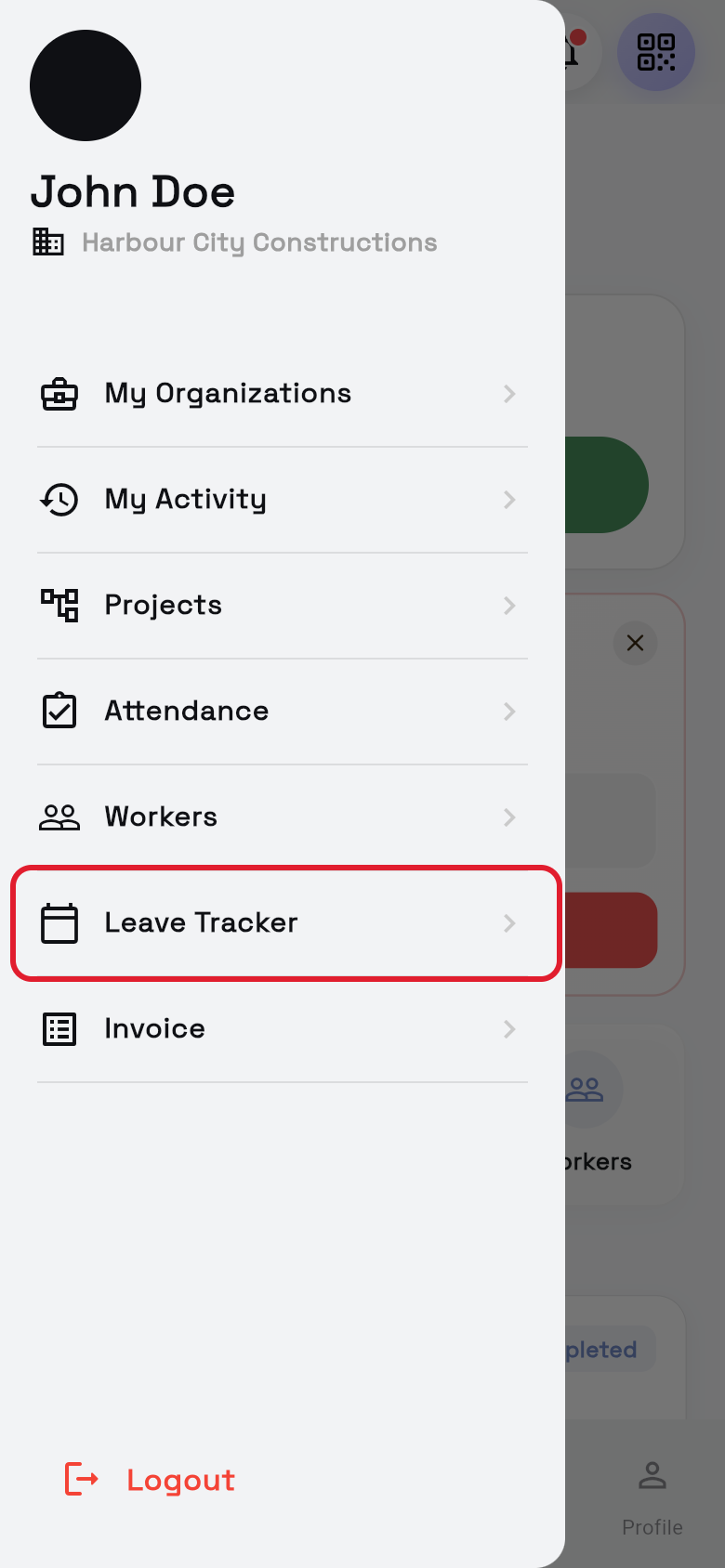
- Open Leave Tracker. Tap the Leave card on Home, or tap ☰ > Leave Tracker.
- Start a request. Tap the round + in the bottom-right corner to open Apply Leave. Or, if you haven't checked in today, tap Apply Leave on Home under Are you on leave today?
- Check your name. Name * is filled in for you.
- Pick the type. Under Type *, tap Full Day or Partial Hours.
- Choose the date. Tap the box under Date *:
- Full Day: pick the first and last day of your leave.
- Partial Hours: pick one day, then fill in Start Time * and End Time *.
- Choose the leave type. Tap Select Leave Type under Leave Type * and pick one, for example annual or sick leave.
- Add a project (optional). Choose one under Project (Opt).
- Add a note. Type the reason in Leave Note; you must add one.
- Send it. Tap Apply Leave.
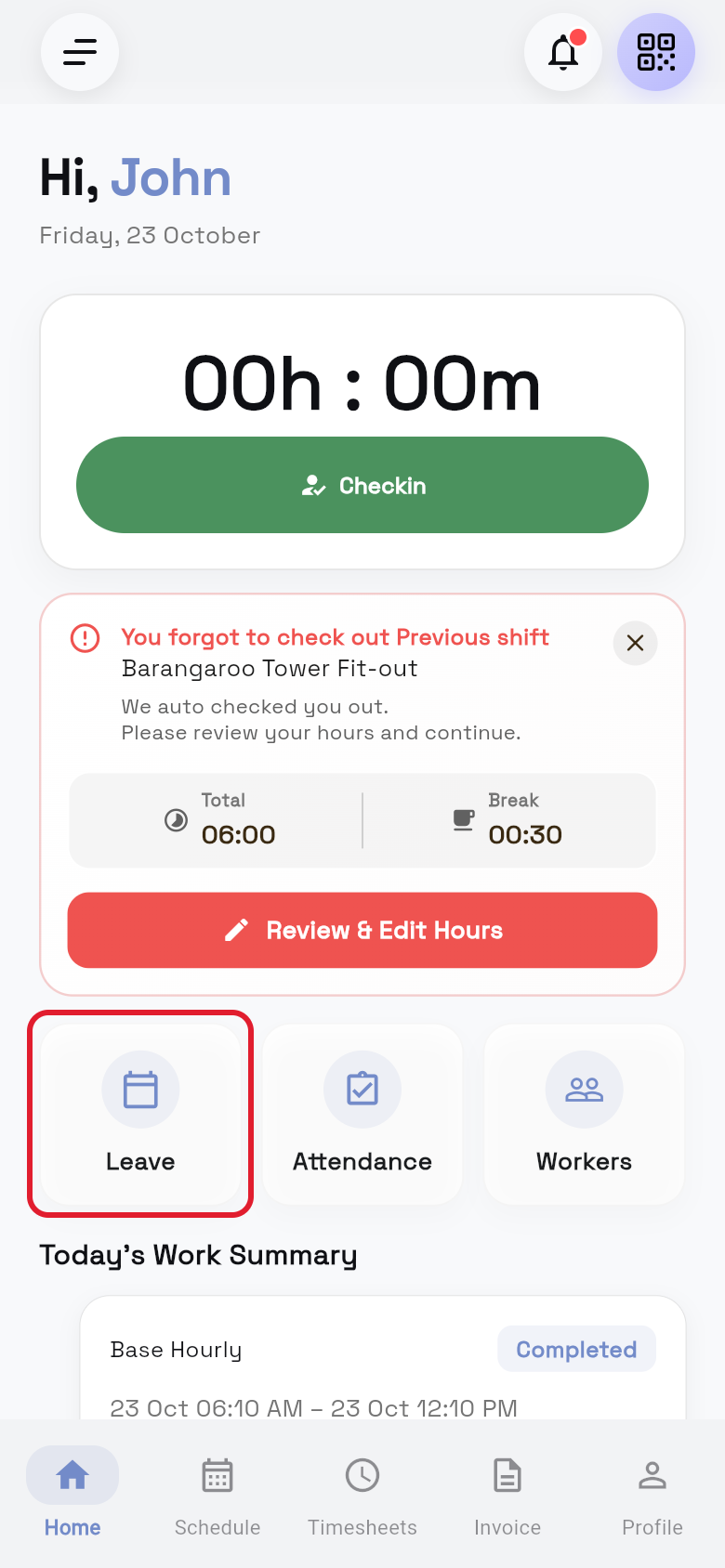
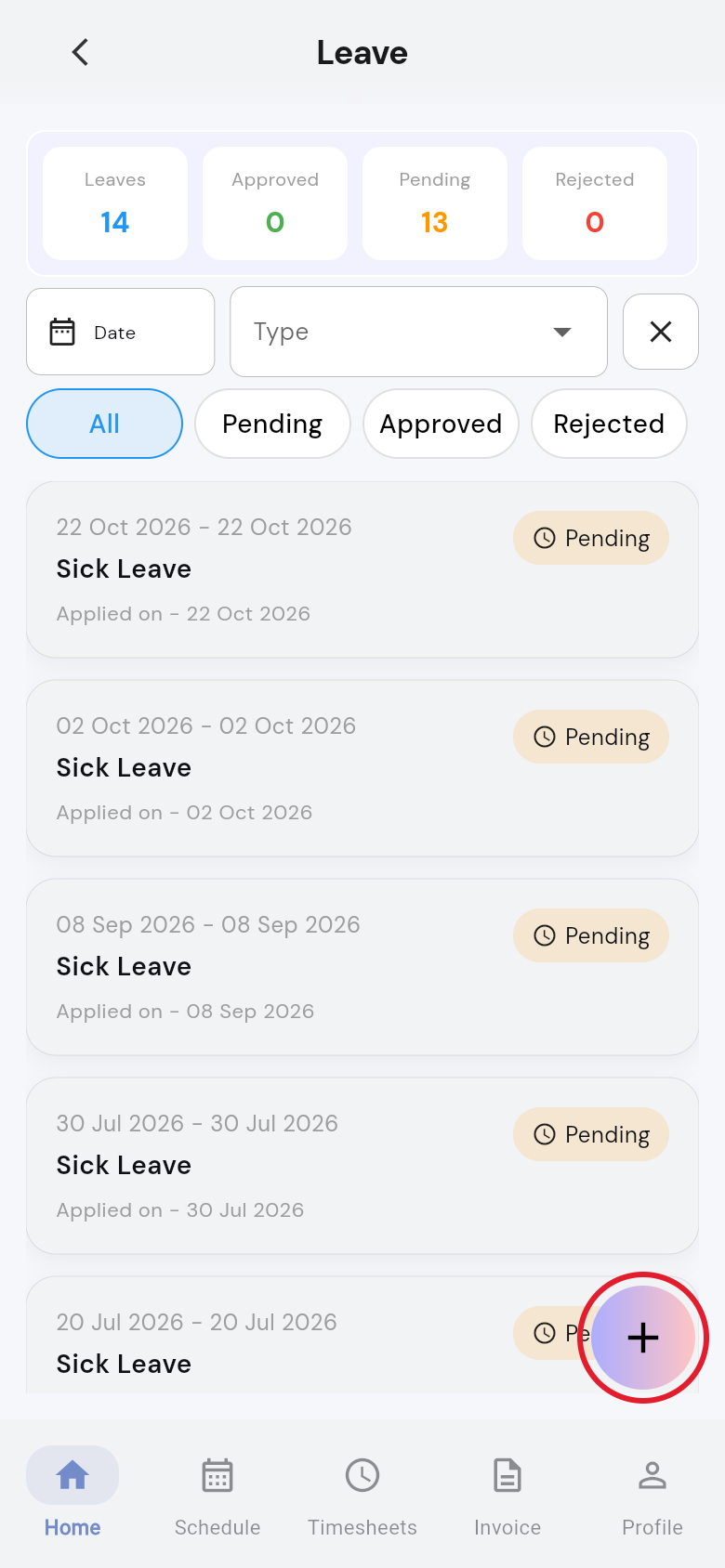
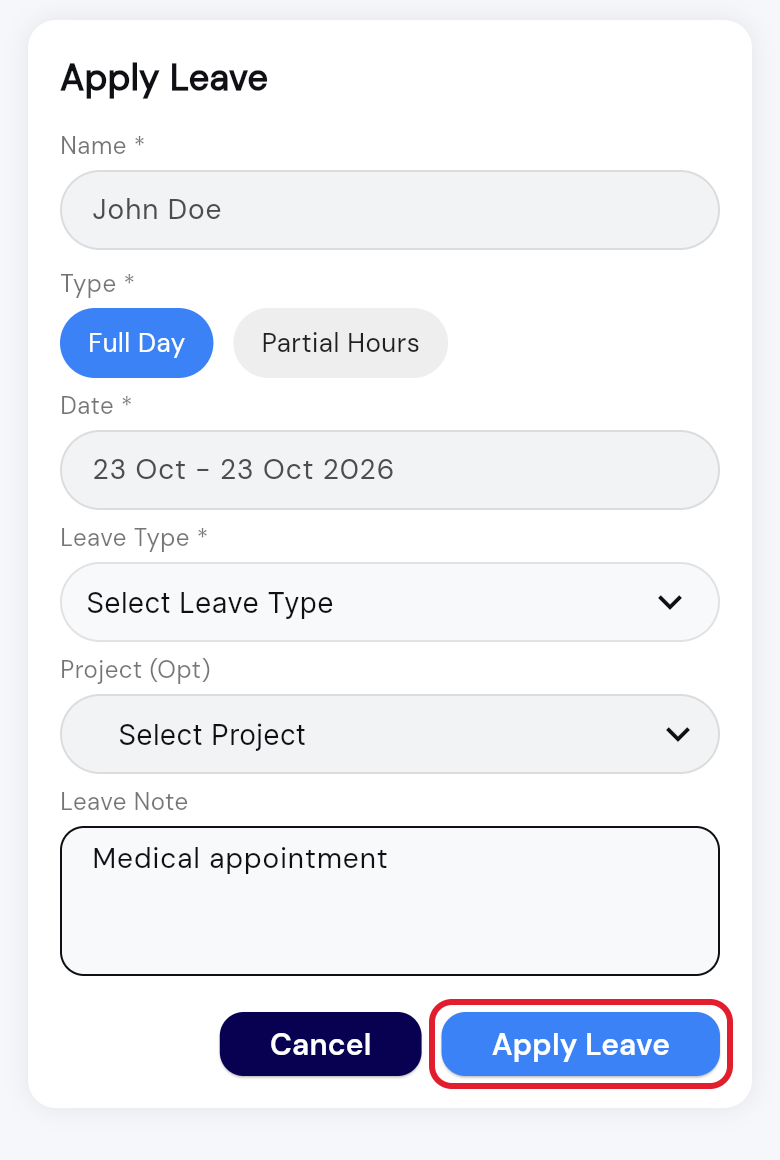
You see Leave applied successfully, and your request shows with the status Pending until your organisation approves or rejects it.
Check the status of your leave
- Open Leave Tracker. Tap the Leave card on Home, or tap ☰ > Leave Tracker.
- Check the counts. The top shows Leaves (all), Approved, Pending and Rejected.
- Pick a tab. Tap All, Pending, Approved or Rejected to show only those requests.
- Read the cards. Each shows your leave dates, leave type, Applied on - date and status.
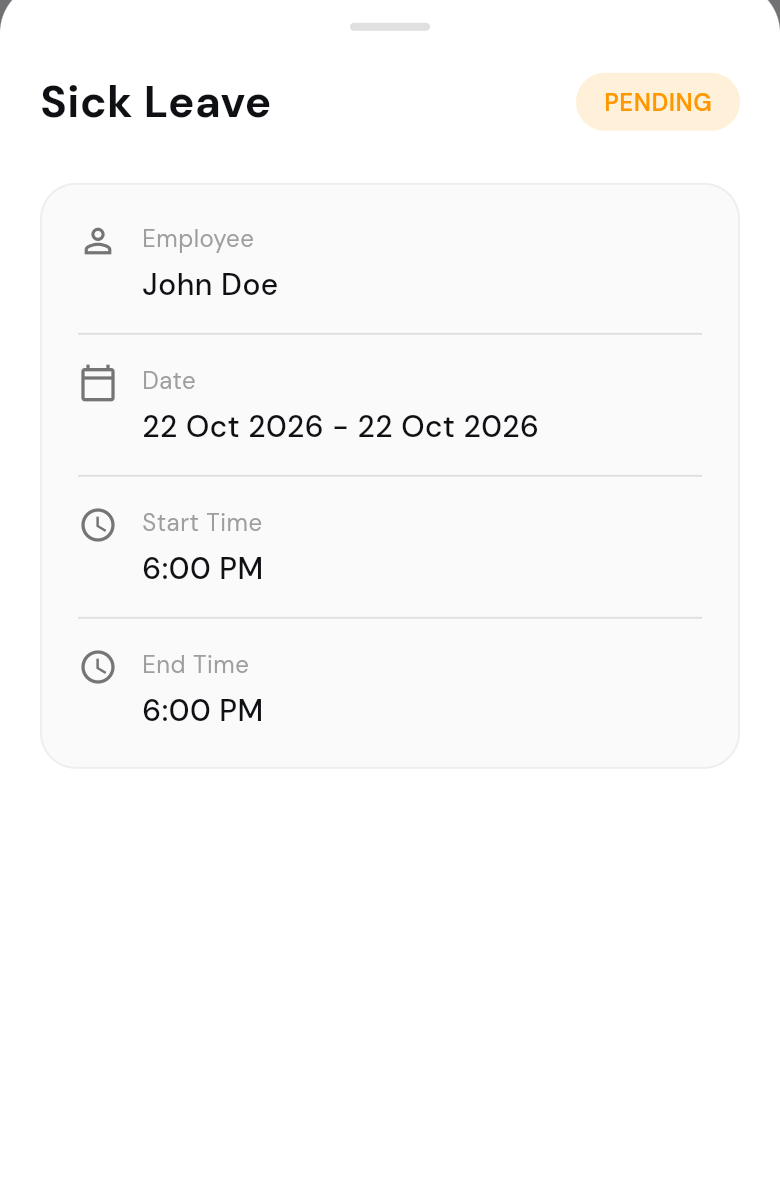
- Open a request. Tap a card to see Employee, Date, Start Time and End Time (partial hours) and your Comment.
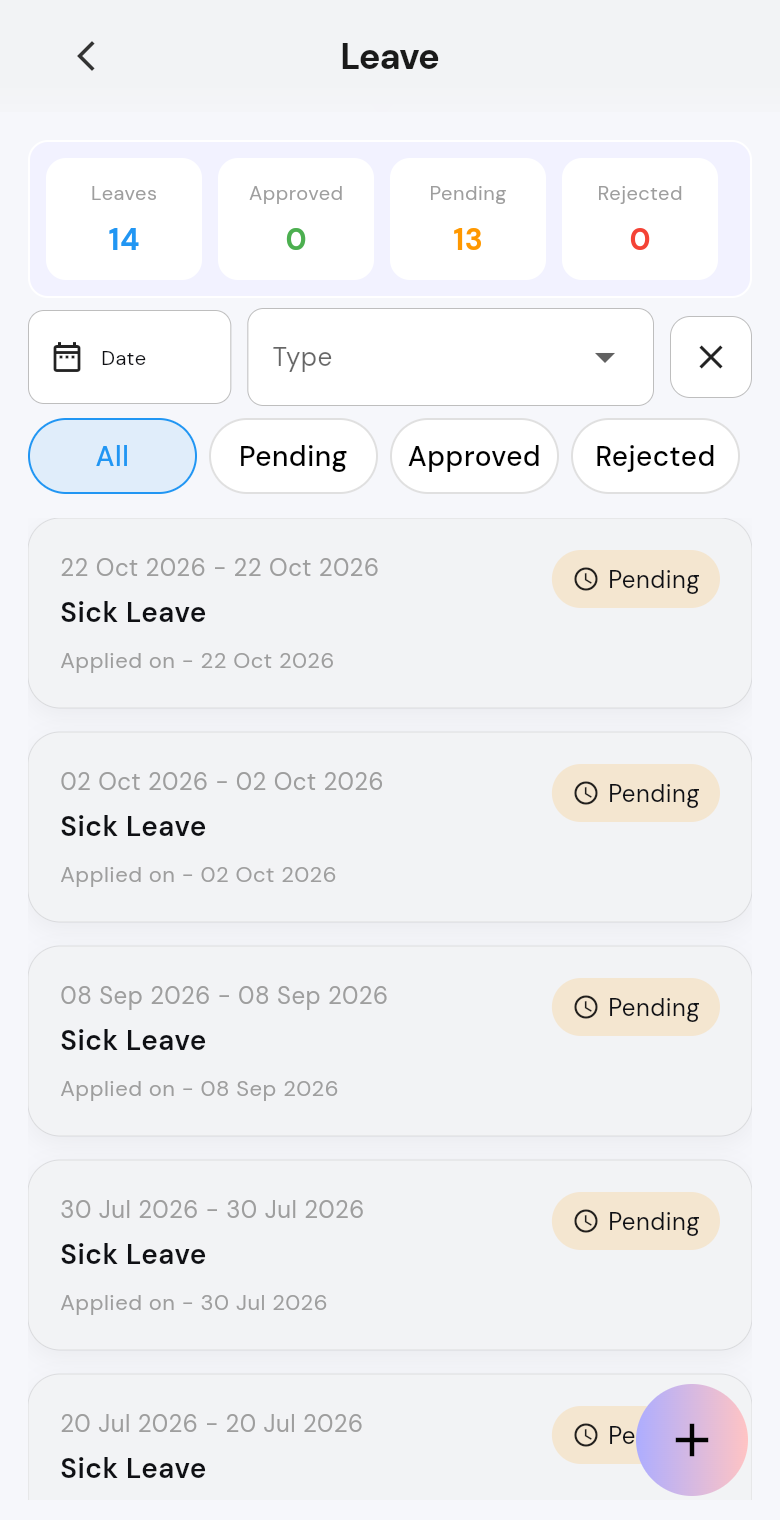
To filter the list:
- By date: tap Date and pick a date range.
- By leave type: tap Type and choose a leave type.
- Clear filters: tap X next to the filters.
| Status | What it means |
|---|---|
| Pending | You have sent the request. Your organisation hasn't decided yet. You can still cancel it. |
| Approved | Your leave is approved. |
| Rejected | Your leave was not approved. |
| Cancelled | The request was cancelled. |
| Processing | Your organisation is working on the request. |
| Timesheet Exist | There is already a timesheet for this time. Talk to your site manager. |
If you have approved leave for today, the Home screen shows You're On Leave Today with the dates, the project and the status.
Cancel a leave request
You can only cancel a request while it is Pending.
- Open Leave Tracker. Tap the Leave card on Home, or tap ☰ > Leave Tracker.
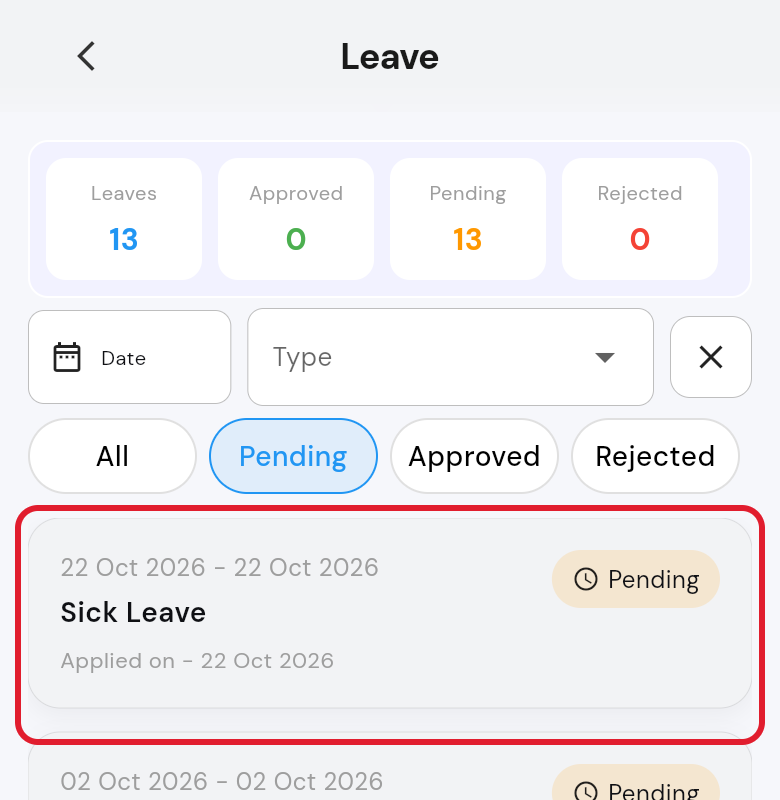
- Go to Pending. Tap the Pending tab to find your request.
- Open the request. Tap it to see its details.
- Cancel it. Tap Cancel Leave at the bottom.
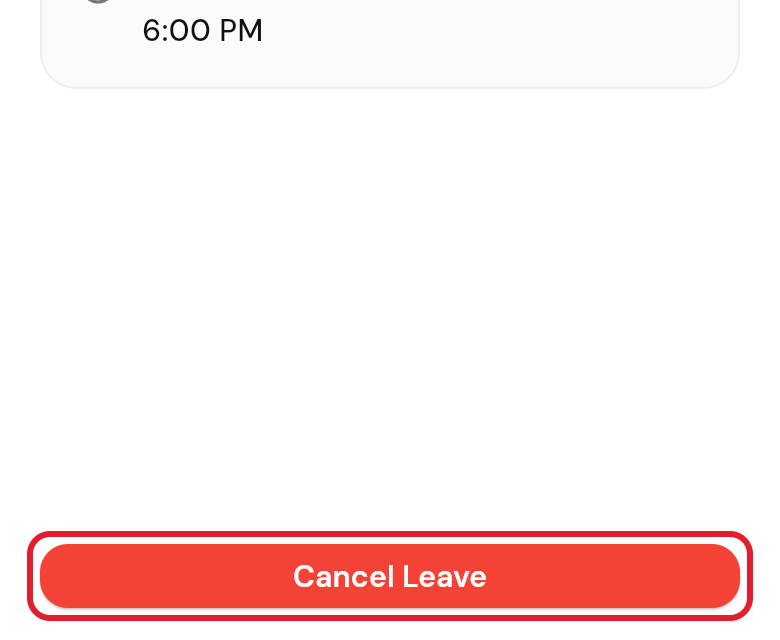
You see Leave cancelled successfully, and the request shows as Cancelled.
Questions and answers
How do I change a leave request?
You can't edit a leave request, so cancel it while it is Pending and apply again. A cancel can't be undone, so if you cancelled by mistake, apply again.