Site attendance
For site managers and admins. Attendees shows who is on site or has checked out today, and Absentees shows who has not checked in or is on leave. From either list you can check a worker in or out on their behalf, for example when their phone is flat.
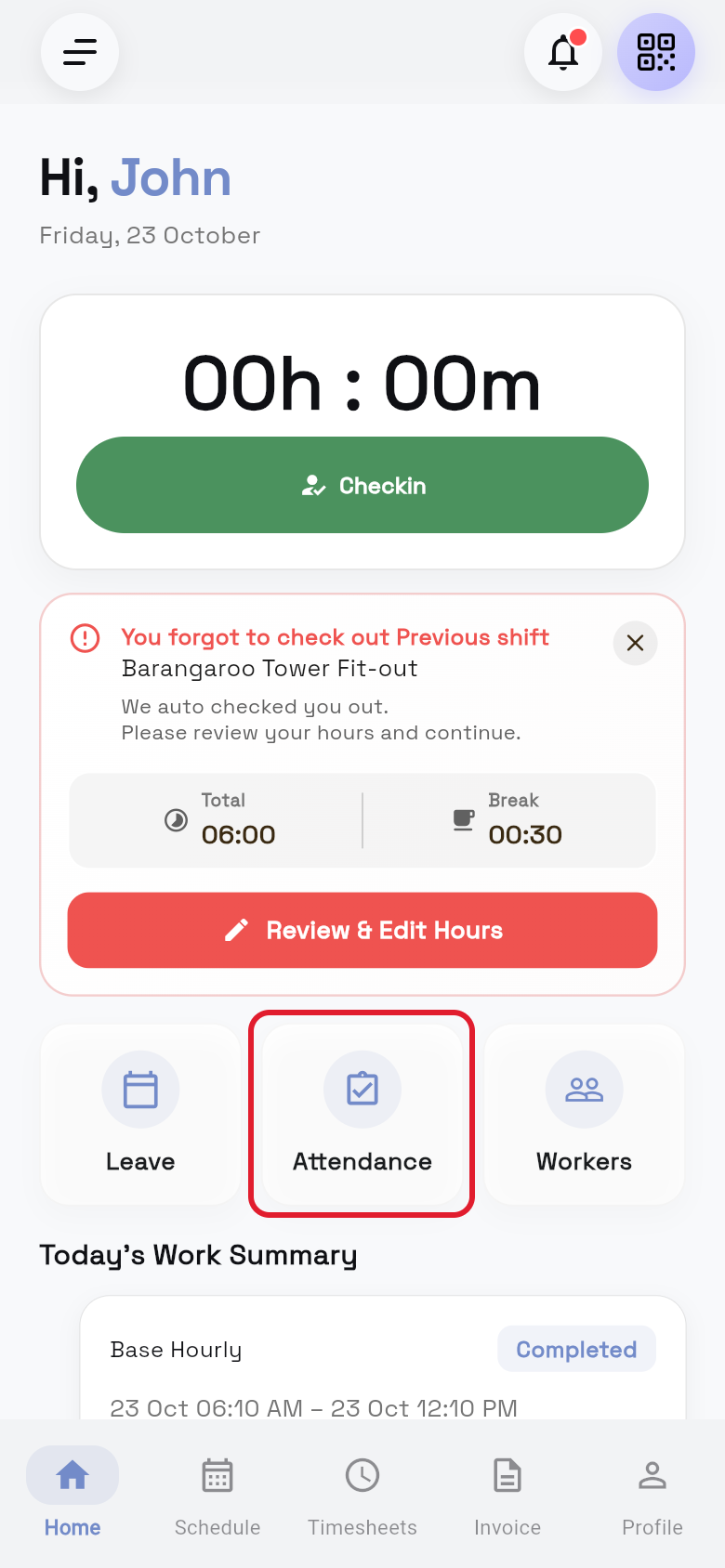
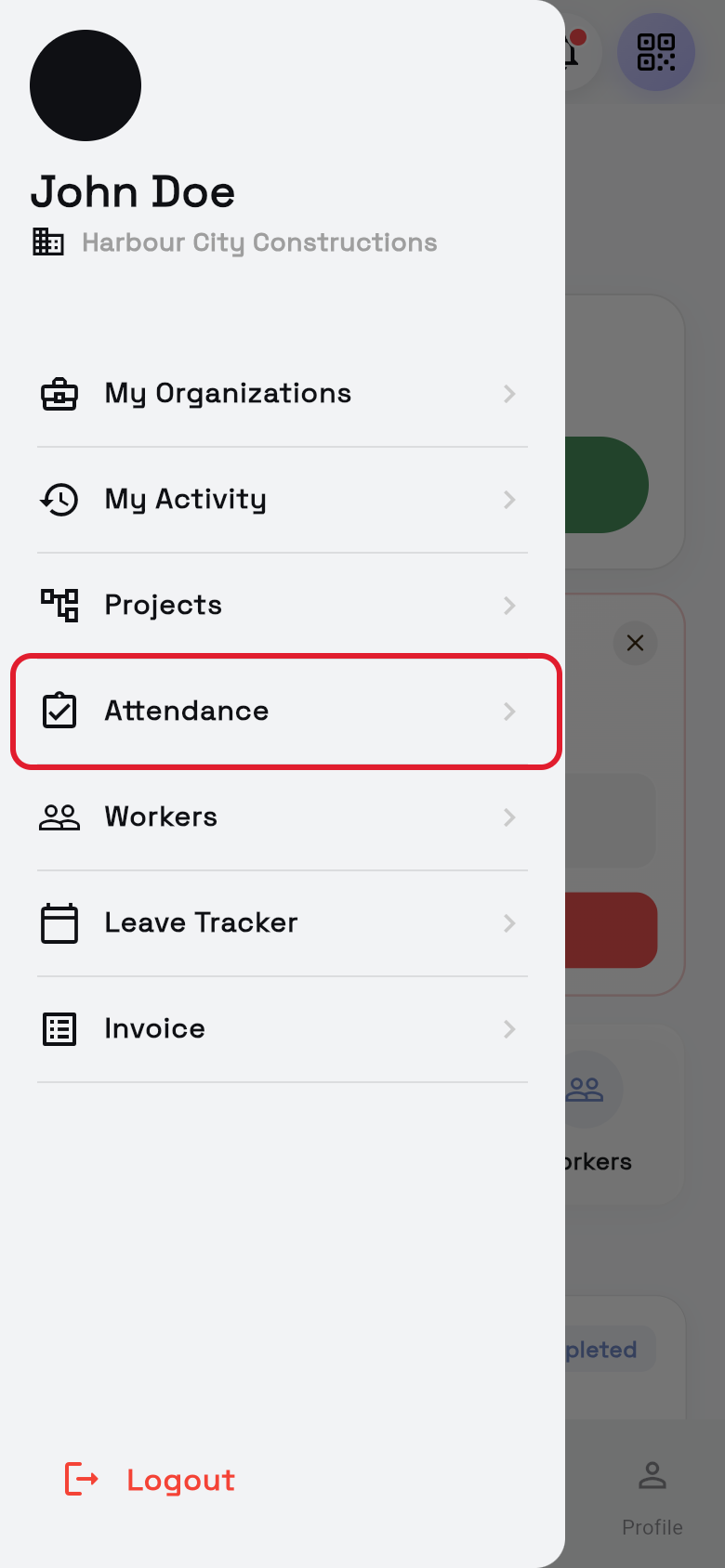
Open it from the Attendance card on Home, or from ☰ > Attendance. To verify your team's hours, see Team timesheets.
See who is on site
- Open Attendance. Tap the Attendance card on Home, or tap ☰ > Attendance.
- Pick the Attendees tab. It shows who checked in.
- Choose the day. Today shows first. Tap the date box to pick another day.
- Pick a project. Tap Select Project and choose one, or type in Search projects....
- Find a person. Type their name in Search name....
- Read the cards. Each card shows the name, project, CHECK IN : and CHECK OUT : times.
- --:-- next to CHECK OUT : means they have not checked out yet.
- A green dot means they are on site. A grey dot means they have checked out.
- Open a person. Tap their card to see their check-in details.
- Refresh or clear. Tap the refresh button for the latest list.
- To clear the project, date and name filters, tap the filter button with the line through it.
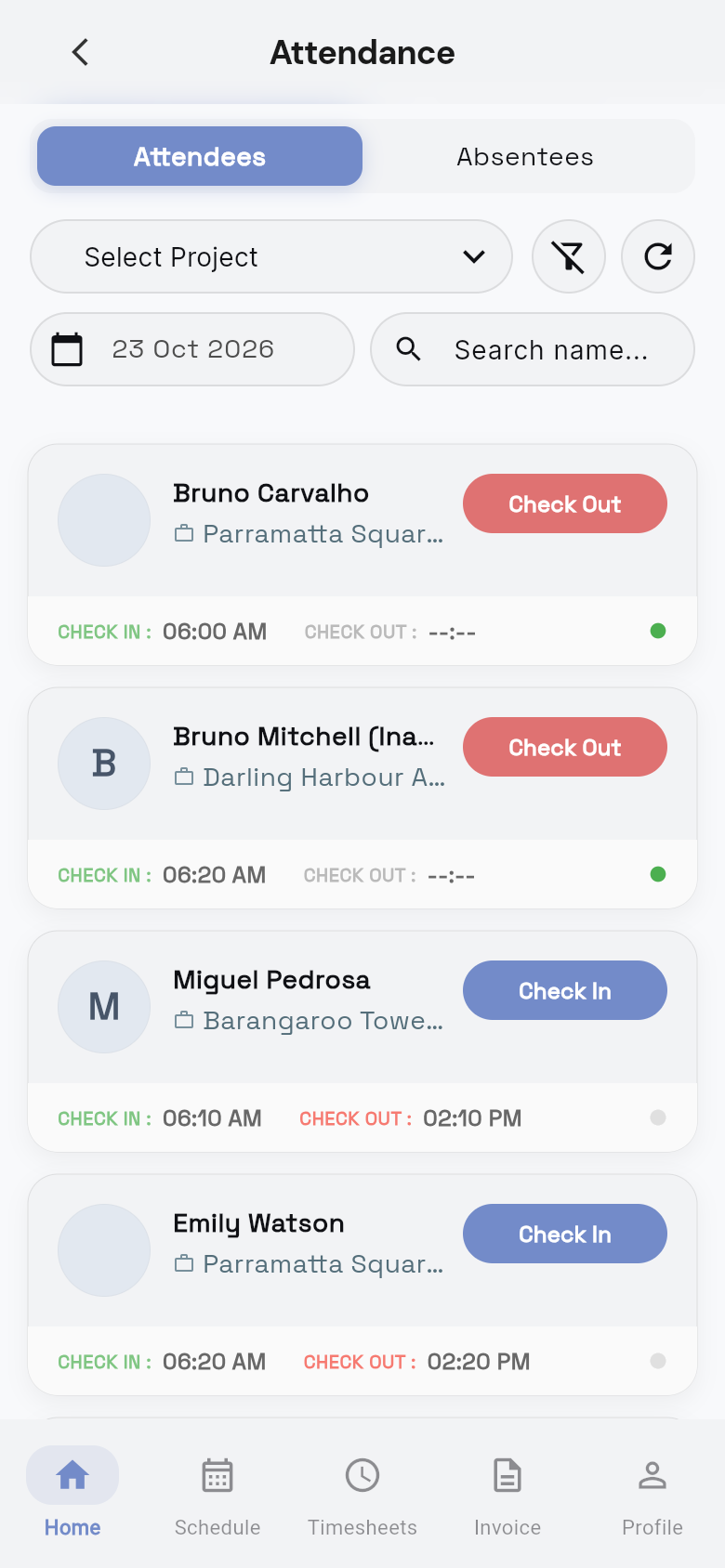
You see everyone who checked in on that day. Scroll down to load more.
See who is off site
- Open Attendance. Tap ☰ > Attendance, or tap the Attendance card on Home.
- Tap the Absentees tab. It shows who is off site.
- Choose the day. Today shows first. Tap the date box to pick another day.
- Find a person. Type their name in Search name....
- Check the tag. The tag on the right shows their role, or ON LEAVE.
- See contact details. Tap a card to see Email, Phone, Company and Category.
- Refresh or clear. Tap the refresh button for the latest list.
- To clear the date and name, tap the filter button with the line through it.
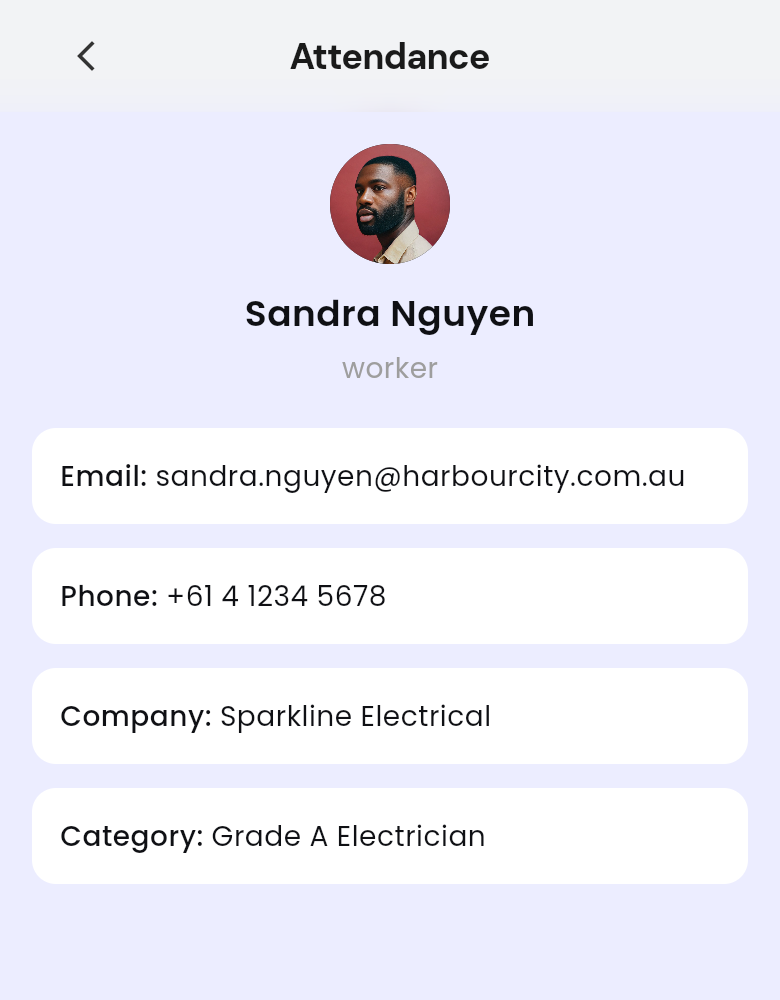
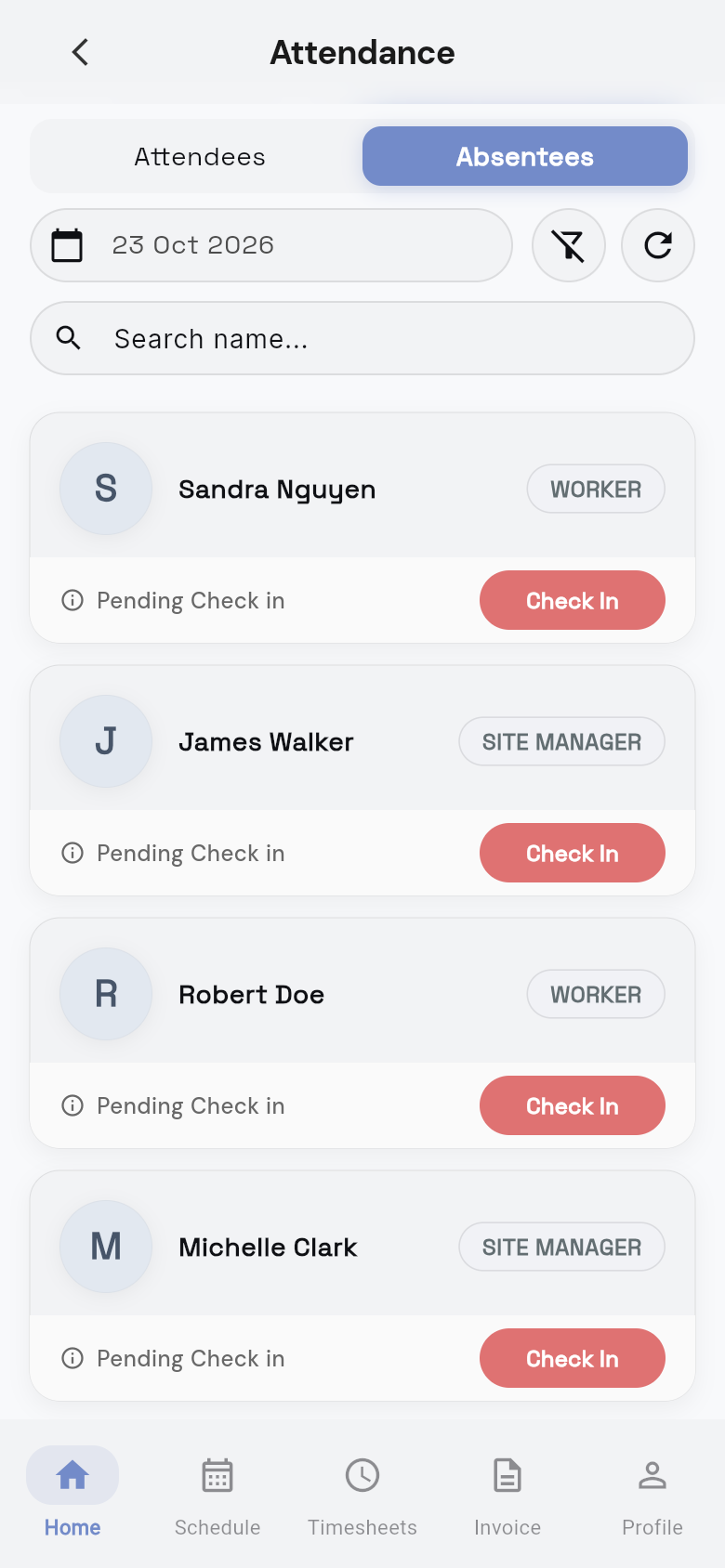
You see everyone who has not checked in on that day. When you look at today, cards for people who are not on leave also show Pending Check in and a Check In button.
Check a worker out on their behalf
Use this when a worker forgot to check out, or their phone is flat. You can pick a time today or yesterday.
- Open Attendance. Tap ☰ > Attendance and stay on the Attendees tab.
- Find the worker. Their card shows --:-- next to CHECK OUT :.
- Tap Check Out. Checkout - and the worker's name opens.
- Pick the day. Under Select Date, tap Today or Yesterday.
- Enter the finish time. Under Time, enter when they finished, for example 05:30 PM.
- Confirm the check-out. Tap Confirm Checkout.
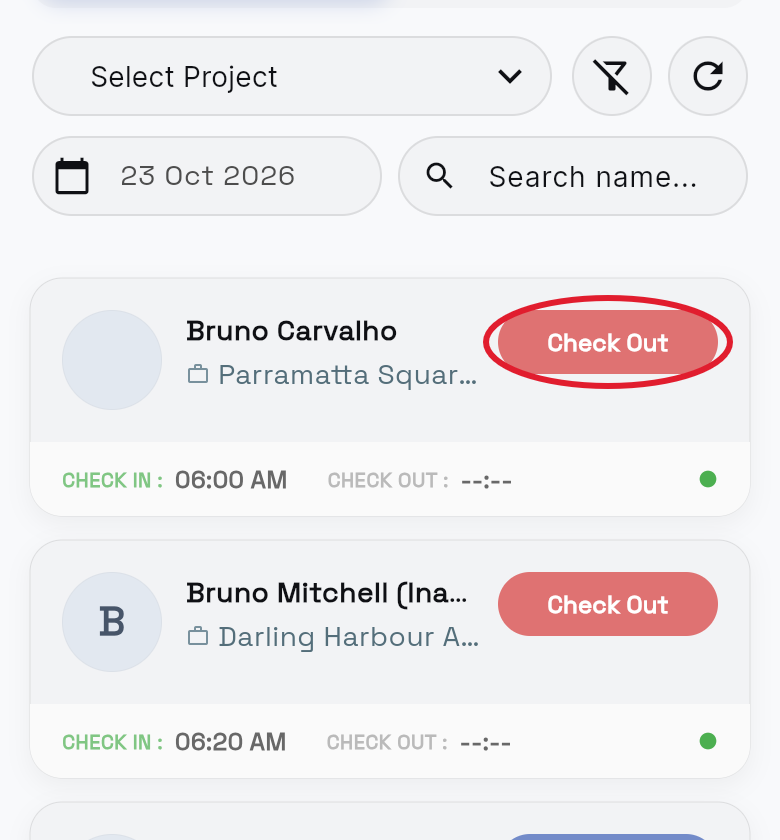
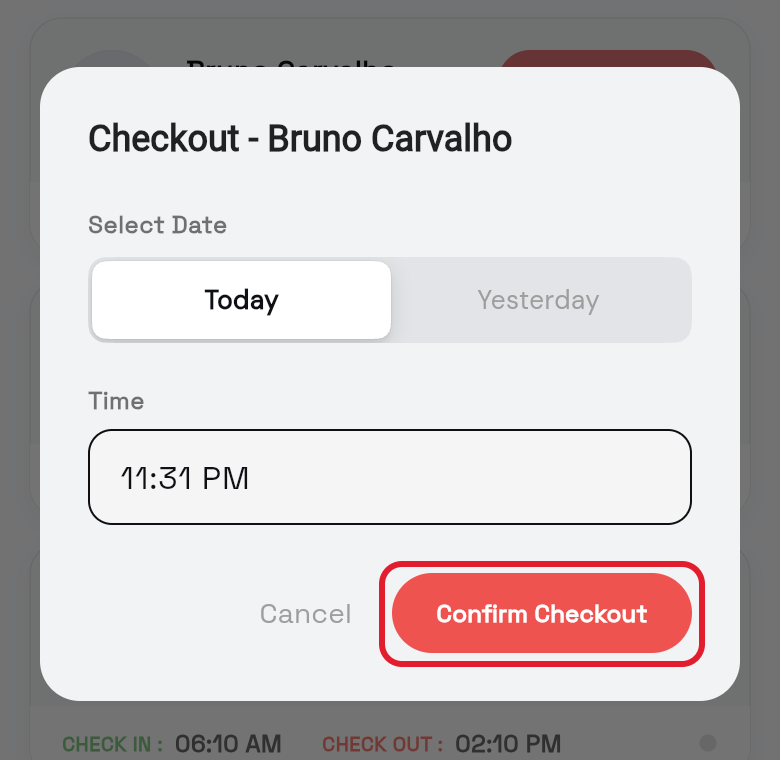
You see Successfully checked out! and the list shows the new time.
Check a worker in on their behalf
- Open Attendance. Tap ☰ > Attendance.
- Tap Check In on their card. Find the worker in one of these tabs:
- Absentees: people who have not checked in today.
- Attendees: people who checked out today, to check them in again.
- Choose the project. In CheckIn, tap Select Project and pick one (if there is only one, it is chosen for you).
- Pick the day. Under Select Date, tap Today or Yesterday.
- Enter the start time. Under Time, enter when they started.
- Confirm the check-in. Tap Confirm CheckIn.
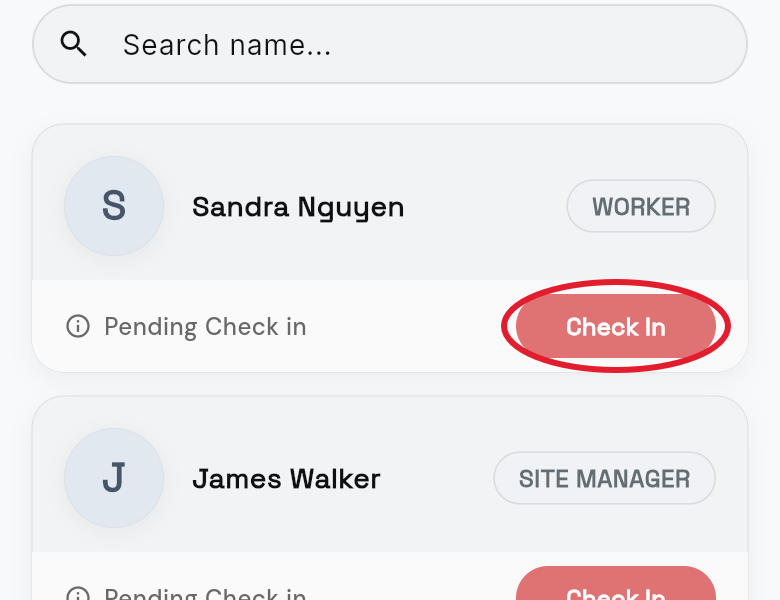
You see checked in successfully! (with the worker's name when you use the Absentees tab), and the list shows the new time.
See a person's check-in details
- Open Attendance. Tap ☰ > Attendance and stay on the Attendees tab.
- Choose the day. Pick it in the date box, if it is not today.
- Tap the person's card. Their check-in details open.
- Check who it is. The top shows their photo, name, Company and Category.
- Read each check-in. Each Check-in Details box shows Project, Check-in At, Check-out At and Total Work Hours.
- N/A under Check-out At means they have not checked out.
- Scroll for more. Scroll down to see more check-ins, then tap back to return.
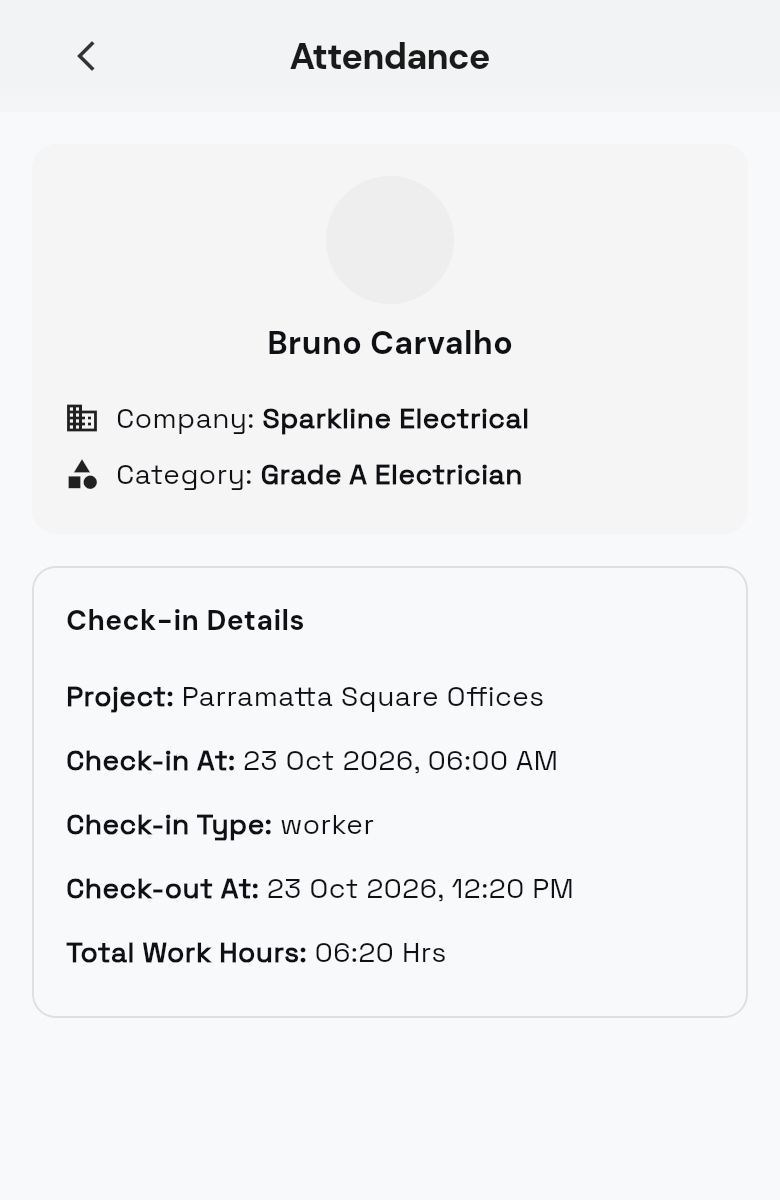
You see all the person's check-ins for the day you picked. Workers see their own check-ins in My hours.