Team timesheets
For site managers and admins. In Team Timesheets you check your workers' hours, fix anything that is wrong, and mark the timesheets as verified so your organisation can approve them for pay.
You only see the Team Timesheets tab if your organisation lets your role see everyone's timesheets. You can only verify if your organisation asks for hours to be checked first and your role is one of the roles that checks them.
Verify timesheets
- Open Team Timesheets. Tap Timesheets in the bottom bar, then Team Timesheets.
- Check the dates. Change the dates at the top if you need to.
- Tap PENDING. It shows timesheets that still need checking.
- Pick a worker. Tap the funnel, pick the worker in the first list, then tap Apply Filter.
- Check each card. Fix any wrong Worked Hours, Start Time or End Time first (see below).
- Verify the timesheets. Choose one way:
- One timesheet: swipe the card right to show Verify.
- From the details: tap the card, then Verify Timesheet. This also saves your changes.
- Several at once: see the next section.
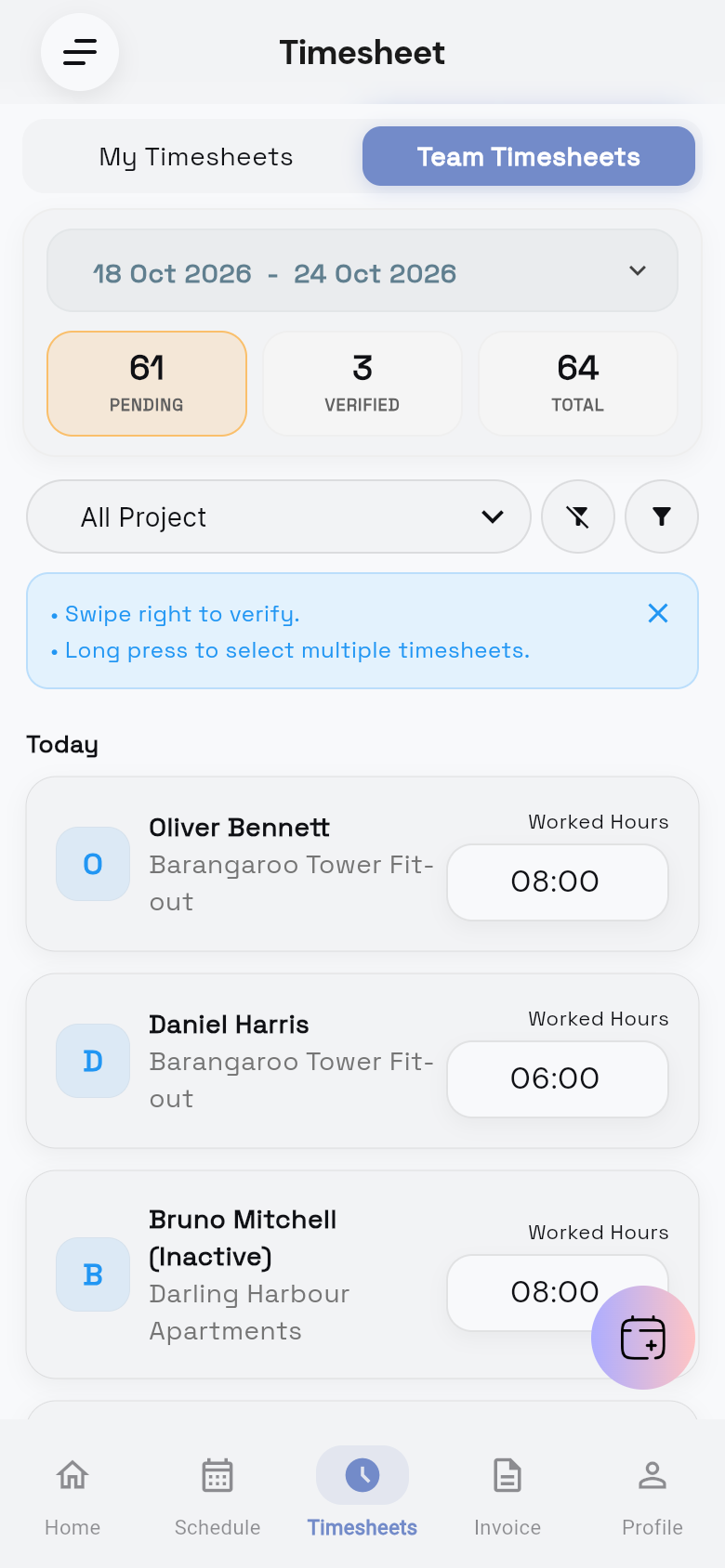
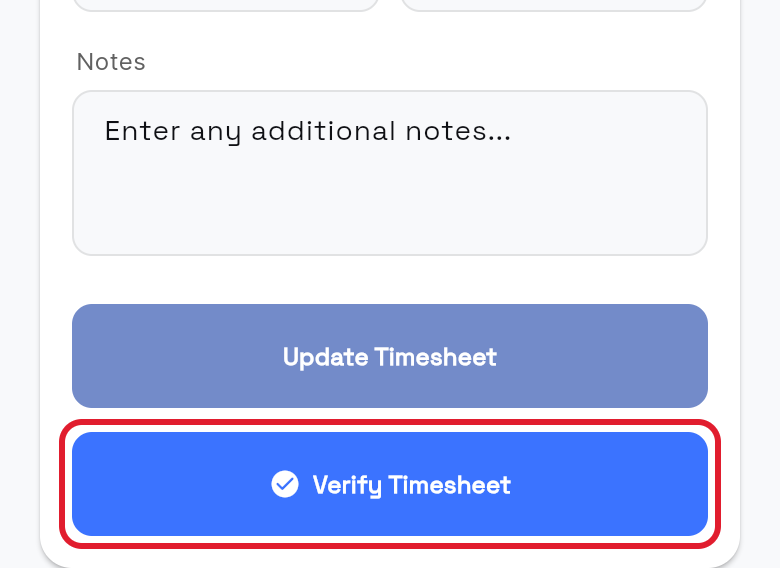
You see Timesheet verified successfully (or Timesheet updated and verified successfully! from Timesheet Details). The timesheet moves from PENDING to VERIFIED and its status becomes TIME VERIFIED. Your organisation then approves it.
Verify several timesheets at once
- Select the timesheets. Press and hold a card, then tap others to add them.
- To select every timesheet, tick the box in the bottom bar.
- Tap Bulk Action. Then choose one:
- Verify All: verifies them. Tap Confirm.
- Edit Hours: sets the same hours, without verifying. In Bulk Hour Edit, set the hours and tap Update.
- Verify as 8 Hours: sets 8:00 and verifies them. Tap Confirm.
- Stop selecting. Tap X in the bottom bar.
You see Timesheets verified successfully.
Change the start or end time
You can only change a timesheet that is PENDING.
- Open Team Timesheets. Tap Timesheets in the bottom bar, then Team Timesheets.
- Tap PENDING. It is under the dates.
- Tap the time. On the worker's card, tap the time under Start Time or End Time.
- Enter the new time. Type it and tap OK; it saves and Worked Hours updates.
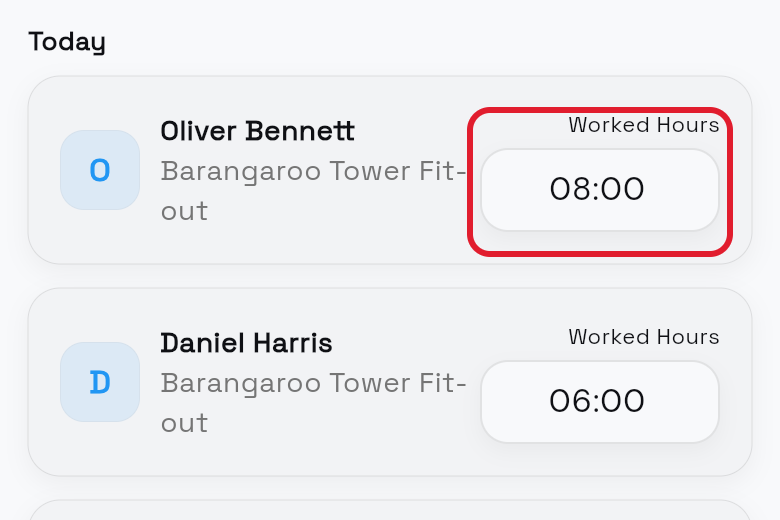
You can also tap Worked Hours on the card and enter the new hours. The end time changes to match.
Edit everything on a timesheet
- Open the timesheet. In Team Timesheets, tap the worker's card to open Timesheet Details.
- Change what you need. You can edit Pay Item, Date, Start Time, End Time, Total Work (HH:MM) and Break (HH:MM).
- Project and User: only if the timesheet was added by hand.
- Notes: only if the worker didn't add a note.
- Save your changes. Tap Update Timesheet.
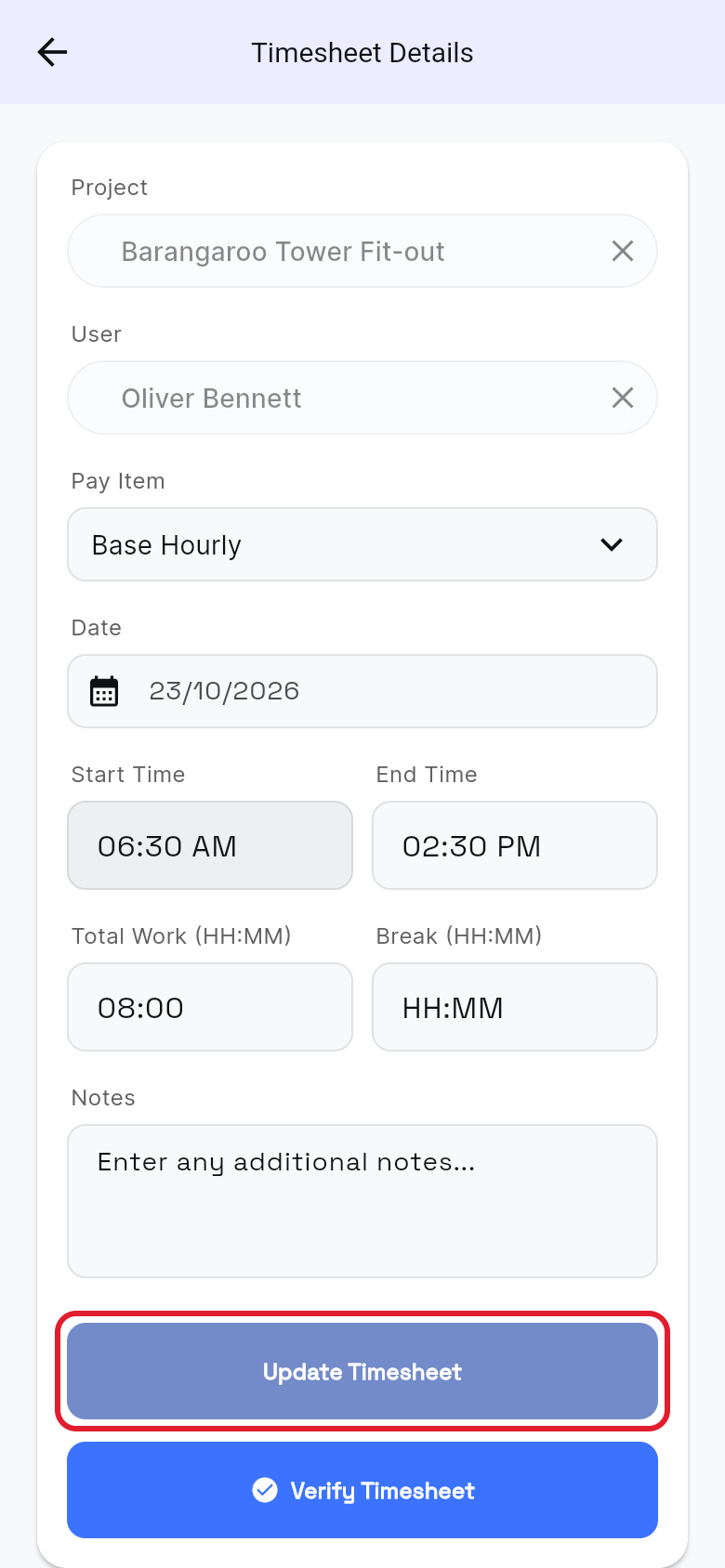
You see Timesheet updated successfully! and you go back to Team Timesheets.
Workers can't edit a timesheet after they send it. They fix their hours when they check out (see My hours), or ask their site manager.
Questions and answers
Some timesheets didn't verify. What now?
When you verify several at once, the message tells you which ones failed and why. Fix those timesheets, then try again.
Can I approve or decline timesheets in the app?
No. In the app you can only verify the hours. Your organisation approves or declines timesheets.