Workers
Site managers and admins use Workers to see everyone in the organisation, add new people, change their details and make them active or inactive.
View your workers
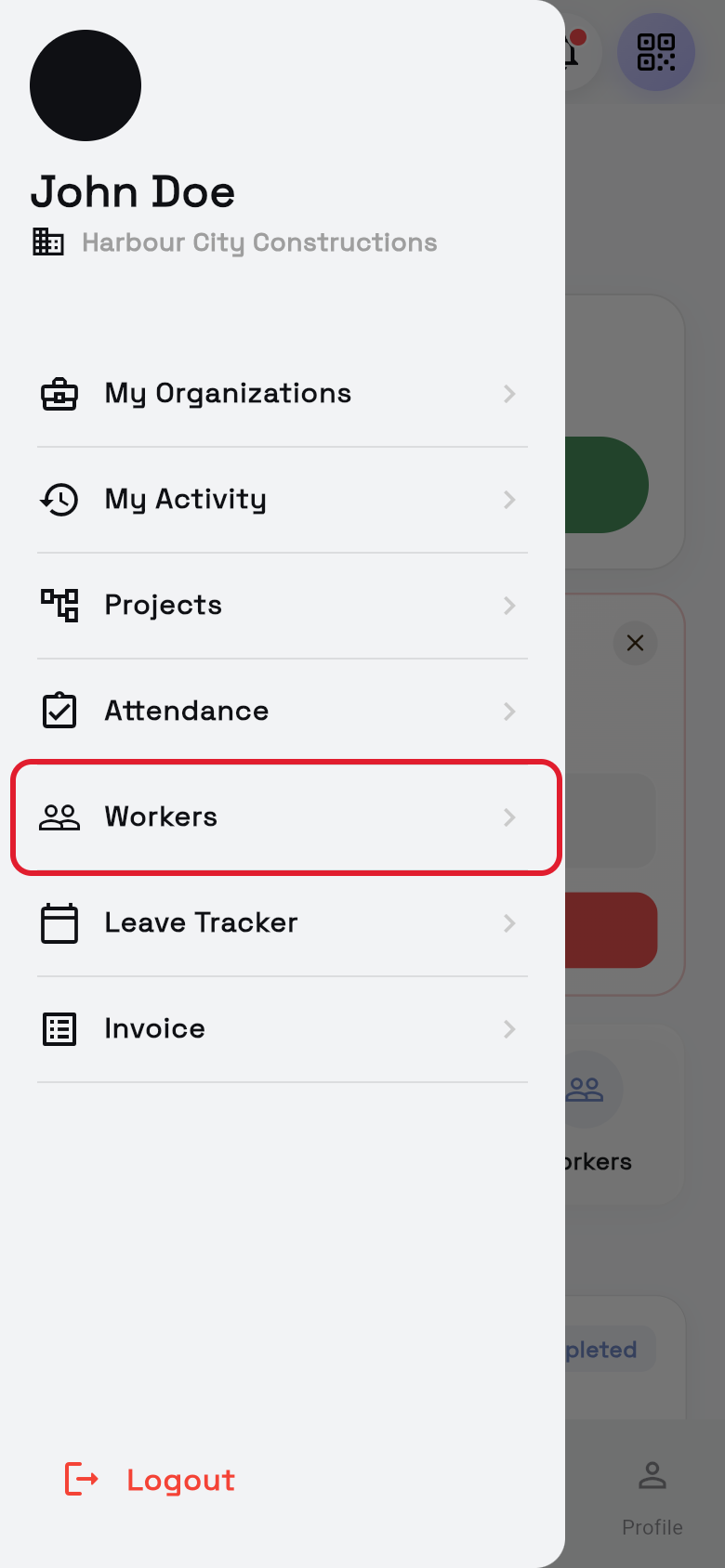
- Open Workers. Tap the Workers card on Home, or tap ☰ > Workers.
- Choose a tab. Pick the list you want:
- Accepted: workers who have joined your organisation.
- Pending: added or invited, but not joined yet.
- Find a worker. Type their name in Search worker name.
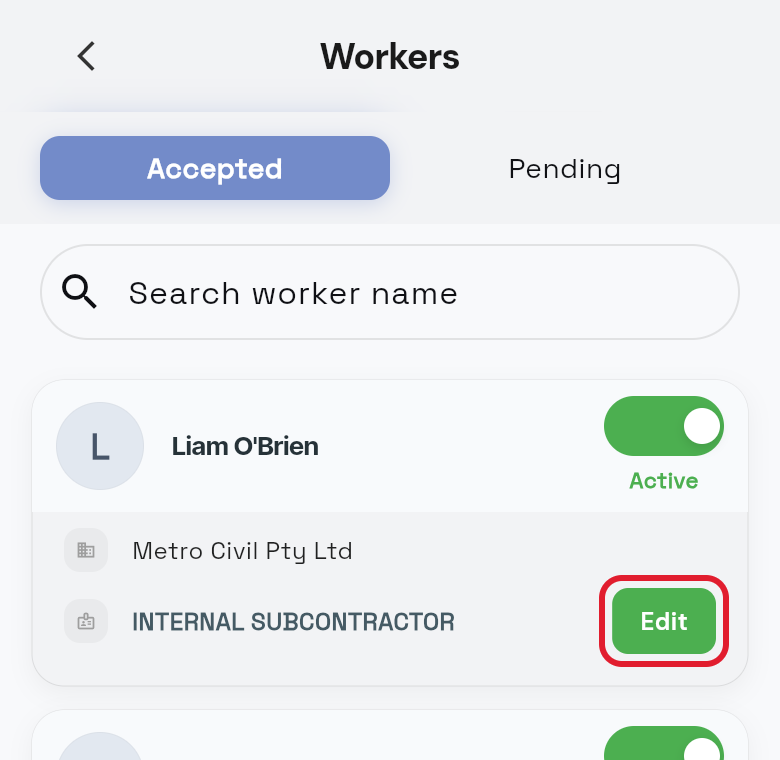
- Read the cards. On Accepted, each shows name, company, type (for example EMPLOYEE), an Active/Inactive switch and Edit.
- Open a worker. Tap a card on Accepted to see Email, Phone, Company and Category.
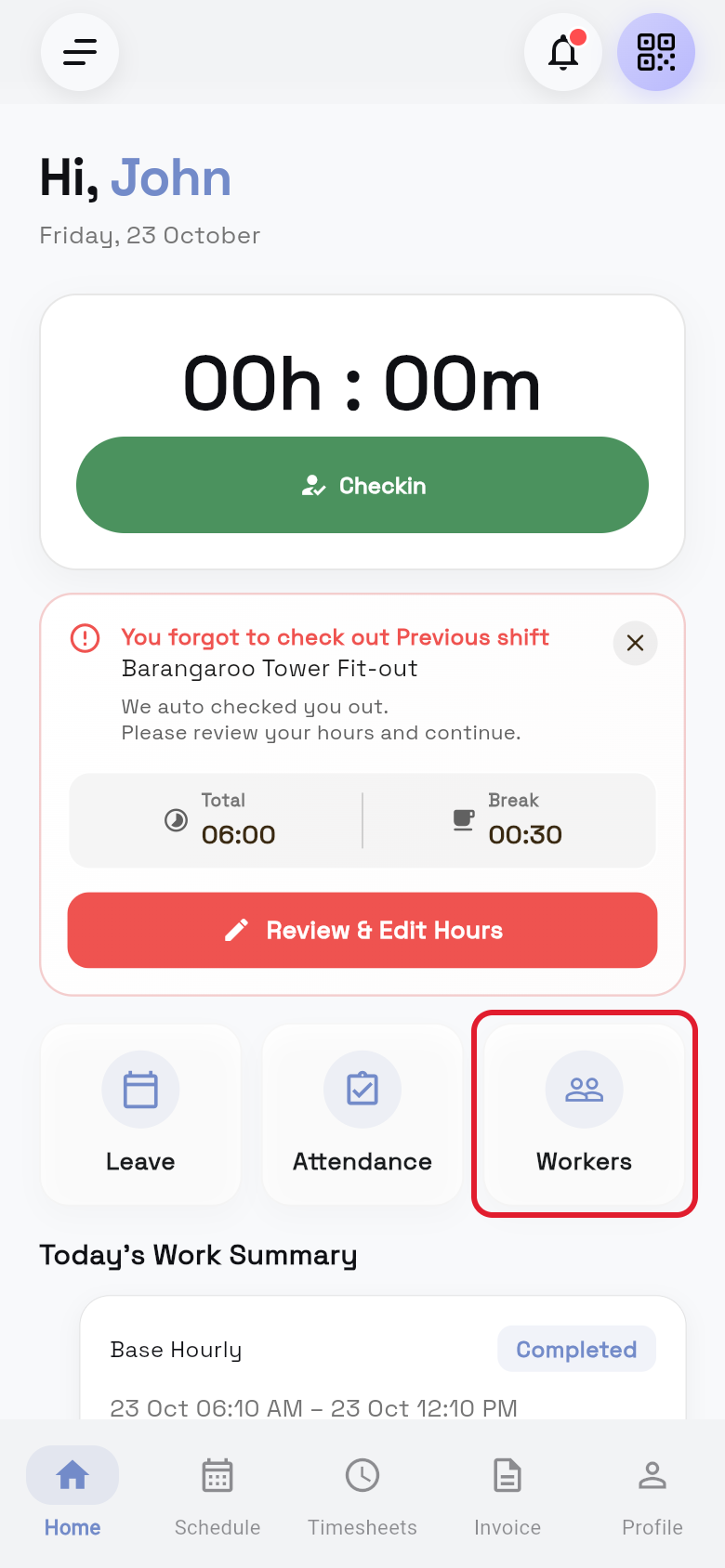
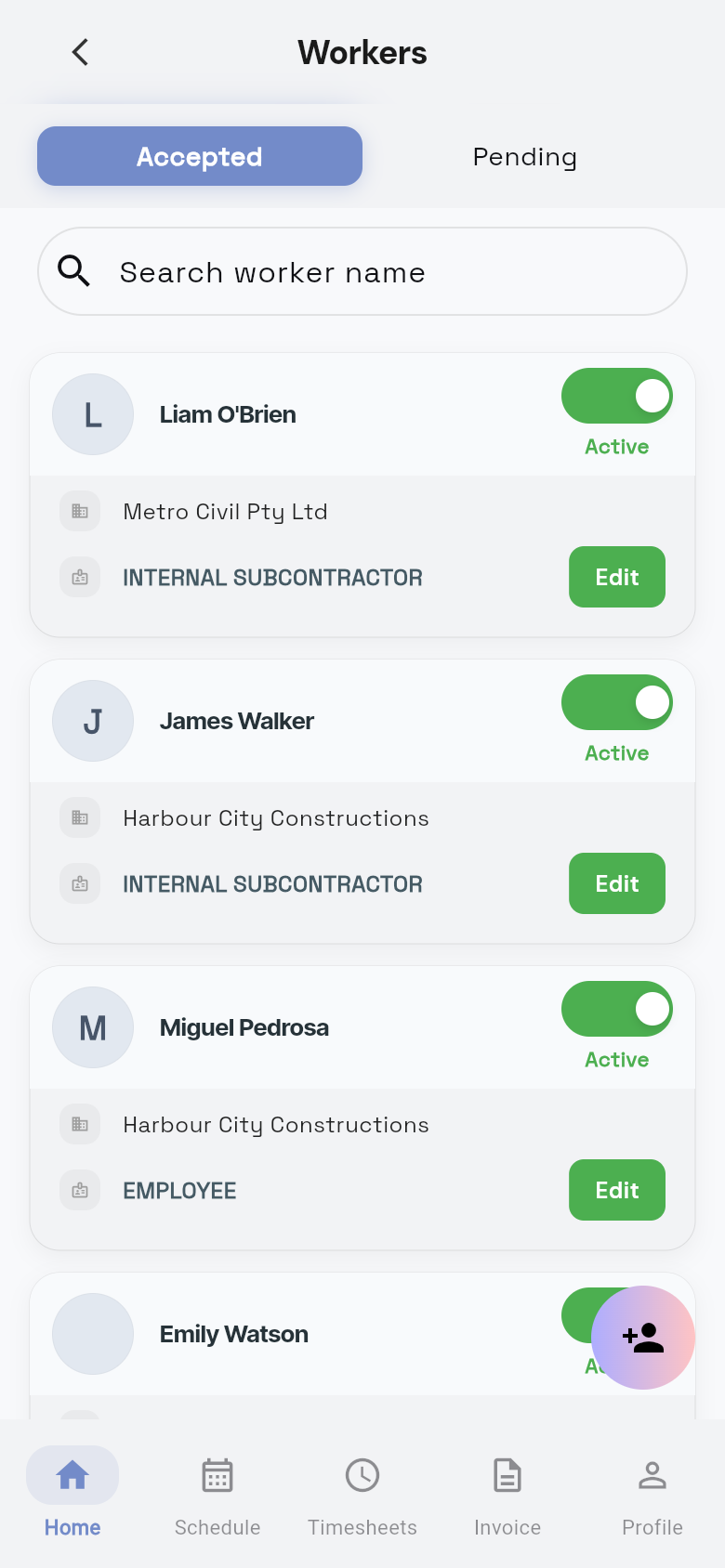
You see your workers. Scroll down to load more.
Add a worker
Have the person's name, email address and mobile number ready.
- Open Workers. Tap ☰, then Workers, and stay on the Accepted tab.
- Tap the add-person button. It is in the bottom-right corner and opens Create Worker.
- Pick the employment type. Choose the Employment Type*.
- Enter the name. Fill in First Name* and Last Name*.
- Enter the phone number. Type the Phone Number*, or tap the flag to change from Australia.
- Enter the email. Type the Email*.
- Choose category and pay rule. Pick the Worker Category* and the Pay Rule*.
- Choose the company. If you see Company*, pick the company the person works for.
- Set time tracking. Leave Time Tracking on for timesheets, and add a Pay Rate (Hourly) (Optional) if you want.
- Choose the role. Under Role*, pick Admin, Site Manager or Worker.
- Save the worker. Tap Create.
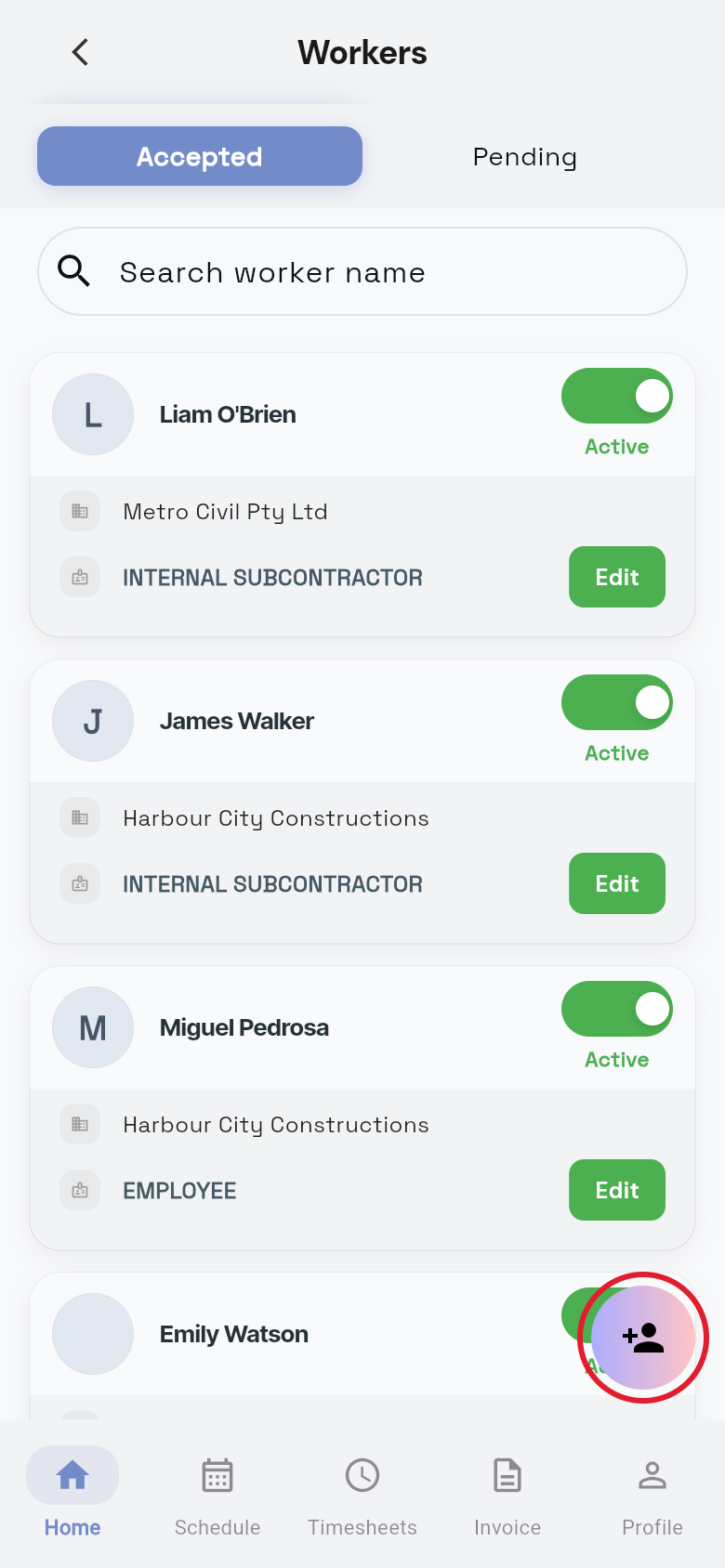
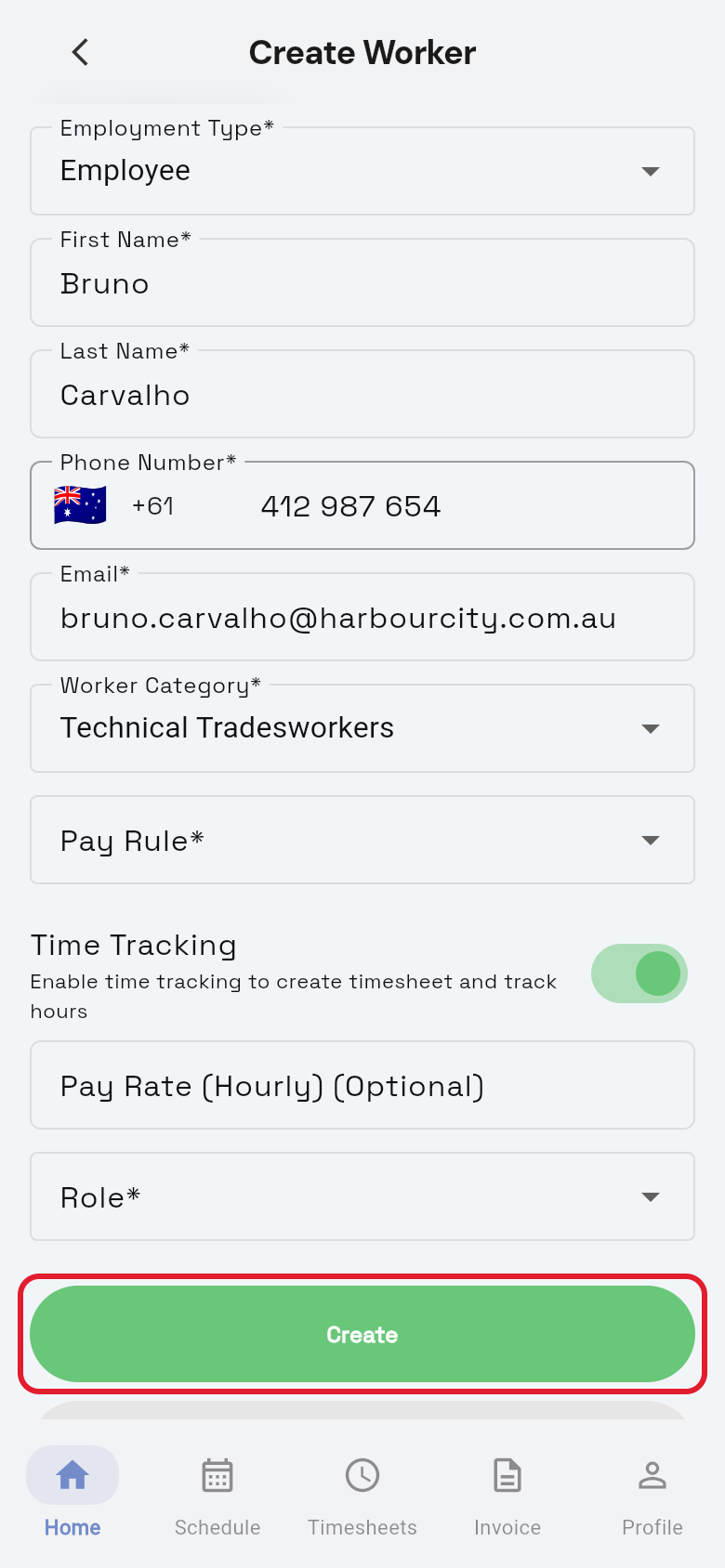
You see Worker created successfully. The new person shows on the Pending tab until they join your organisation.
| Field | What to choose |
|---|---|
| Employment Type* | Employee for your own staff. Internal Subcontractor for a contractor who sends invoices to your organisation. External Subcontractor for someone who works for another company. |
| ABN Number and GST Included* | Only show for Internal Subcontractor. The ABN must be 11 digits. |
| Company* | Only shows for External Subcontractor. The company the person works for. |
| Worker Category* | The person's trade or kind of work. The list comes from your organisation. |
| Pay Rule* | How the person's hours are paid. The list comes from your organisation. |
| Time Tracking | When on, the person's check-ins make timesheets. |
| Role* | What the person can do in the app. Site Manager gives them Attendance and Workers. |
Edit a worker's details
- Open Workers. Tap ☰, then Workers.
- Find the worker. Look on Accepted or Pending, or type in Search worker name.
- Tap Edit. Tap Edit on their card to open Edit Worker.
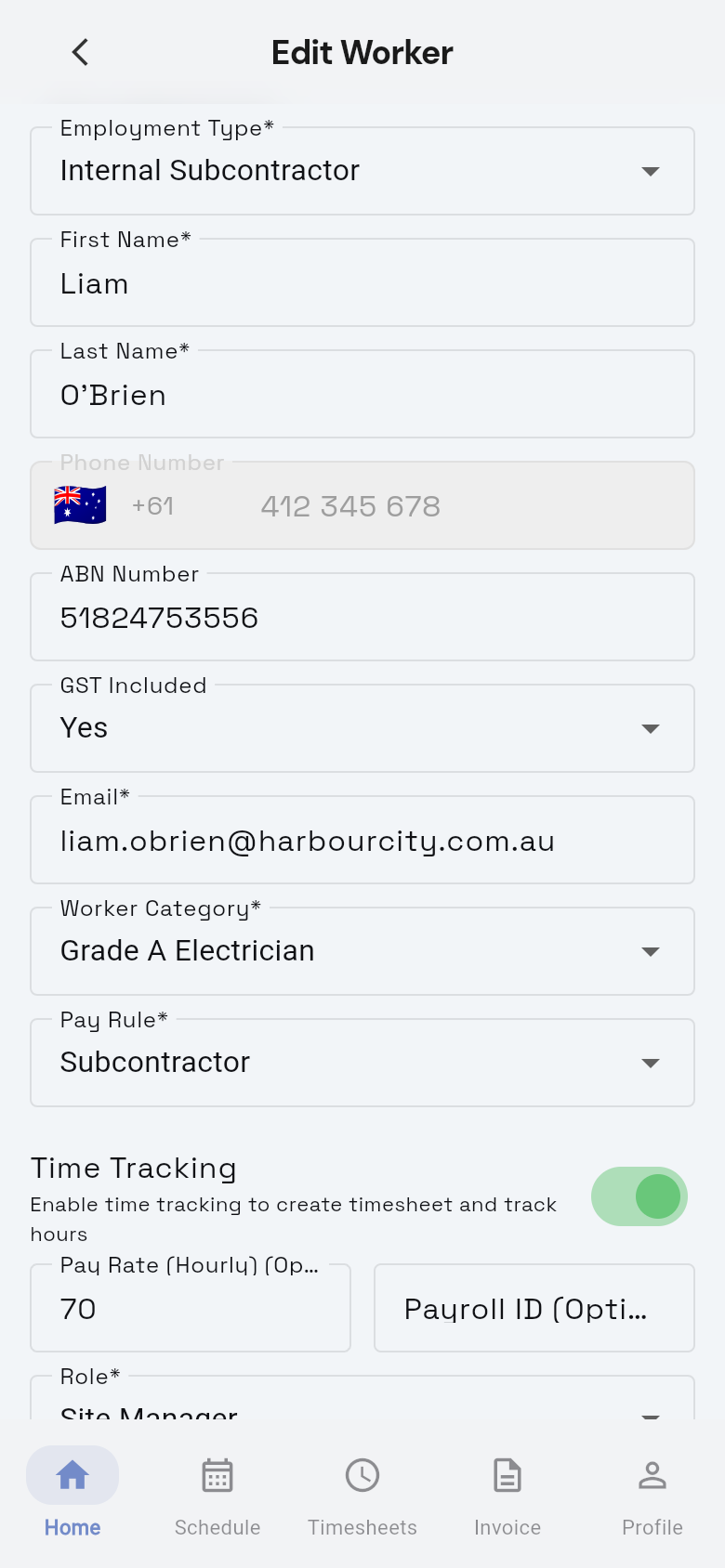
- Change the details. The fields are the same as when you add a worker.
- Save. Tap Update.
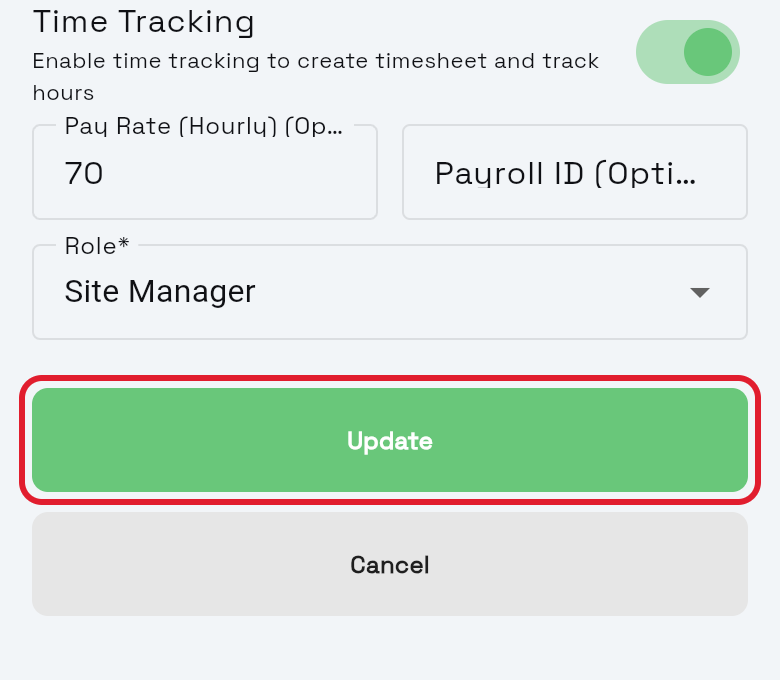
You see Worker updated successfully.
Make a worker active or inactive
Turn a worker off when they stop working for you, or back on when they return. You can only do this on the Accepted tab.
- Open Workers. Tap ☰, then Workers, and stay on the Accepted tab.
- Find the worker. Type their name in Search worker name if you need to.
- Tap the switch. Green Active means on; grey Inactive means off.
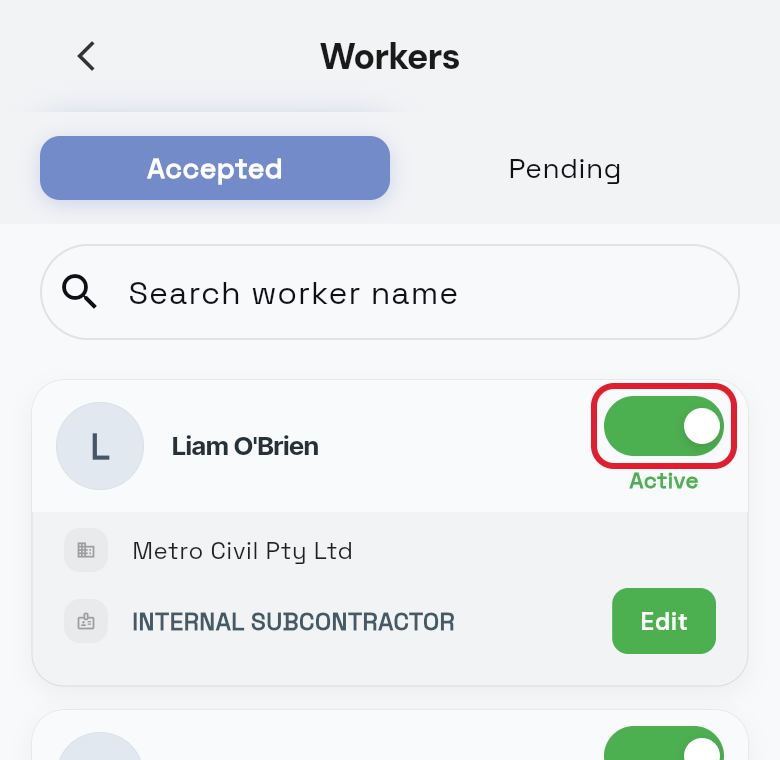
You see Worker status updated to Active or Worker status updated to Inactive. An inactive worker sees Limited Access on their Home screen. They can see their past details, but most menu items are hidden.
Questions and answers
Why can't I change a worker's phone number?
The phone number is greyed out once the worker has joined your organisation. You can only change it while the worker is still pending.