
Creating a time sheet is quite simple with Swift Checkin. Let’s explore the process step by step:
Step 1. Login to Swift Checkin app.
You can login to Swift Checkin app via
a) Mobile app
b) Web browser
| For the Web Browser Go to swiftcheckin.com.au Click on “Login” button on right top corner of the landing page. Select “App login” . Login with the registered credentials. |
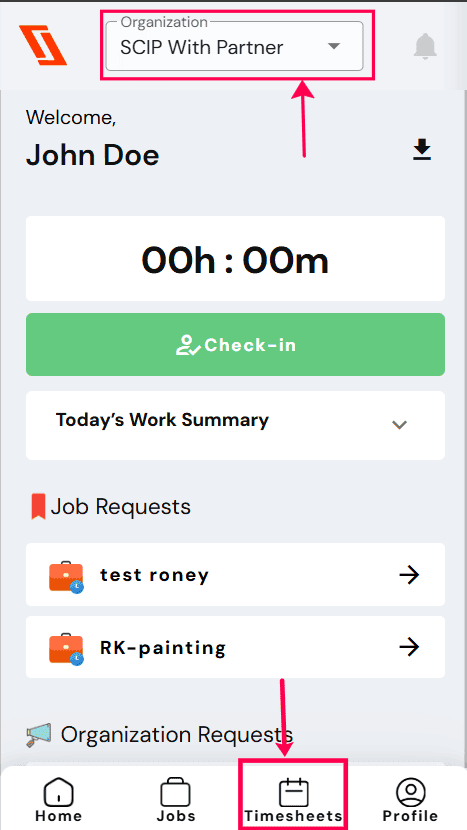
Once logged in either via mobile app or web browser, you will be directed to the homepage of the ‘Swift Checkin’ mobile app with your current organisation/subcontracting company details displayed on the top.
You can change the organisation details from the dropdown as required.
Step 2. Access Timesheets
To get into timesheets, click on the “Timesheet” icon located at the right bottom corner of the homepage.
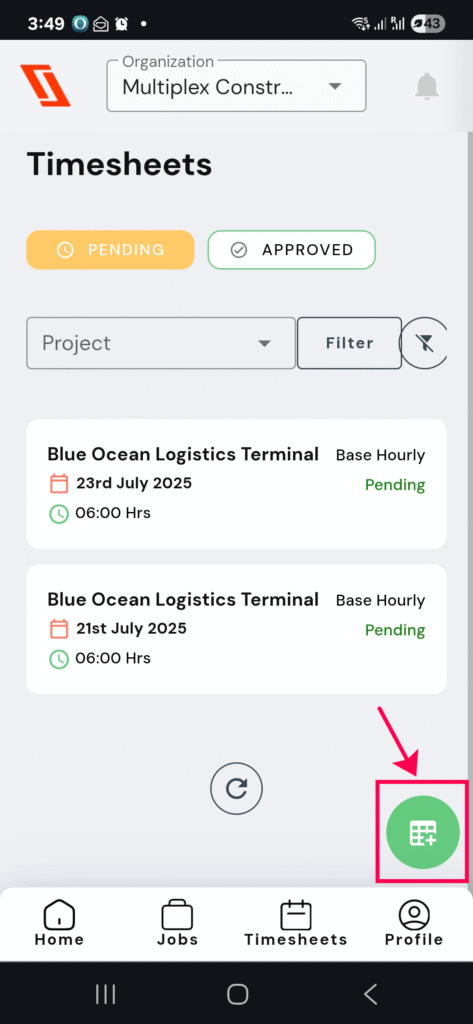
Following this, the ‘Timesheet page’ will appear, where you can view the status of the previously submitted timesheets or system-generated timesheets via site checkins.
You can also add a new timesheet by clicking the green icon located on the right-hand side of the screen.
Step 3. Add a New Timesheet
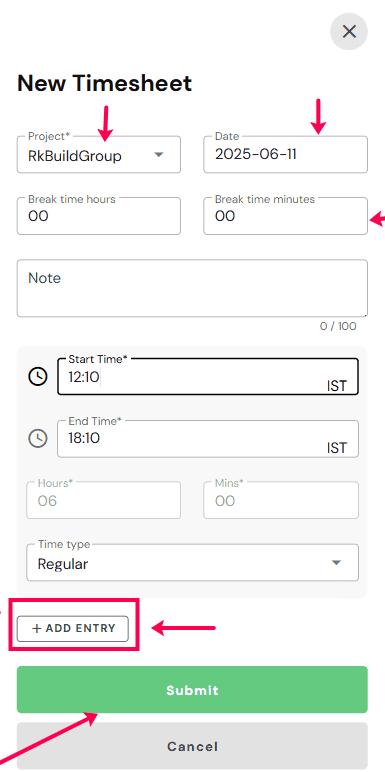
To create a new timesheet, fill in the required details such as
* Projects(from the drop down menu)
* Date
* Break time
* Start and End time (if the work time isn’t configured)
* Time type (Hourly base, Overtime, Annual Leave, Sick Leave)
Step 4. Submit Timesheets
After completing all the relevant fields, click on the “Submit” button to submit the timesheet. Multiple timesheets can be submitted at once by clicking on the “Add Entry” button.
Step 5 . View the Status of the Submitted Timesheets
In order to view the status of the submitted timesheets
* Go to the Timesheet page.
* Click on ”Pending” to view all the timesheets yet to be approved.
* Click on “Approved” to see the timesheets that have been approved already by the project
manager or site admin.
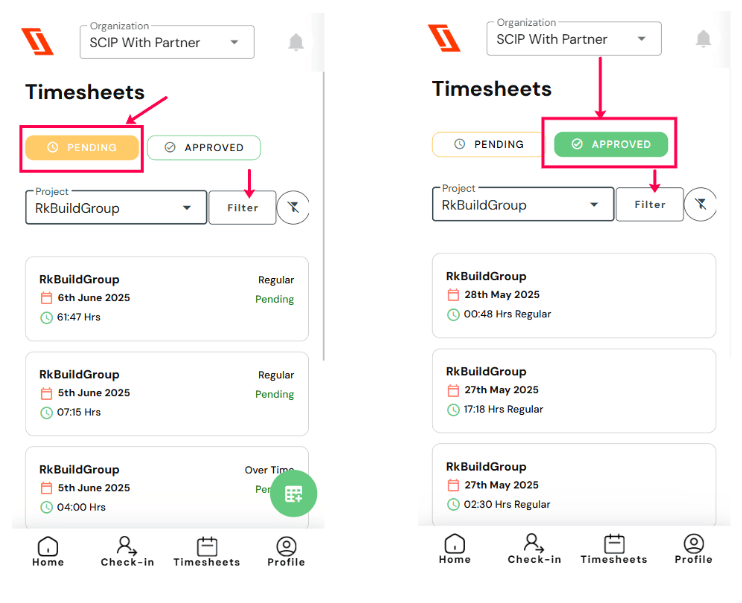
You also have various options to filter the timesheets under both the “Pending” and “Approved” sections such as projects, date range, time type, etc., by clicking the “Filter” button in the timesheet page.
RELATED POSTS
View all