How can I submit timesheets through site check-ins as a worker?
August 19, 2025 | by Nisha George

A worker must perform a check-in and check-out when they arrive at the workplace in order to log in to the daily attendance system. This data is subsequently used to auto-generate timesheets for precise time tracking. Following that, the worker can easily review, edit, and submit the timesheet details in the Swift check-in app. The detailed steps are as follows:
Step 1: Log in to the Swift Check-in app via the mobile or through the Swift Check-in website.
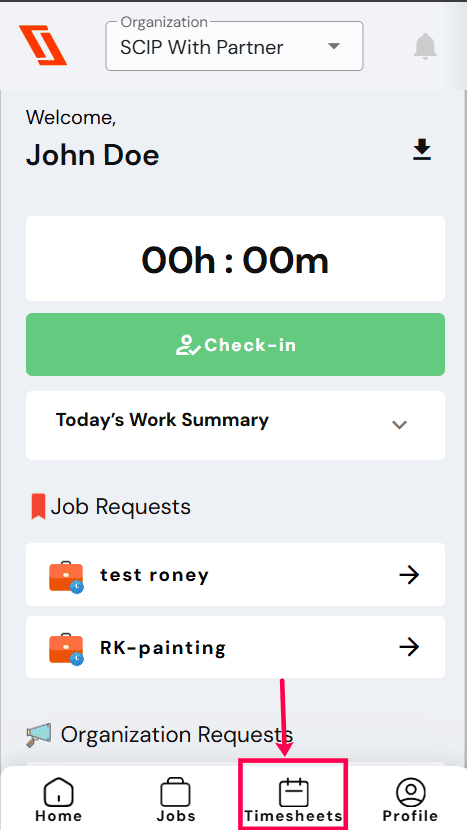
Step 2: Select the “Timesheets” icon from the home screen to get into the “Timesheets” page.
Click the “PENDING” tab to view all your timesheet entries. For each day that a check-in was performed, the system will automatically generate a timesheet entry.
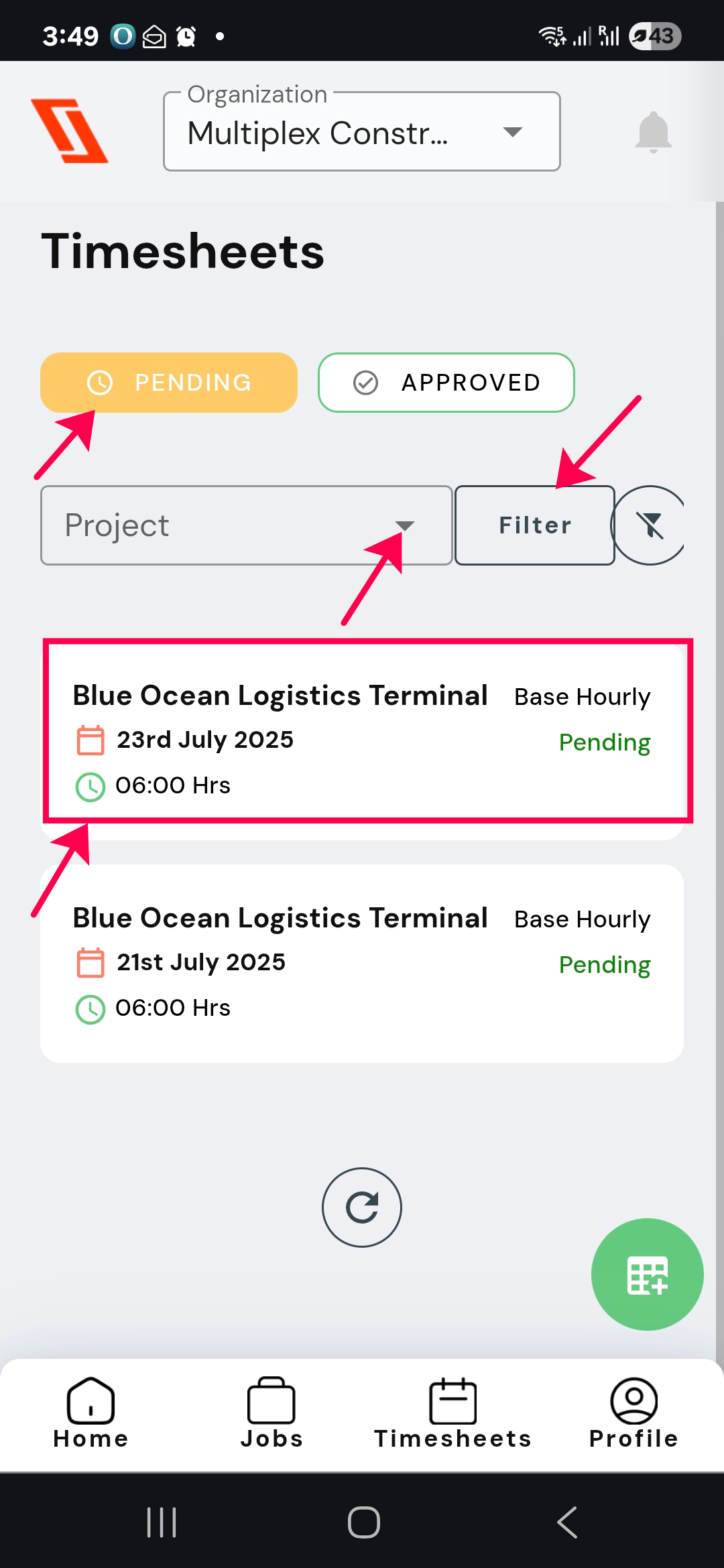
Step 3: If you have worked on multiple projects and want to submit the timesheets for a single project,
select a “Project” from the drop-down.
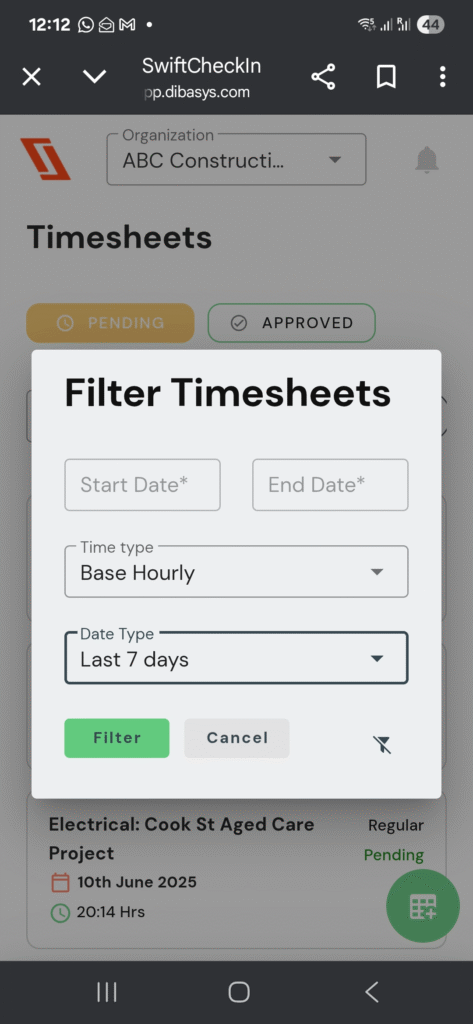
Step 4: You can also choose the “Filter” button to view timesheets based on:
– A range of dates
– Time type (hourly base, overtime, annual leave, personal leave, sick leave)
– Date type (Today, Yesterday, Last 7 days, This month, Last month)
Step 5: Select each timesheet entry, review it, and make necessary changes.
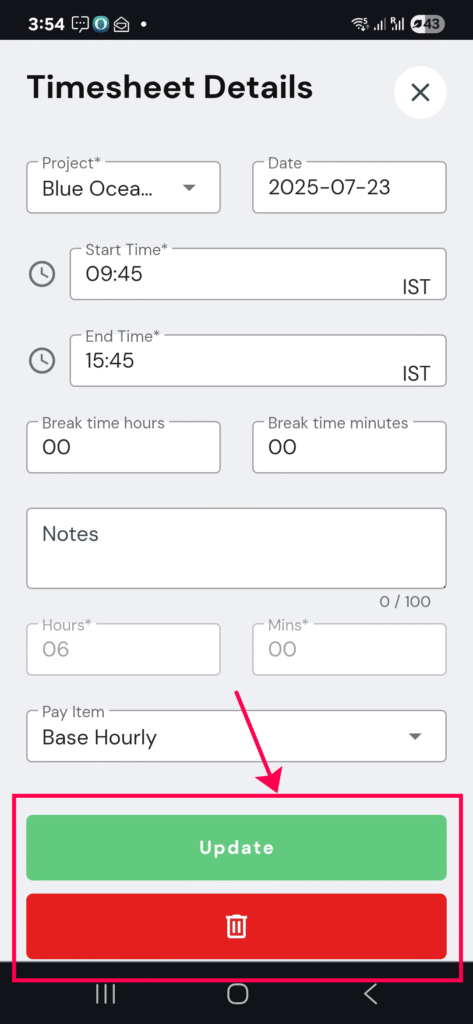
Step 6: Click the “Update” button, and the timesheets are automatically submitted for project admin approval.
Step 7: Choose the “Delete” option to remove any timesheet entry.
RELATED POSTS
View all