
A manual timesheet enables an admin user to log work hours for one or more workers on a specific date or project if the workers are unable to create timesheets by themselves. Here are the steps to follow:
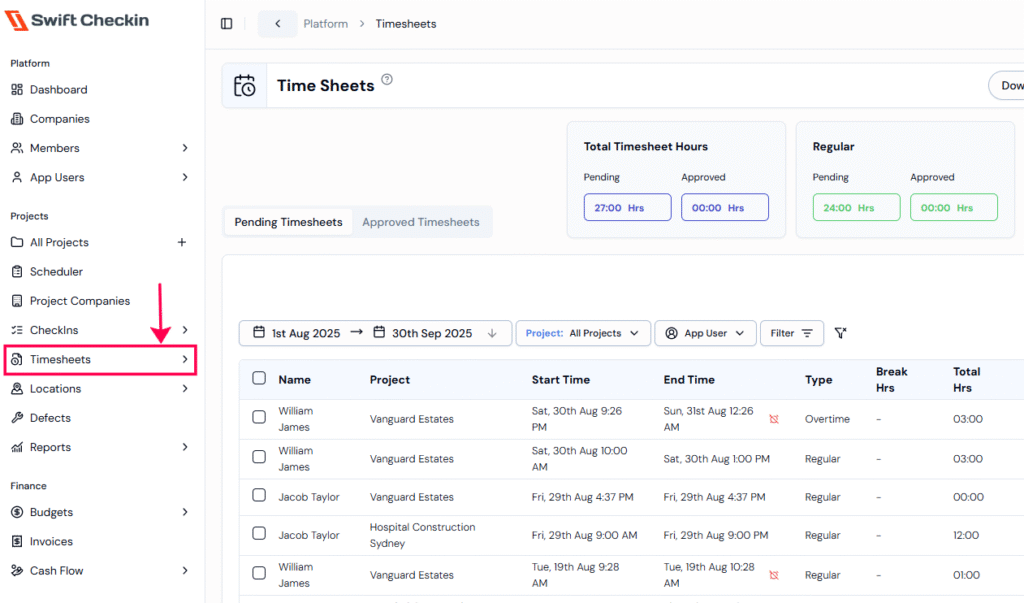
Step 1: Access the “Timesheets” from the main menu under the “Projects” category.
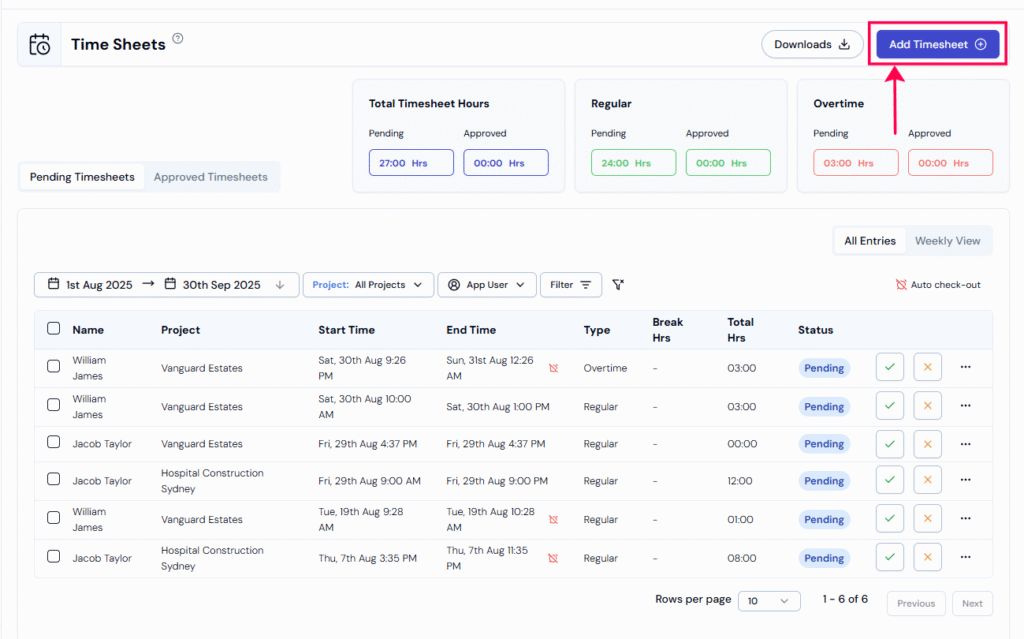
Step 2: Click on ‘Add Timesheet’ to create a new timesheet for a worker in the project.
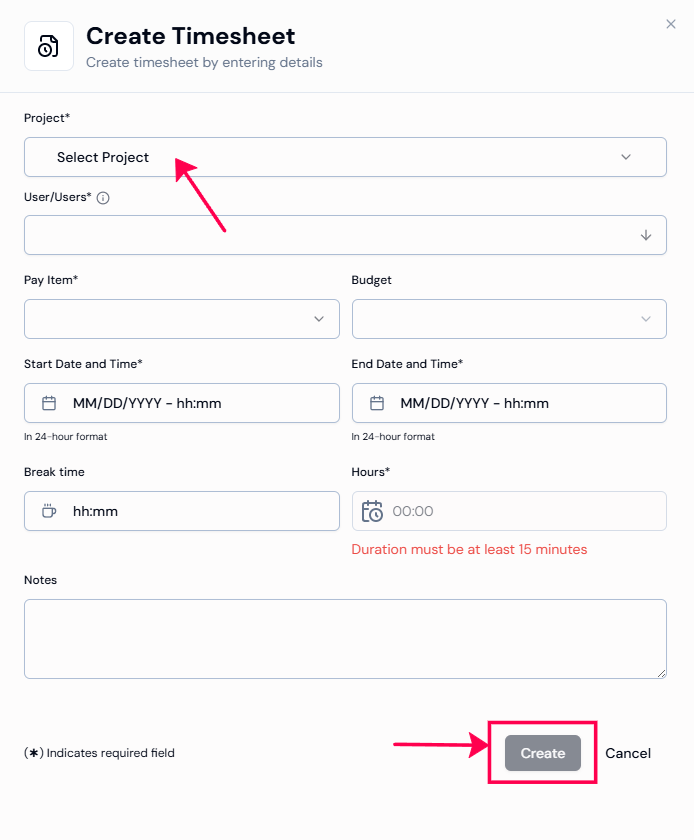
Step 3: Fill in the required details.
- Select your ‘Project’ from the dropdown menu
- Select the Date for the timesheet entry.
- Add workers who are already assigned and actively working on the chosen project.
Note: Only workers in the project with time tracking enabled will appear in the list.
- Enter Start and End Time for the shift.
- Assign a Pay Item (e.g., Base Hourly, Overtime).
- Optionally, link a Budget and add Notes if needed.
- Click “Create” to save the timesheet when all the details are entered.
Once created, the worker timesheet will appear within the project’s timesheet list. An admin can then review and approve it before sending to payroll.
RELATED POSTS
View all