



How to submit the timesheet for overtime hours
In this article, we will guide you on how to enter a timesheet for overtime hours within the Swift Checkin app.
Let’s go through an example:
A worker who starts at 7am in the morning and finishes at 3.30 pm on a weekday with a 30-minute break has worked overtime until 6.30 pm.
The company provides 1.5x pay for the first 2 hours of overtime and 2x pay for the rest of the overtime hours.
The worker has to submit 3 separate timesheets for that day for the purpose of payroll.
1. Timesheet for regular hours—7am to 3.30 pm (time type as base hourly)
2. Timesheet for overtime hours—3.30 pm to 5.30 pm (time type as overtime 1.5x)
3. Timesheet for overtime hours—5.30 pm to 6.30 pm (time type as overtime 2x)
Let’s enter the overtime details with the Swift Checkin app.
Step 1: Log in to the Swift Checkin app with the credentials via a mobile or Swift Checkin website.
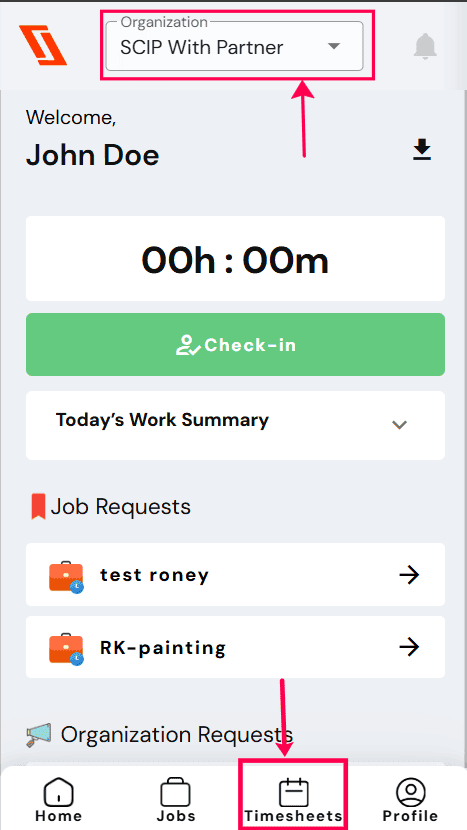
Step 2: Click on the “Timesheets” icon located at the bottom corner.
Step 3: On the Timesheet page, under the “Pending” tab, select the project for the specific day on which the overtime is done. This will take you to the timesheet details, including date, project, time, etc., in correlation with the site check-ins.
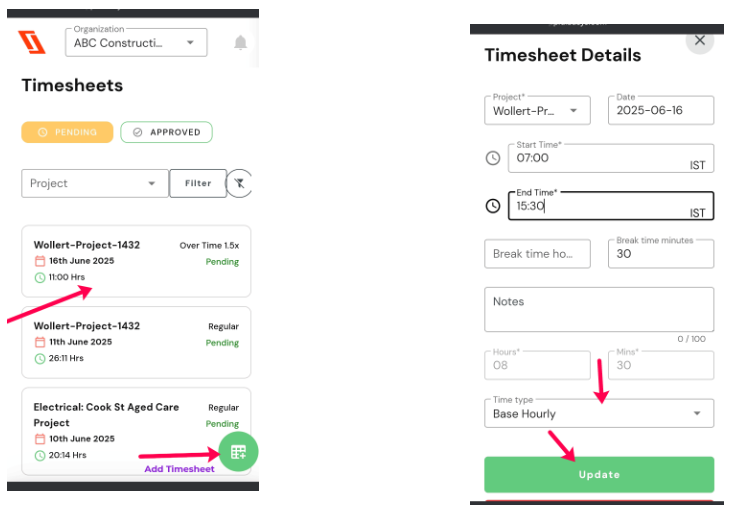
Step 4: For the regular hours worked (7am to 3:30 pm as in the example)
- Edit the start and the end time.
- Select the time type as ‘Base hourly‘ from the drop-down.
- Click “Update.”
Step 5: Now, for the overtime hours done on the same day, click on the ‘add timesheet‘ the green button on the Timesheet page.
Step 6: Fill in the required information, such as the
-Project
-Date
-Start time and end time for overtime hours.
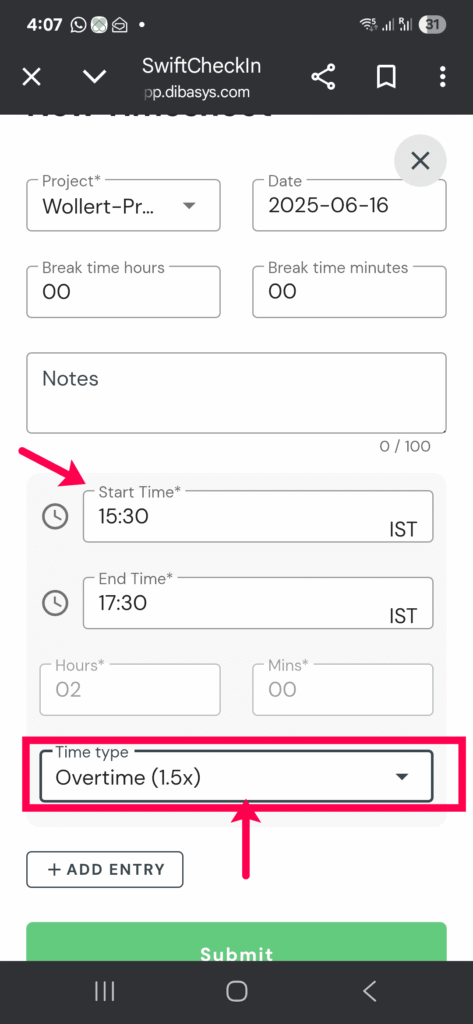
Step 5:Click on “Time type“and select Overtime (1.5x) or Overtime (2x) as determined by your organisation. Utilise “Add entry” button for multiple entries.
In the example :
-3.30 pm to 5.30 pm (Time type as Overtime 1.5 x)
-5.30 pm to 6.30 pm (Time type as Overtime 2x )
Step 6:Click on “Submit” when all the entries are made.
Now the admins can verify both the regular and over time hours submitted by the workers and approve through SwiftCheckin platform for processing payroll.
RELATED POSTS
View all


How to Upload Documents/Certifications as a Worker
July 8, 2025 | by boney.mylady@dibasys.com
How can I submit timesheets through site check-ins as a worker?
August 19, 2025 | by Nisha George