



In this guide, we will walk you through the “Jobs” section in the Swift Checkin mobile platform to be better informed about the jobs/tasks that you are working on currently and the various functionalities involved.
Let’s have a look:

Step 1: Log in to the SwiftCheckin app user platform via the mobile app or the SwiftCheckin website. Select “Jobs” from the bottom of the page.
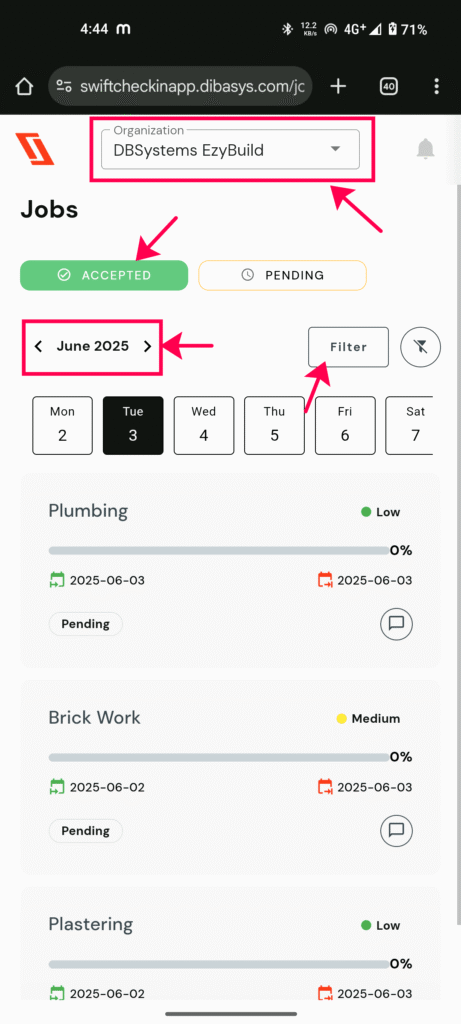
Step 2: Select your current organisation and a date. Click on the “Accepted” tab. It will provide a list of all the current tasks/jobs that you are working on.
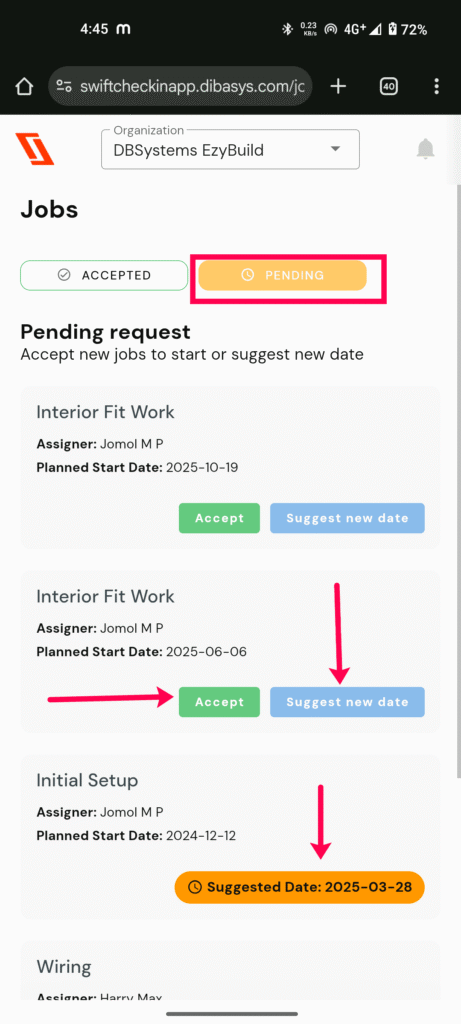
Step 4: Click on the “Pending” tab to view any assigned or upcoming jobs, which can either be ‘accepted’ or “suggest a new date” if a change of date is required.
Other Functionalities
a) Filtering Jobs
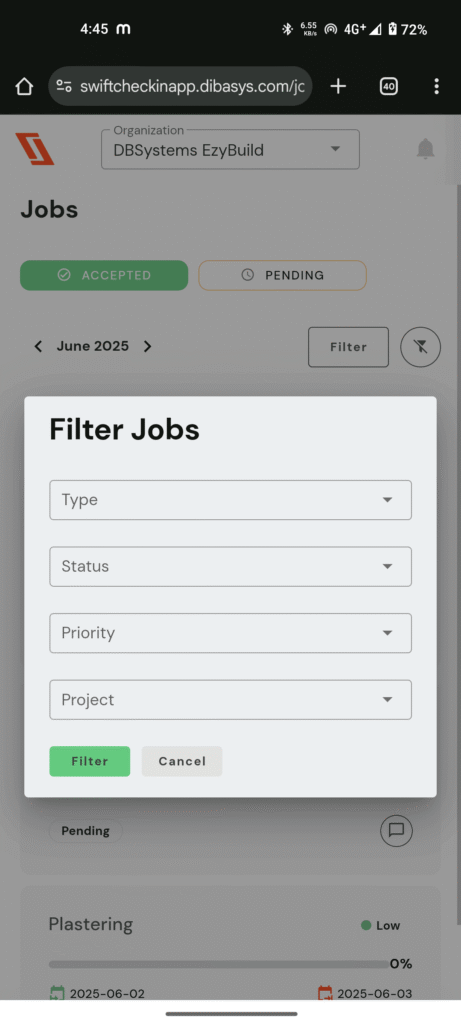
By clicking on the ”Filter” button under the ”Jobs” section, a worker can classify all the jobs or tasks based on –
- Type – (Milestone, Task, Activity)
- Status – (Pending, Suspended, Completed, Active, Delayed)
- Priority – (Low, Medium, High, Critical)
- Project
b) Live Job Progress Tracking
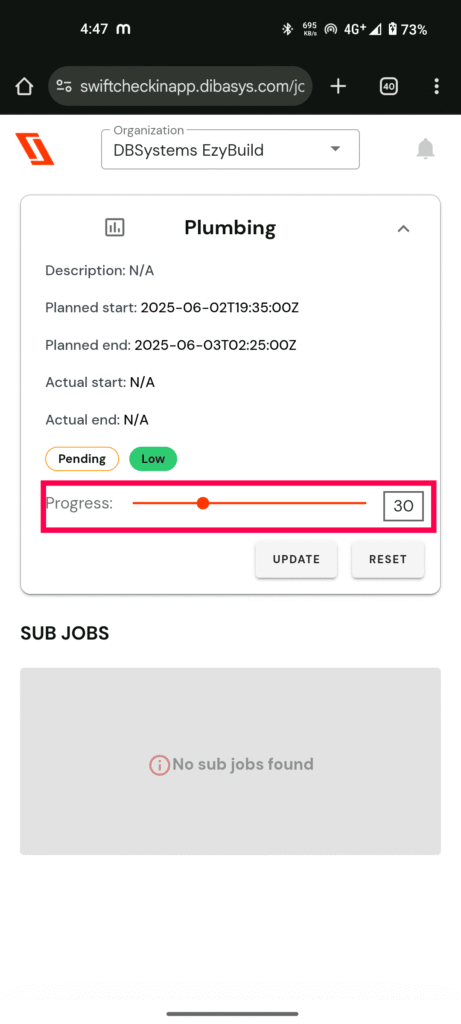
If you are a SwiftCheckin app user, you can update the progress of your job/task in real time at the end of your workday, which facilitates effective communication. Here is what you need to do:
- Access mobile app home page
- Select “Jobs.”
- Select the organisation
- Click on the job/task under the “Accepted” tab. You will be able to see the details of the selected job along with a progress tracking line.
- Simply scroll the circle or button in the progress tracking line. The number indicates the percentage of work completed.
- Click “Update”.
c) Live Site Communication
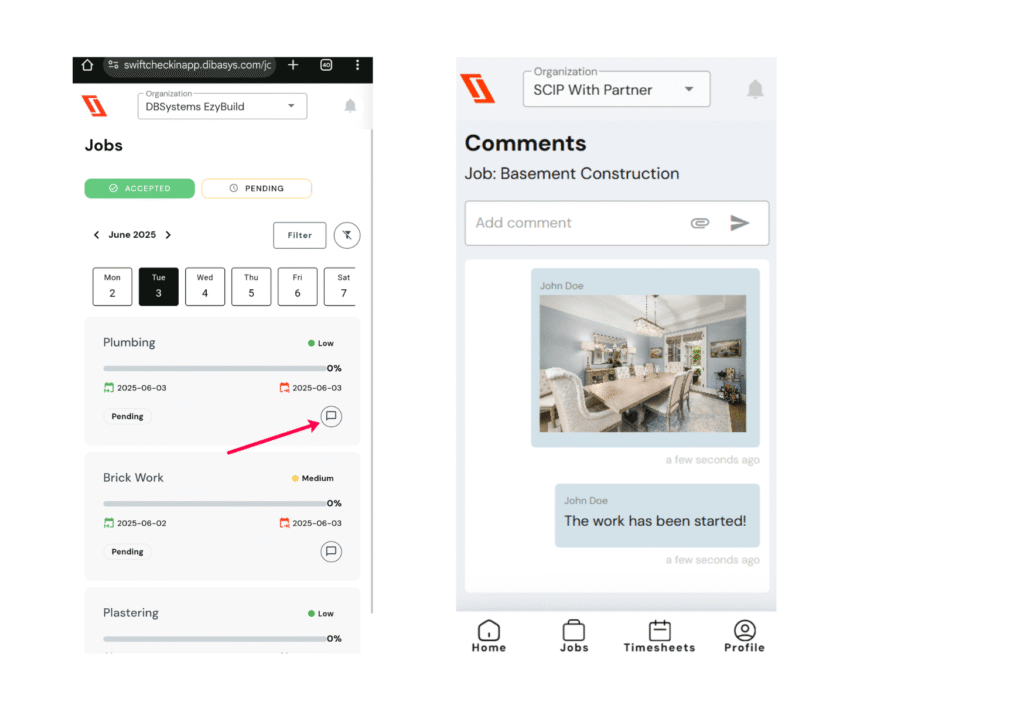
A Swift Checkin app user can chat or comment about a specific job or task and upload images or videos in real time for better communication. Here is what you can do:
- Access the Swift Checkin app home page.
- Select “Jobs.”
- Select “Organisation”
- Click “Accepted.”
- Select a date
- Select the “chat” or “comment” button associated with a specific job. You can create notes and comments or upload images or videos in the space provided.
RELATED POSTS
View all


How can I submit timesheets through site check-ins as a worker?
August 19, 2025 | by Nisha George
How to Upload Documents/Certifications as a Worker
July 8, 2025 | by boney.mylady@dibasys.com